The best Business Suite software in India, built to help your business grow. Contact us at +91-8882435276.
[ Contact ]
Phone number
Email address
Head office
Noida office
The right team at TriostackOne will get back to you.
Connect the documents, calendars and mailboxes your team already uses so project work links to them instead of living in a separate tab.
Project work linked to the files your team already has
Positioning Assessment
Most teams already keep briefs, sheets and slides in a shared drive and send invites from a shared calendar. When the project tool knows nothing about them, people paste links by hand and the links go stale.
Connecting Google Workspace lets projects point at the documents and calendars your team already uses, so a task can carry its brief, its meeting invite and its mailbox context in one place. Exact capabilities and setup depend on your plan, so ask us what is available for your account.
“The brief, the meeting invite and the task finally point at each other. Nobody asks 'where is the latest version?' anymore.”
Sample team scenario
Illustrative example, not a customer testimonial
Illustrated Overview
Picture a project card with a folder, a calendar and a mailbox clipped to its edge, so everything it needs is within reach.
Briefs and sheets stay one click away.
Meetings sit beside milestones.
People keep the accounts they already use.
Platform Integrity
Link briefs and sheets to tasks
Meetings tied to the work
People keep the tools they know
Permissions set by admins
How It Works
What changes when projects know about the files and calendars around them.
| Dimension | Triostack Projects | Pasted Links |
|---|---|---|
| Finding the Brief | Linked from the task | Hunt through a drive |
| Meeting Context | Invite connected to the project | Calendar and plan disconnected |
| Staying Current | One link to the live file | Copies that drift apart |
| Onboarding | New member sees the linked material | Someone forwards a folder |
| Access | Managed by admins | Shared ad hoc |
Our team can walk you through the connection, permissions and a first test so projects fit into the tools your team already uses.
Live Interface Tour
Real screens captured directly from the Triostack Projects workspace.
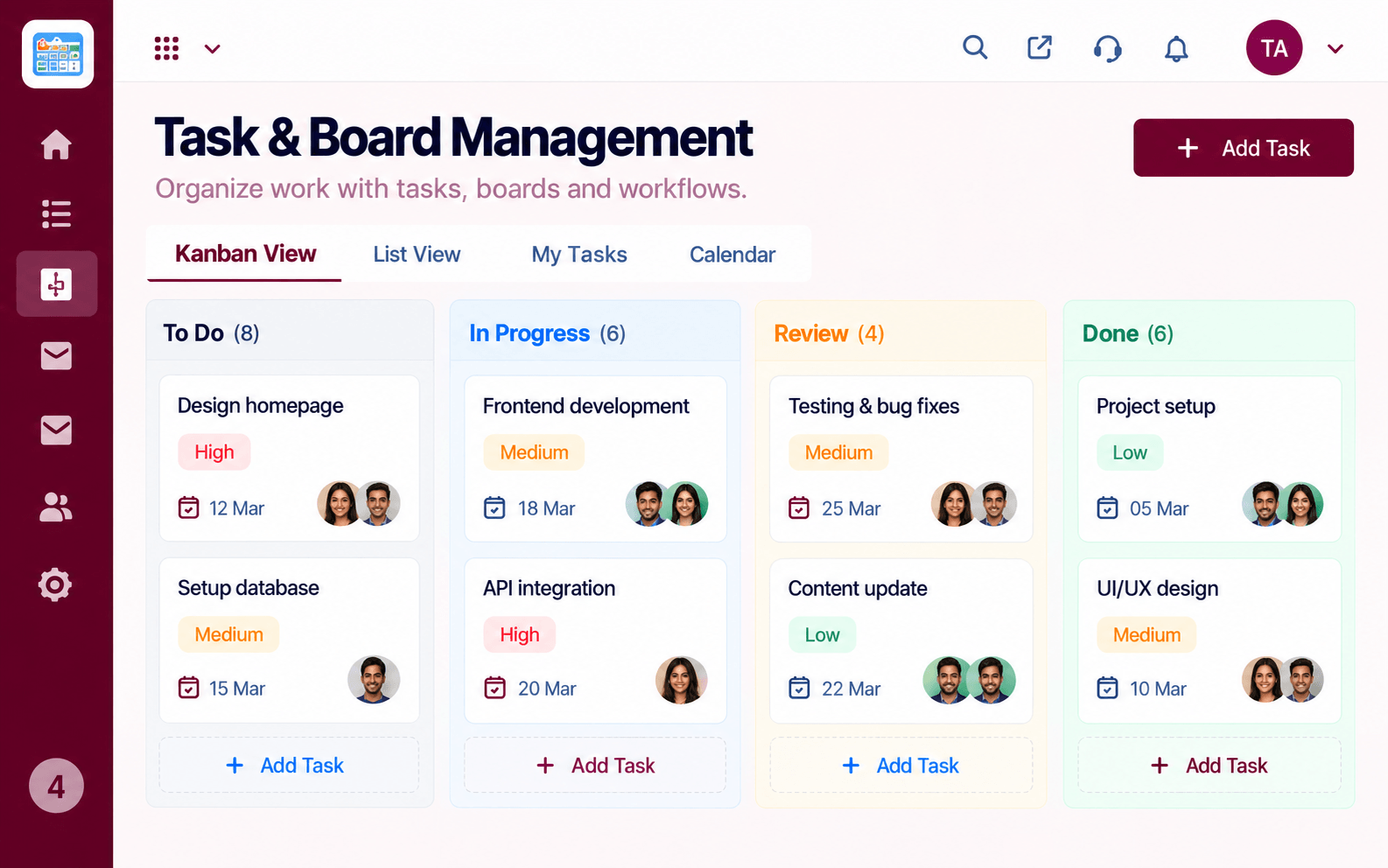 Tasks
TasksTasks moving across the stages of work
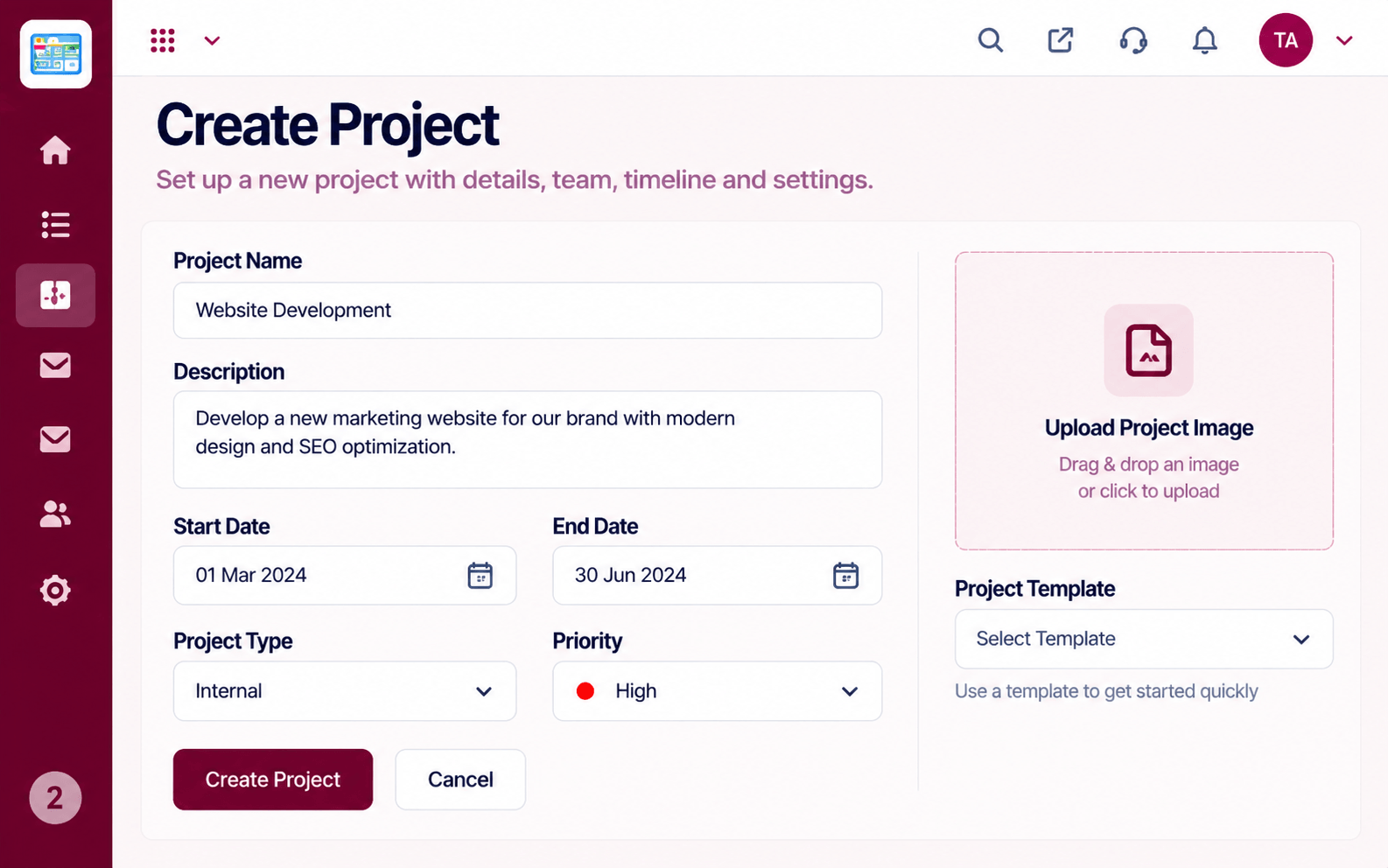 Projects
Set up a project with scope, dates and owners
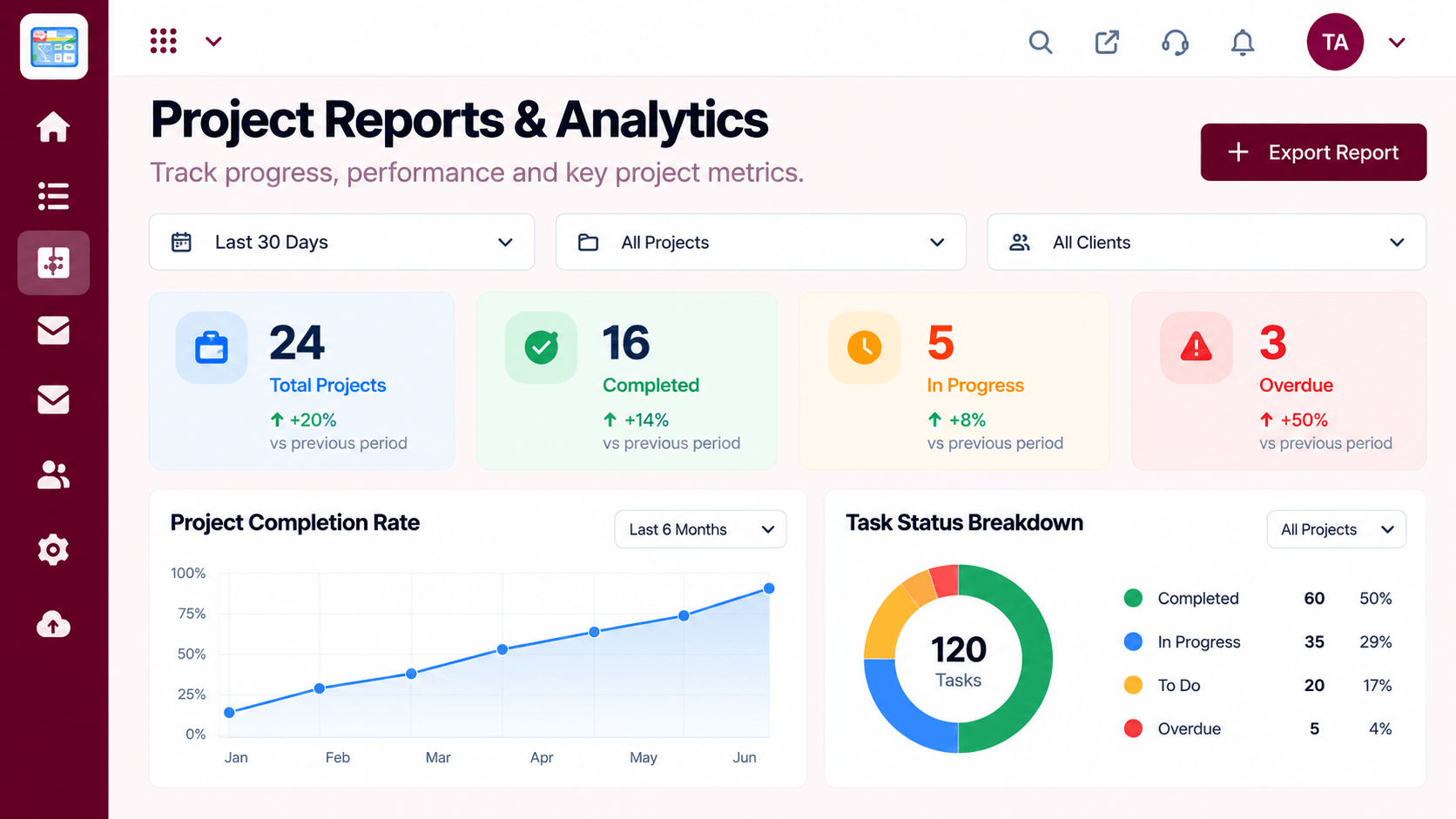 Reports
Progress, time and delivery insights
Feature Breakdown
Captured from the Triostack Projects workspace.
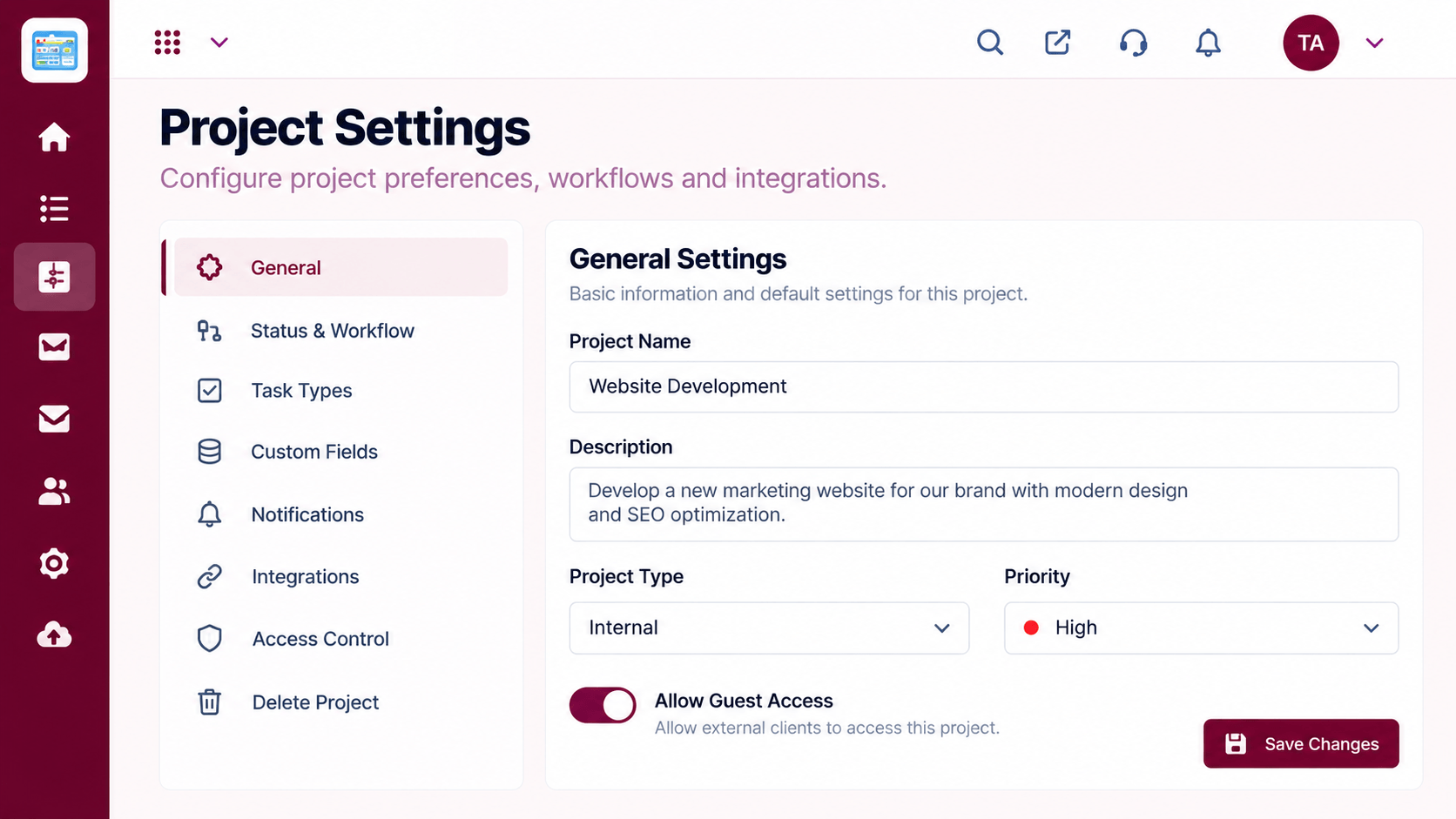
IntegrationsChoose what to connect and who may.
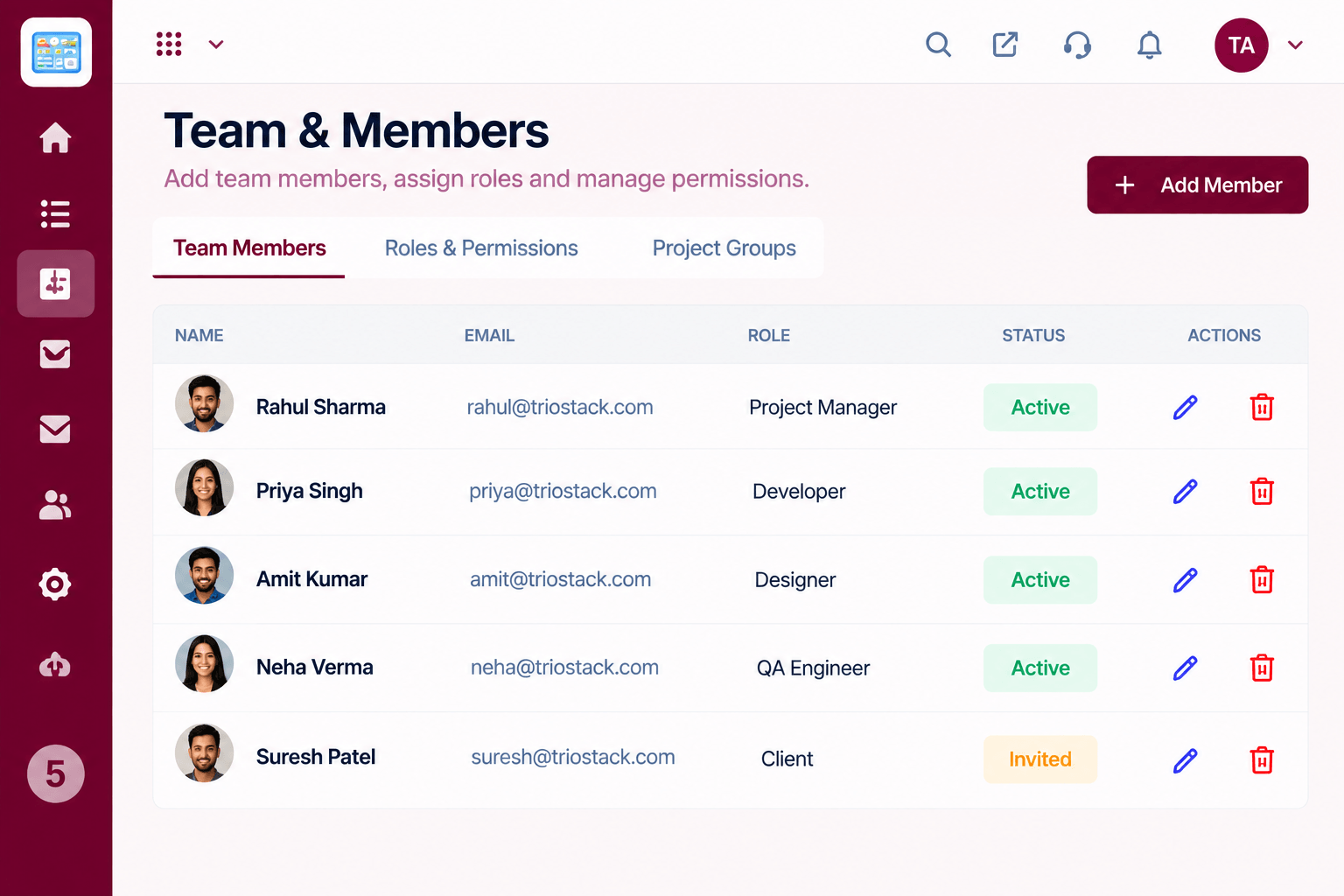 Integrations
Keep membership aligned.
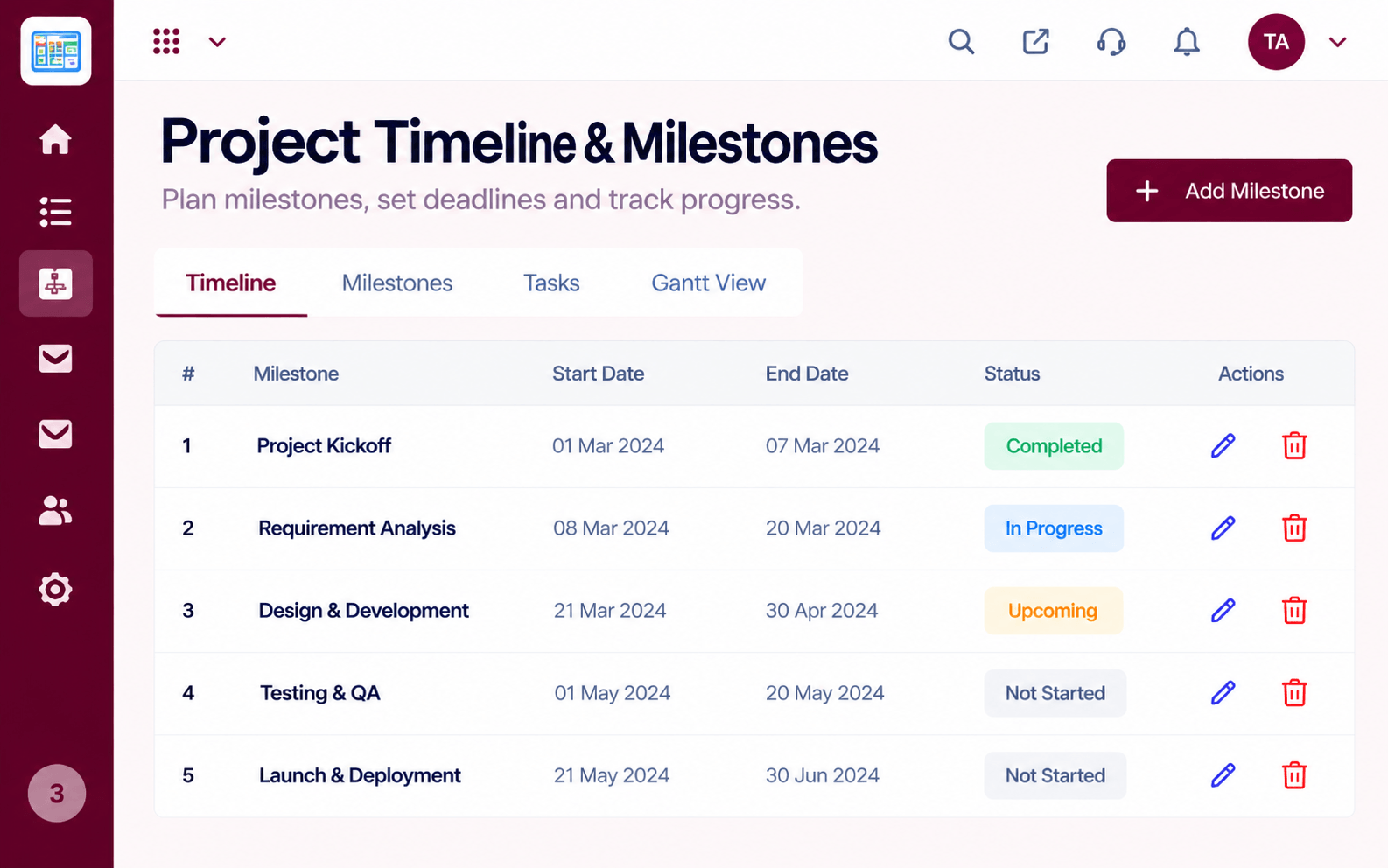 Integrations
See meetings beside milestones.
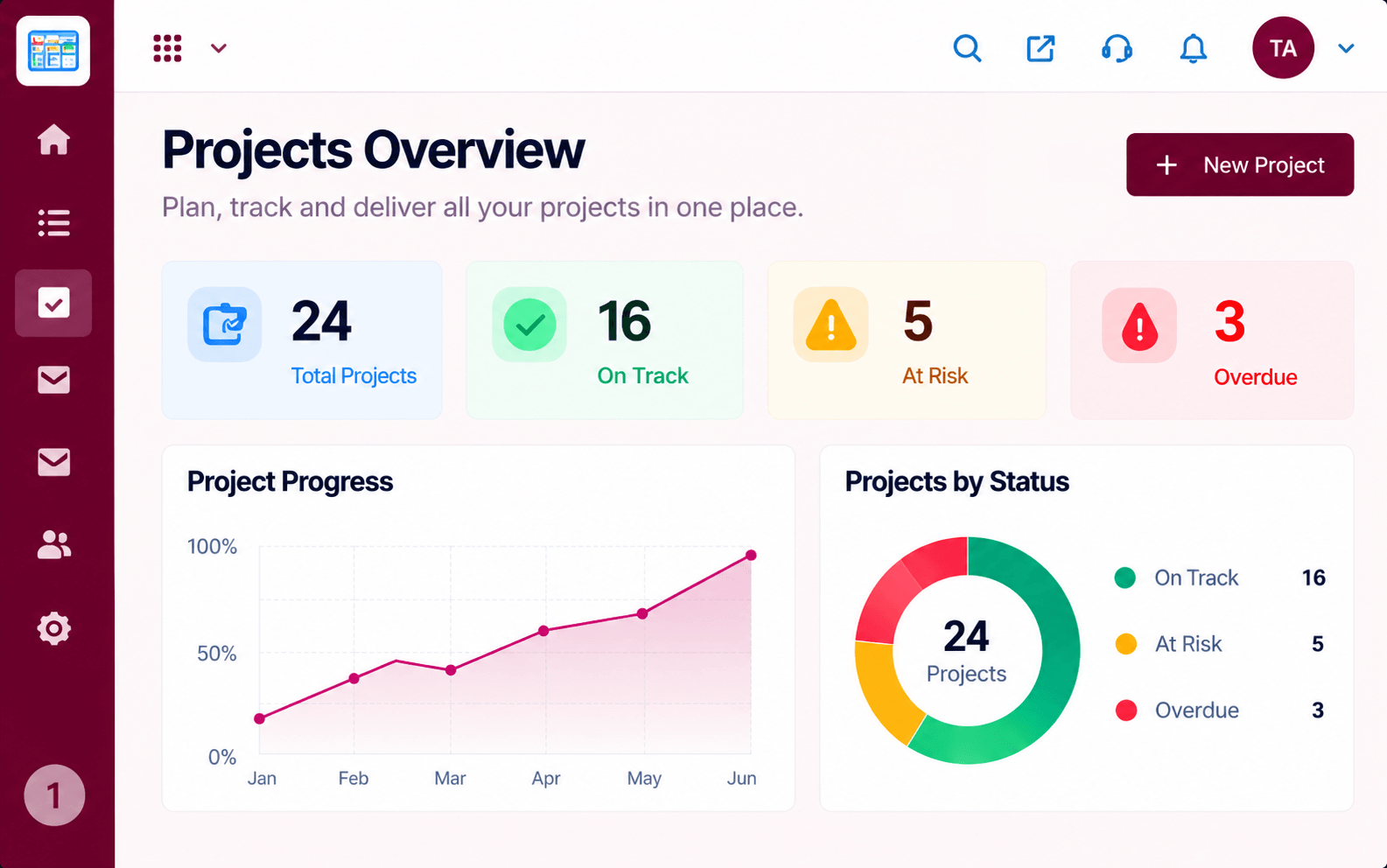 Integrations
One view of status and links.
Execution Plan
An admin signs in and grants access.
Decide which projects and teams use it.
Attach files and invites to tasks.
Check permissions and remove what is unused.
In Real Life
Scenario 01
The brief, the budget sheet and the kickoff invite hang off one task.
Scenario 02
A new member opens the project and finds every linked file.
Scenario 03
The invite and the deliverable are in the same place.
Frequently Asked Questions
Documents, calendars and mail context your team already uses. Availability depends on your plan, so ask us what applies.
No. They keep their existing workspace accounts.
Admins, through project and workspace permissions.
A guided connection by an admin. Our team can help.
Tasks, boards, timelines, workload and reports in one workspace, built for teams who deliver on time.
Explore All Integrations
