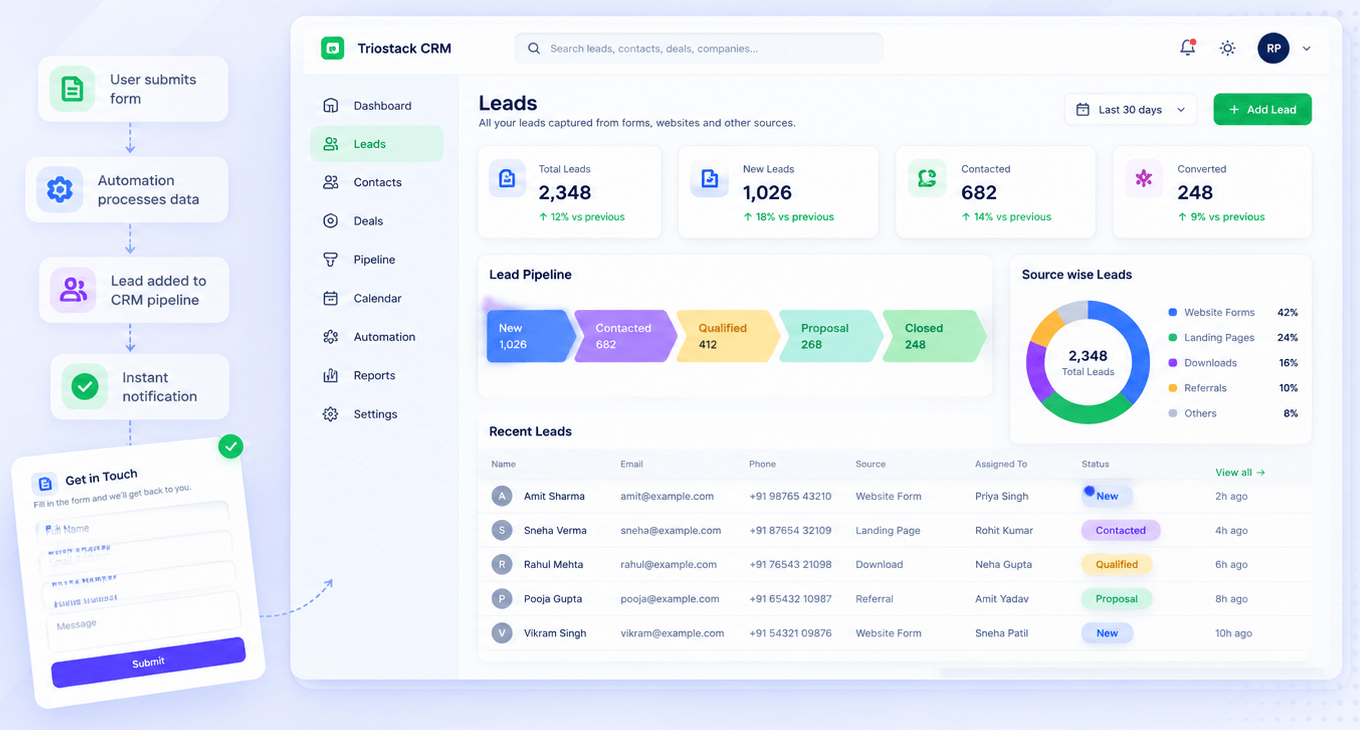
The best Business Suite software in India, built to help your business grow. Contact us at +91-8882435276.
[ Contact ]
Phone number
Email address
Head office
Noida office
The right team at TriostackOne will get back to you.
Draft
Write in the editor.
Optimise
Set title and description.
Preview
Check the layout.
Publish
Go live.
Positioning Assessment
Teams with something to say often cannot say it because the website is a queue.
In Triostack Website, create or update a content page in the visual editor, set its SEO title and meta description, preview it and publish. When a page moves, add a 301 or 302 redirect so visitors and search engines follow.
“We stopped batching content for a monthly release and just posted when it was ready.”
Sample team scenario
Illustrative example, not a customer testimonial
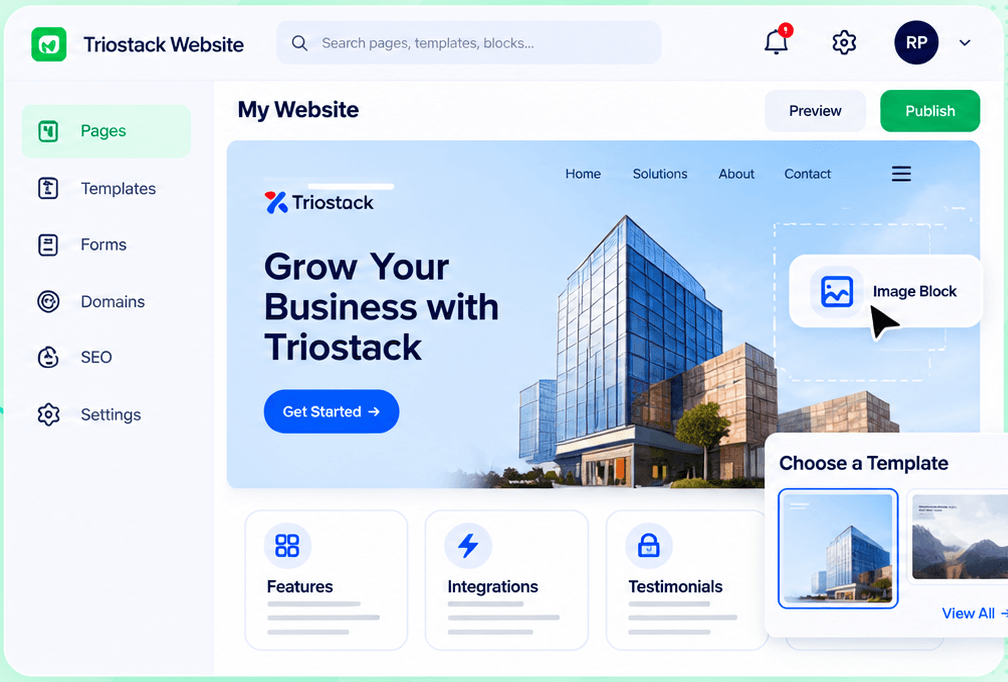
Website Builder
Pages, templates, forms, domains and SEO in one workspace
In the Product
Imagine finishing a page and sending it straight to the shelves.
No queue.
SEO as you go.
Redirects keep traffic.
Platform Integrity
Write and place
Title and meta
Check the layout
Move pages safely
How It Works
What changes when you can publish directly.
| Dimension | Triostack Website | A Release Queue |
|---|---|---|
| Writing | In the editor | In a document, then rebuilt |
| SEO | Set on the page | Added later |
| Preview | Before it is live | On staging |
| Moves | Redirects in the same place | Server rules |
| Speed | Same day | Next release |
We will help you build your first page, connect a form to CRM and publish on your domain in your first session.
Live Interface Tour
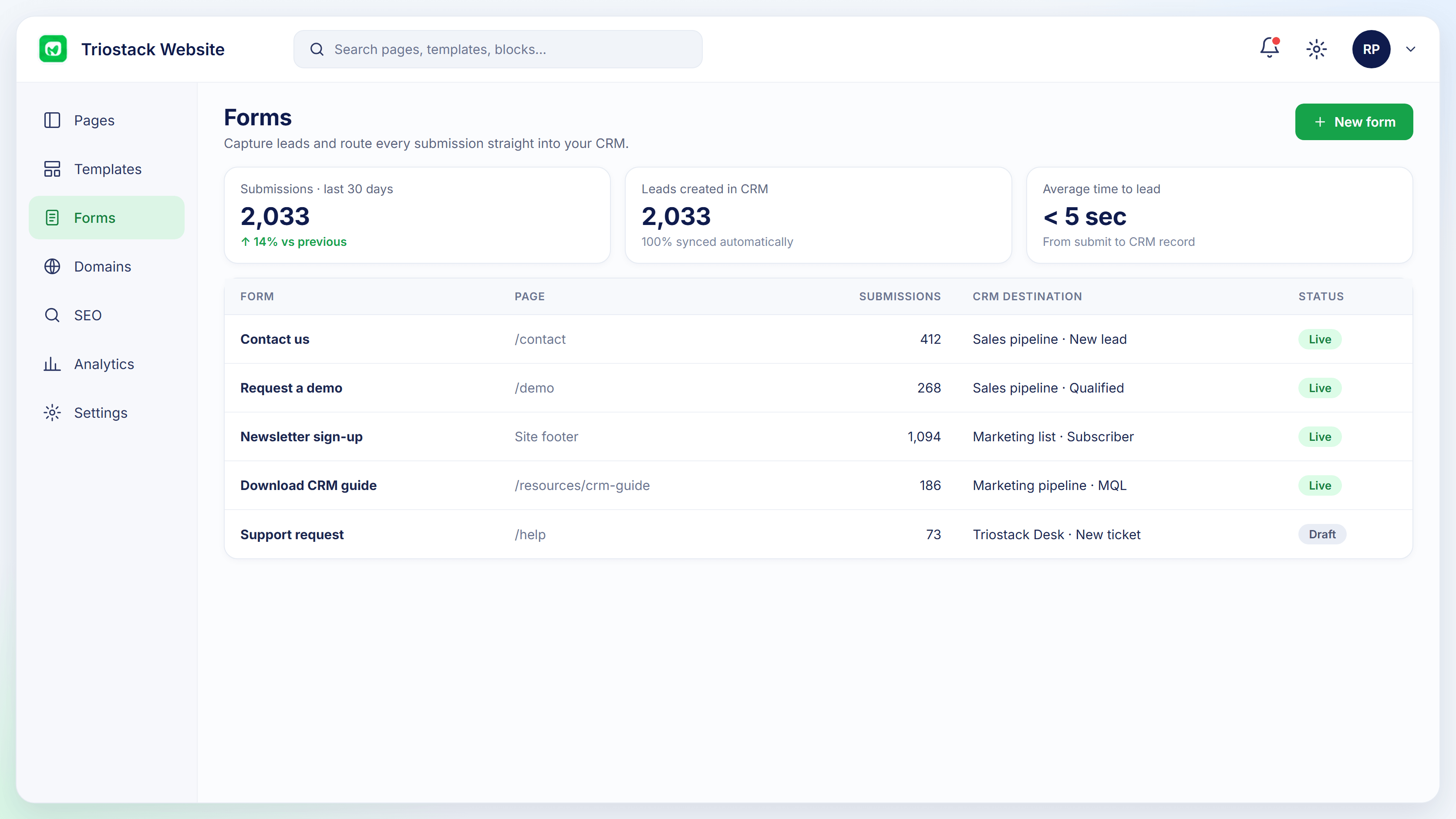
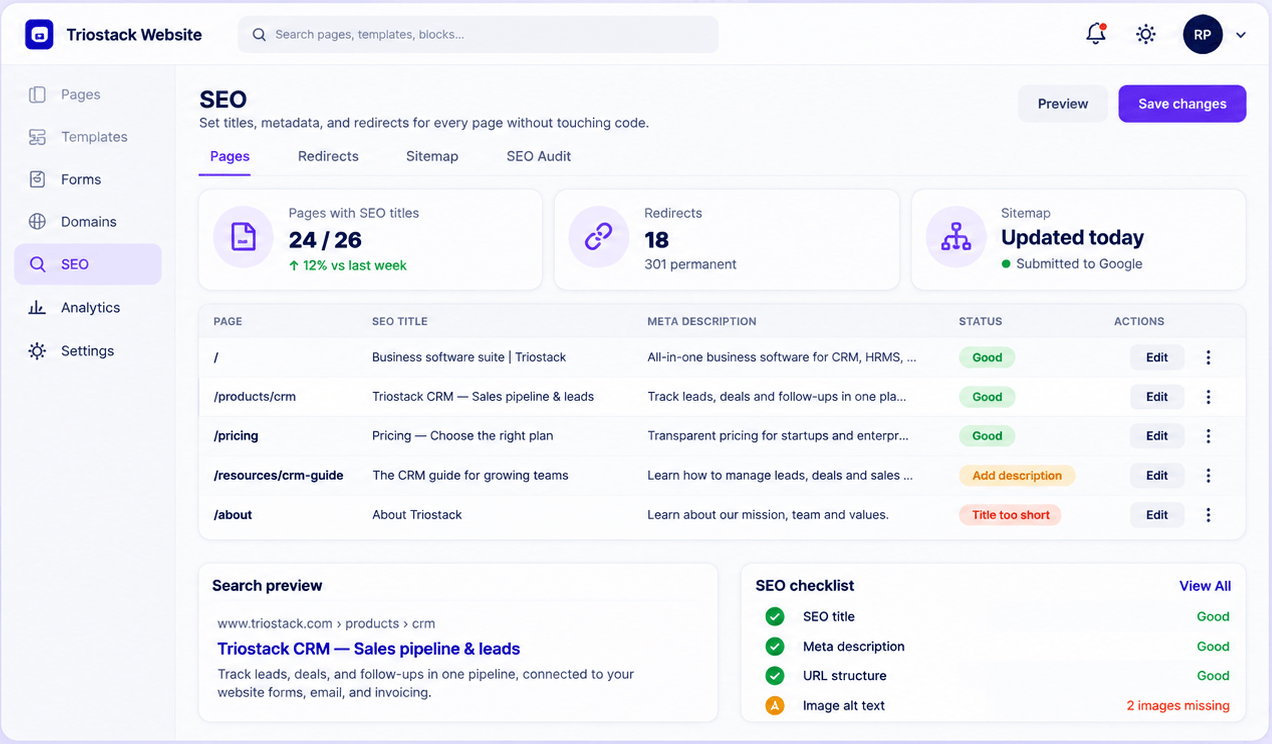
Real screens captured directly from the Triostack Website workspace.
SEO Controls
From draft to live page
Feature Breakdown
Captured from the Triostack Website workspace.
Set the details.
How it fits the plan
Draft. Write in the editor.
Optimise. Set title and description.
Practical tip
Set the page title and description before you press publish. They are hardest to remember afterwards.
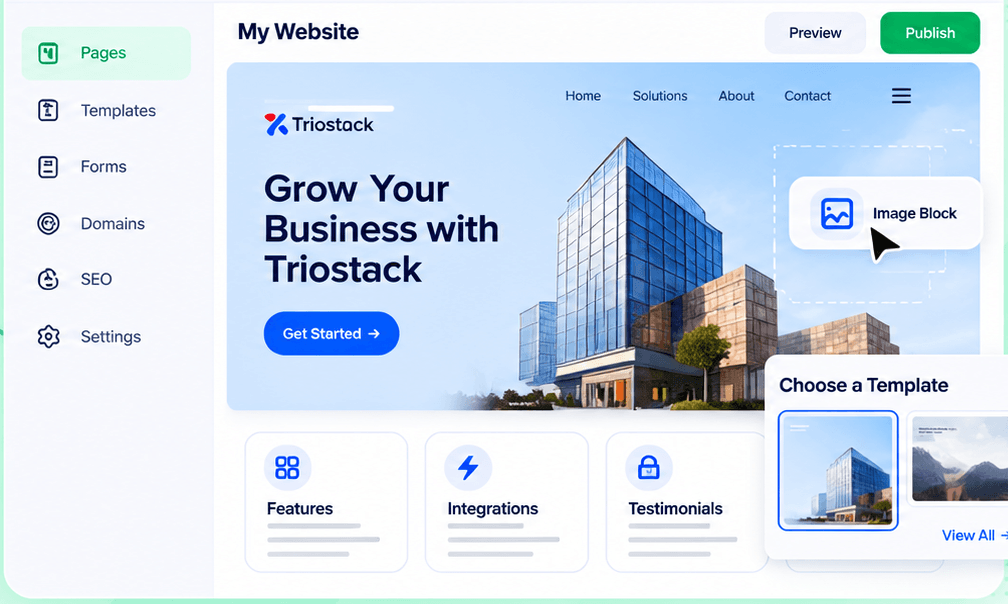
Write the page.
How it fits the plan
Optimise. Set title and description.
Preview. Check the layout.
In real life
News
A page is posted as events happen.
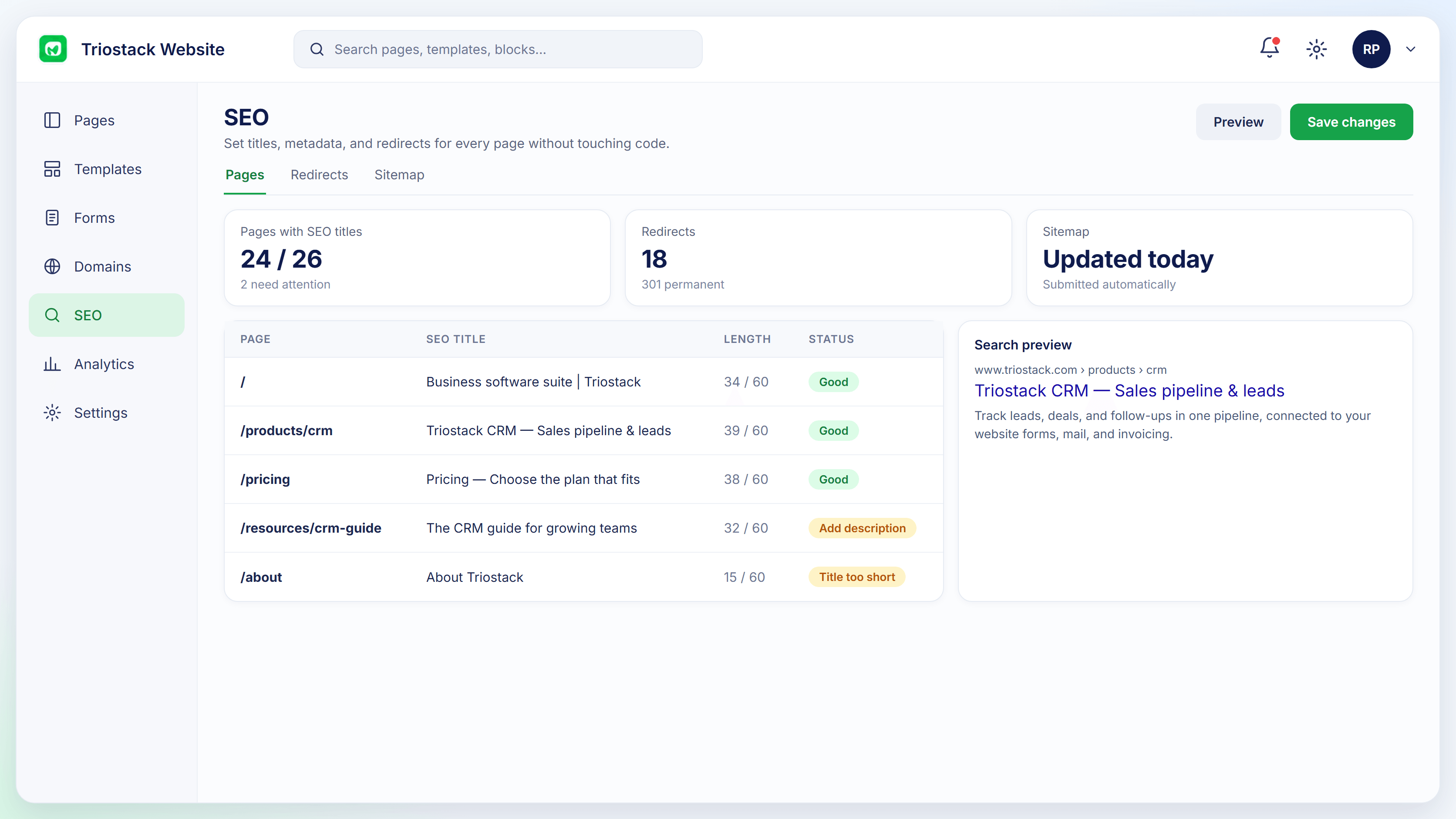
Check the page.
How it fits the plan
Preview. Check the layout.
Publish. Go live.
Watch out for
Publishing under a messy page address and fixing it later with no redirect.
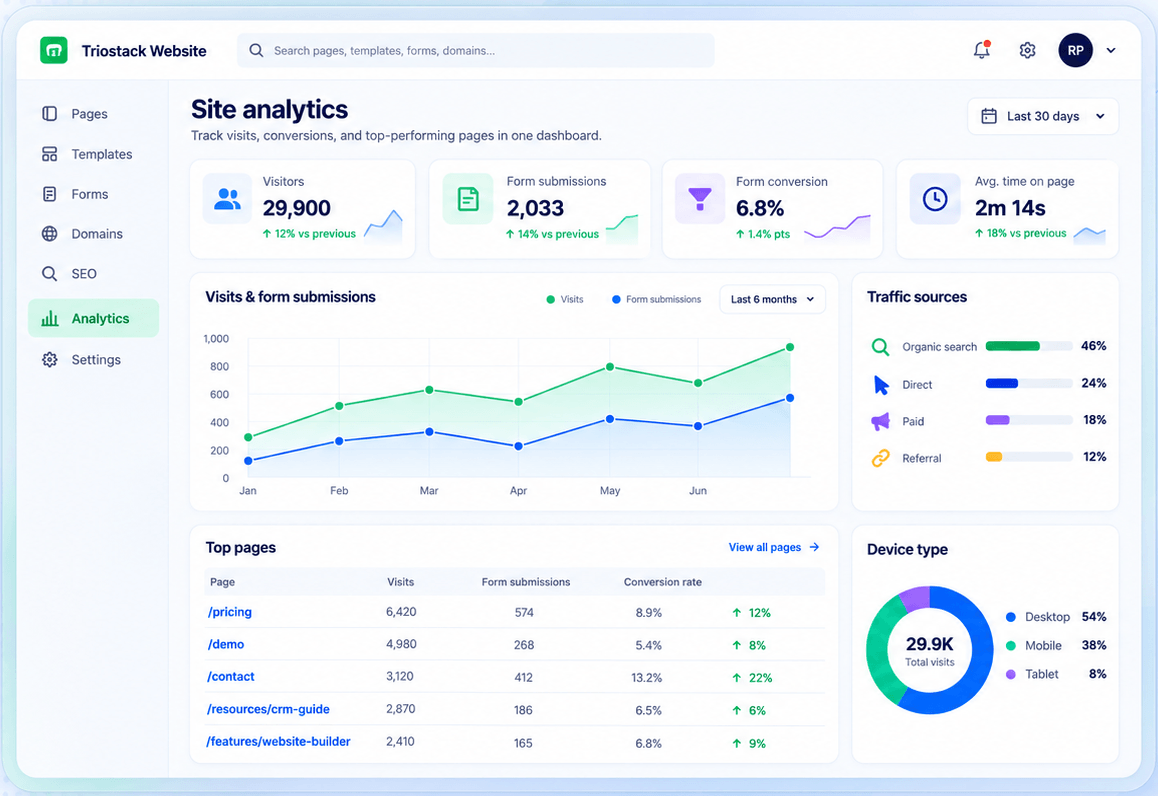
See who reads.
How it fits the plan
Publish. Go live.
Draft. Write in the editor.
Before you start
Execution Plan
Write in the editor.
Set title and description.
Check the layout.
Go live.
Practical Guide
Before you start
A tip that helps
Set the page title and description before you press publish. They are hardest to remember afterwards.
A common mistake
Publishing under a messy page address and fixing it later with no redirect.
In Real Life
Scenario 01
A page is posted as events happen.
Scenario 02
An old page is updated and kept live.
Scenario 03
Moved URLs redirect.
Straight answers about Publish Content, from setup to what happens next.
Have a question about Publish Content?
Book a free callYes.
Yes.
Yes, with 301 and 302 redirects.
Ask us about blog-specific features on your plan.
Create content pages in the editor, set titles and descriptions, preview and publish, and redirect old URLs when things move.
It runs in 4 steps: Draft, Optimise, Preview and Publish. Write in the editor.
The real screens on this page include Website Builder, Forms, Domains & Hosting and SEO Controls, all captured from the product.
Request a demo or start a free trial. Our team can also walk you through a guided setup, so your first session ends with something working.
Keep Exploring
Pages, forms, SEO and hosting in one workspace, with every form submission landing in your CRM.