The best Business Suite software in India, built to help your business grow. Contact us at +91-8882435276.
[ Contact ]
Phone number
Email address
Head office
Noida office
The right team at TriostackOne will get back to you.
Customer
Pick or add the customer.
Lines
Add products or services.
Review
Check amounts and branding.
Send
Send and track.
Positioning Assessment
A good invoice takes the right customer, the right lines and the right branding. Getting those from three places makes it slow.
In Triostack Finance, pick the customer, add products or services from your catalogue (or convert an accepted quotation), apply your branding and send. Then follow the invoice by status until payment.
“Pick a customer, pick the lines, send. That is all it takes now.”
Sample team scenario
Illustrative example, not a customer testimonial
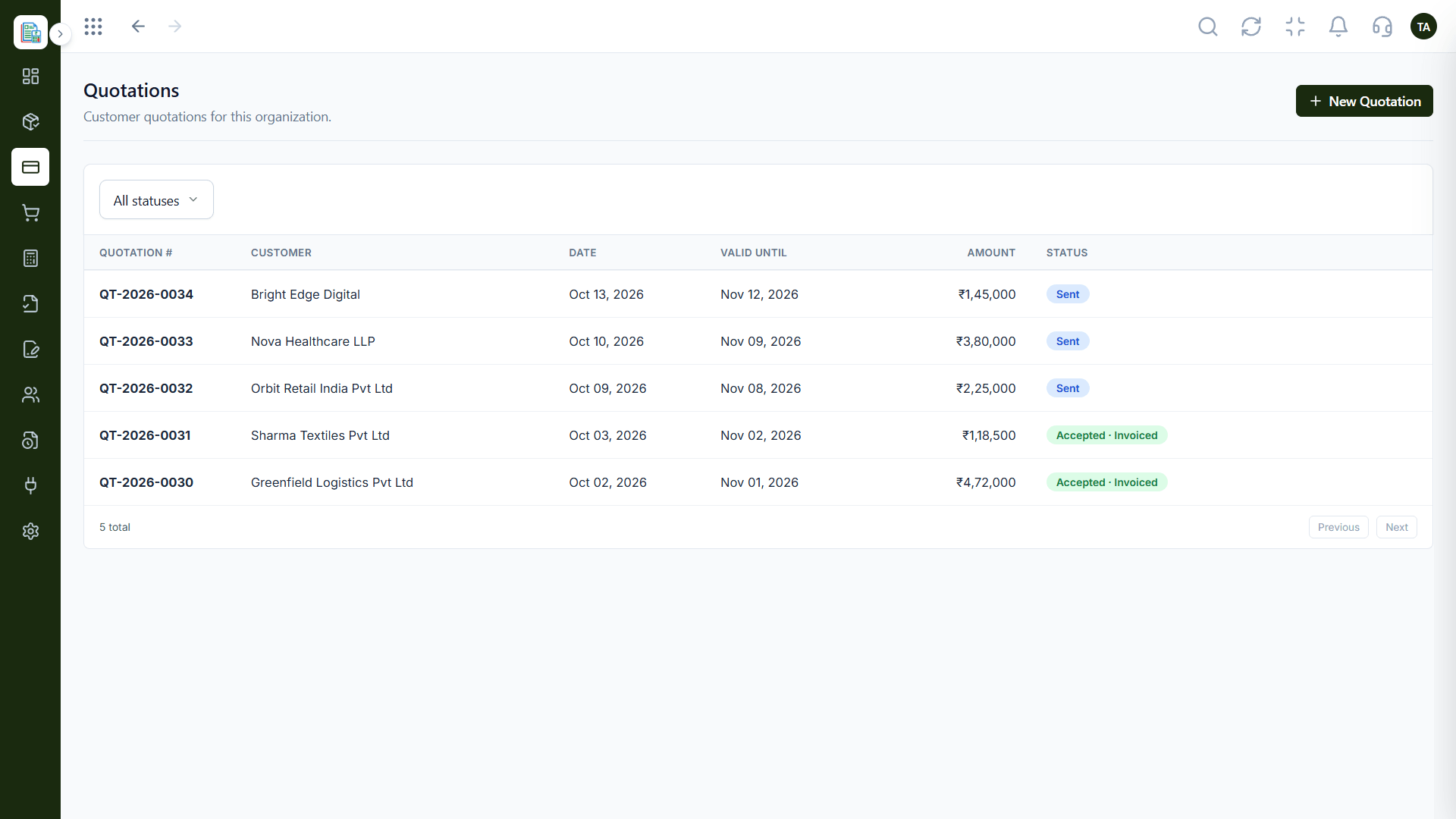
Quotations
Quotations followed until they are accepted
In the Product
Imagine a bill that fills in the customer, the lines and your logo for you.
Customers and products ready.
Every invoice looks right.
Status shows what is next.
Platform Integrity
Pick from your list
Consistent products
Logo, header, footer
Follow to payment
How It Works
What a connected invoice gives you.
| Dimension | Triostack Finance | Blank Templates |
|---|---|---|
| Customer | Chosen from the directory | Typed each time |
| Lines | From the catalogue | Free text |
| Branding | Applied automatically | Edited per file |
| Sending | From the invoice | Attach and email |
| Tracking | Status filters | Check manually |
We will help you create your first customer, invoice and report end to end in your first session.
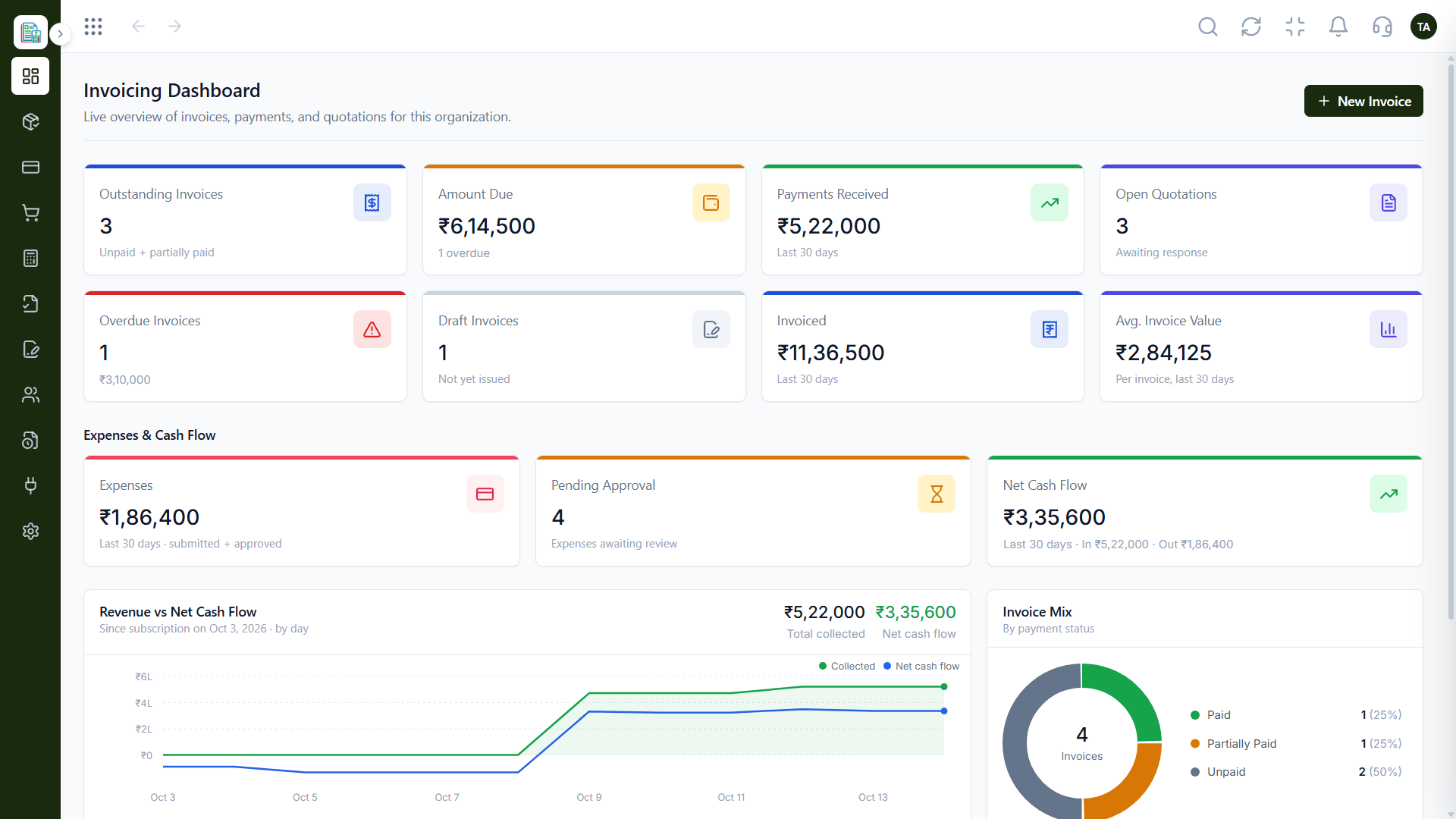
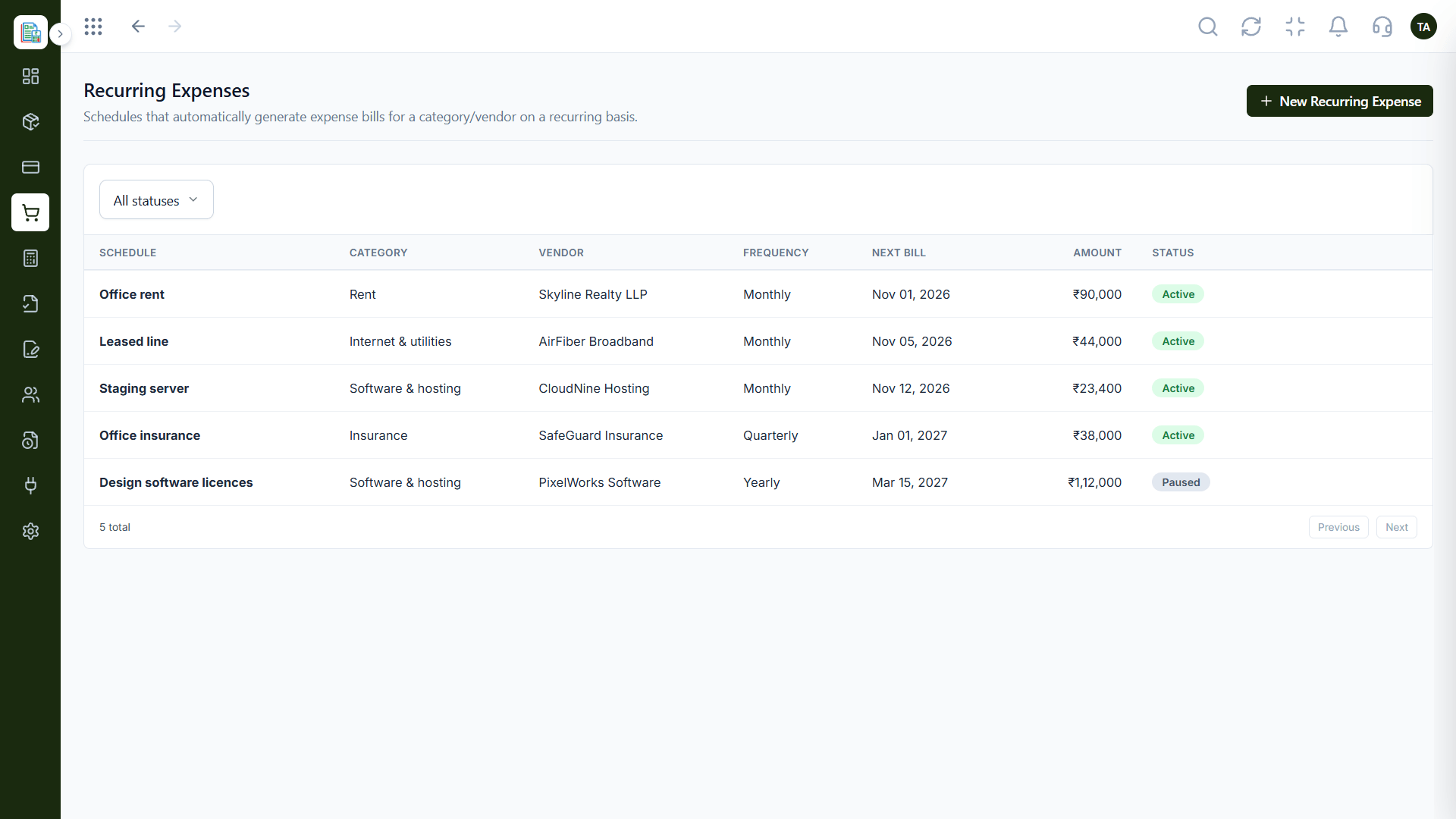
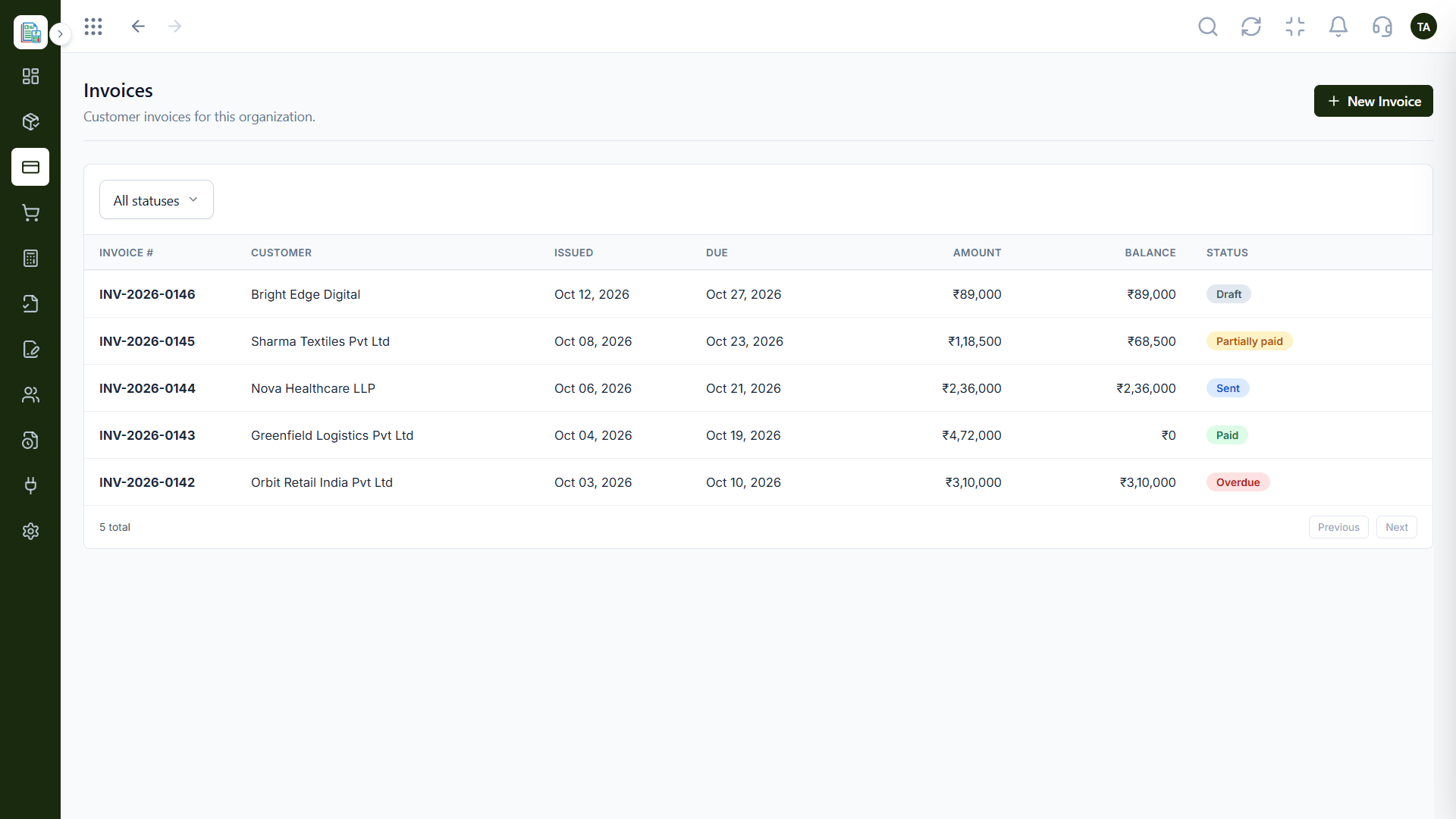
Live Interface Tour
Real screens captured directly from the Triostack Finance workspace.
Invoices
From draft to sent
Feature Breakdown
Captured from the Triostack Finance workspace.
Create and track.
How it fits the plan
Customer. Pick or add the customer.
Lines. Add products or services.
Practical tip
Create the customer and the product lines once. Every later invoice then takes seconds.
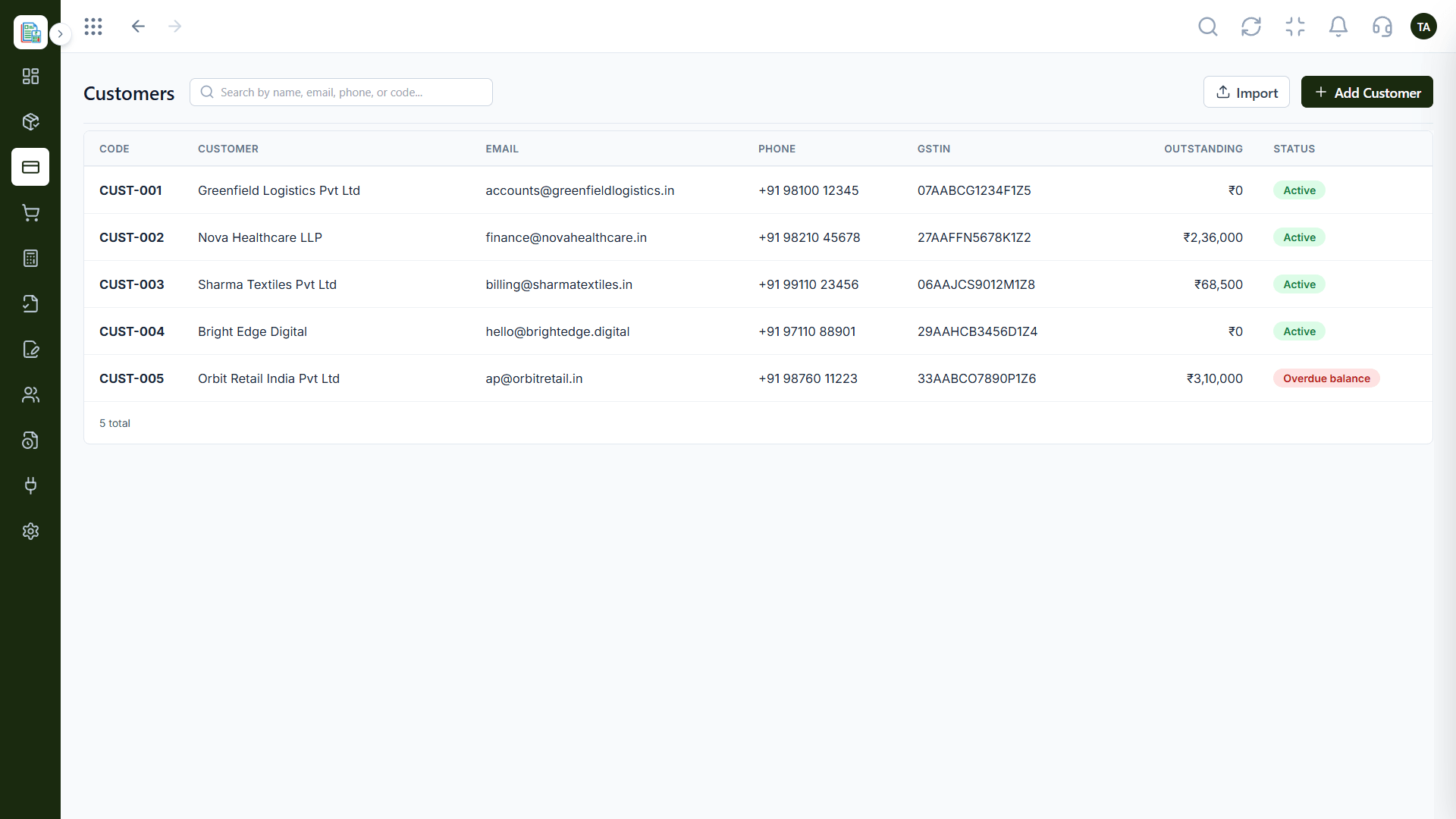
Pick the customer.
How it fits the plan
Lines. Add products or services.
Review. Check amounts and branding.
In real life
Accepted quote
An invoice is created from it.
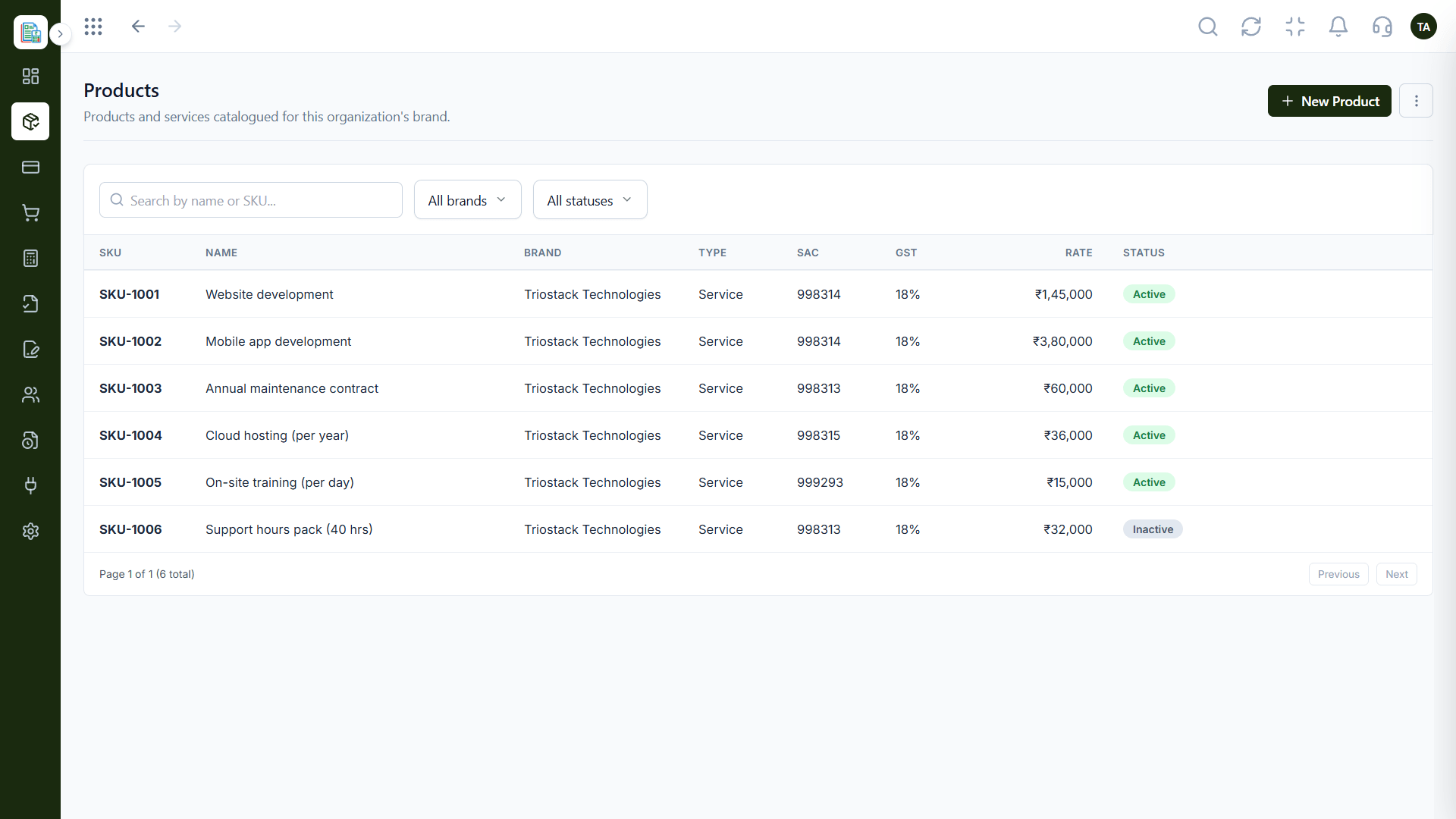
Pick the lines.
How it fits the plan
Review. Check amounts and branding.
Send. Send and track.
Watch out for
Typing line items freehand and ending up with five names for the same service.
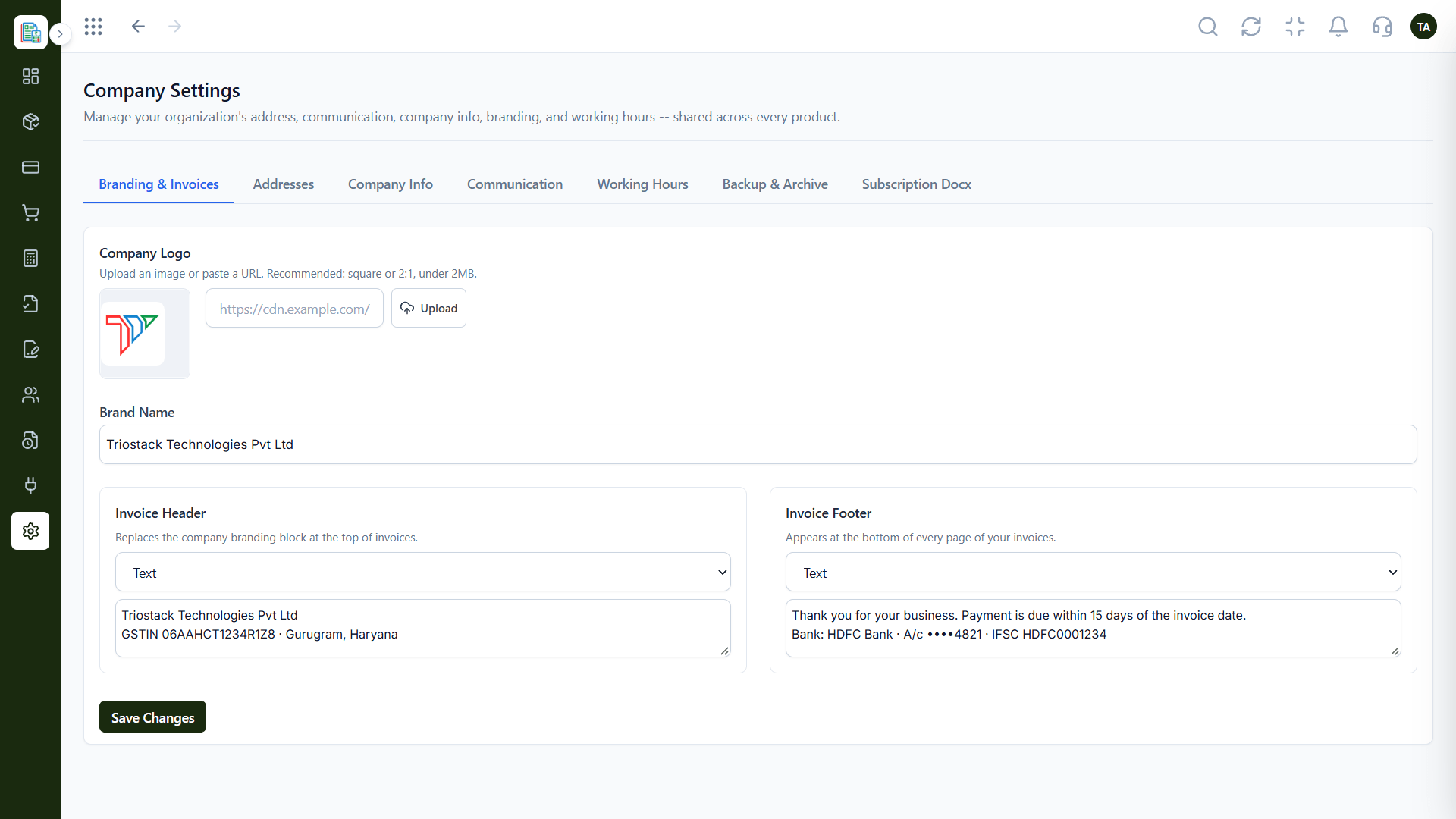
Look like you.
How it fits the plan
Send. Send and track.
Customer. Pick or add the customer.
Before you start
Execution Plan
Pick or add the customer.
Add products or services.
Check amounts and branding.
Send and track.
Practical Guide
Before you start
A tip that helps
Create the customer and the product lines once. Every later invoice then takes seconds.
A common mistake
Typing line items freehand and ending up with five names for the same service.
In Real Life
Scenario 01
An invoice is created from it.
Scenario 02
Details are already there.
Scenario 03
Many invoices go out quickly.
Straight answers about Create Invoices, from setup to what happens next.
Have a question about Create Invoices?
Book a free callYes. Accepted quotations can become invoices.
Yes. Add your logo, header and footer once.
Yes, send it to the customer from the invoice.
Issue a credit note linked to the invoice.
Create a branded invoice from a quotation or from scratch, send it to the customer and track it until it is paid.
It runs in 4 steps: Customer, Lines, Review and Send. Pick or add the customer.
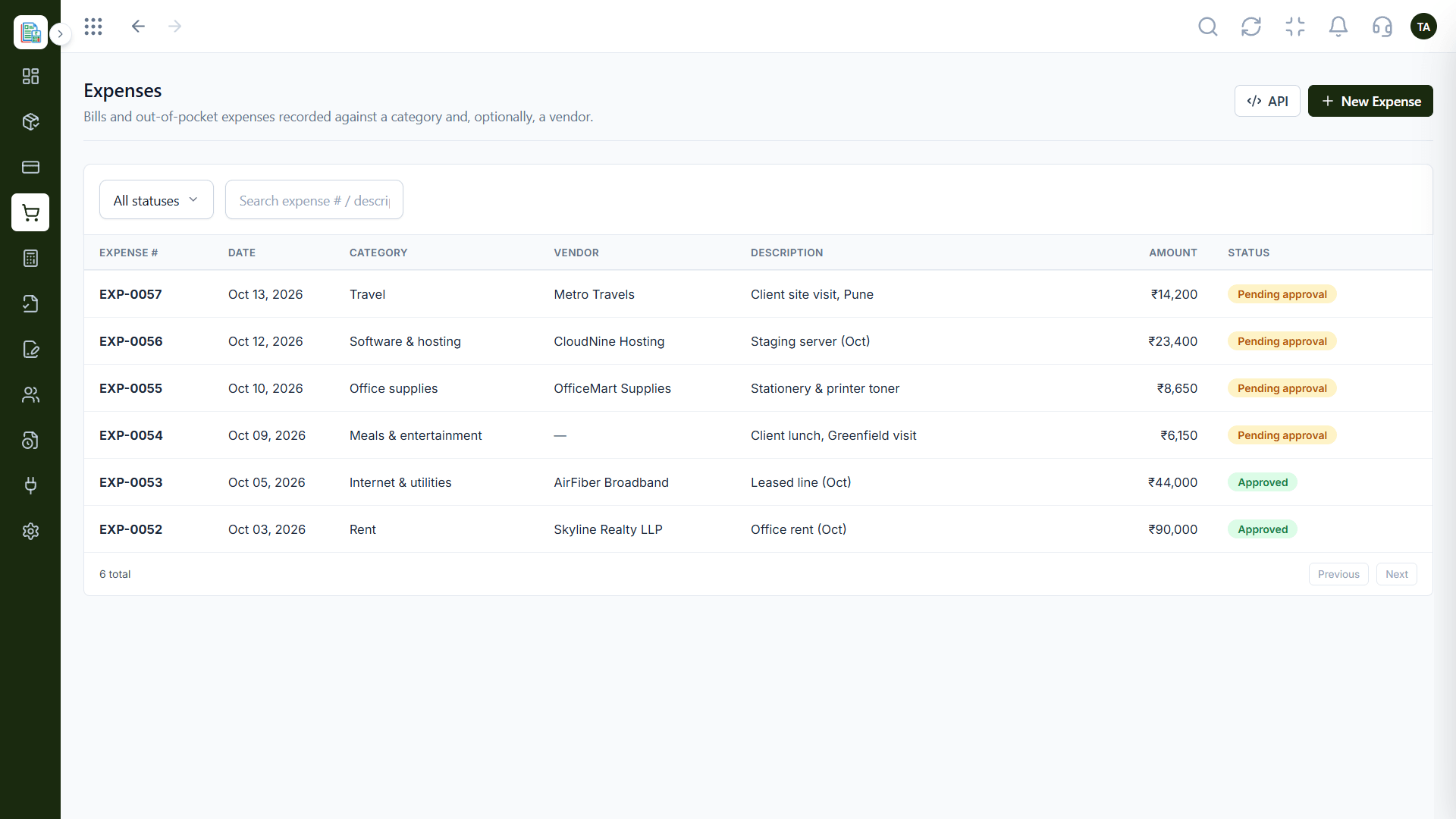
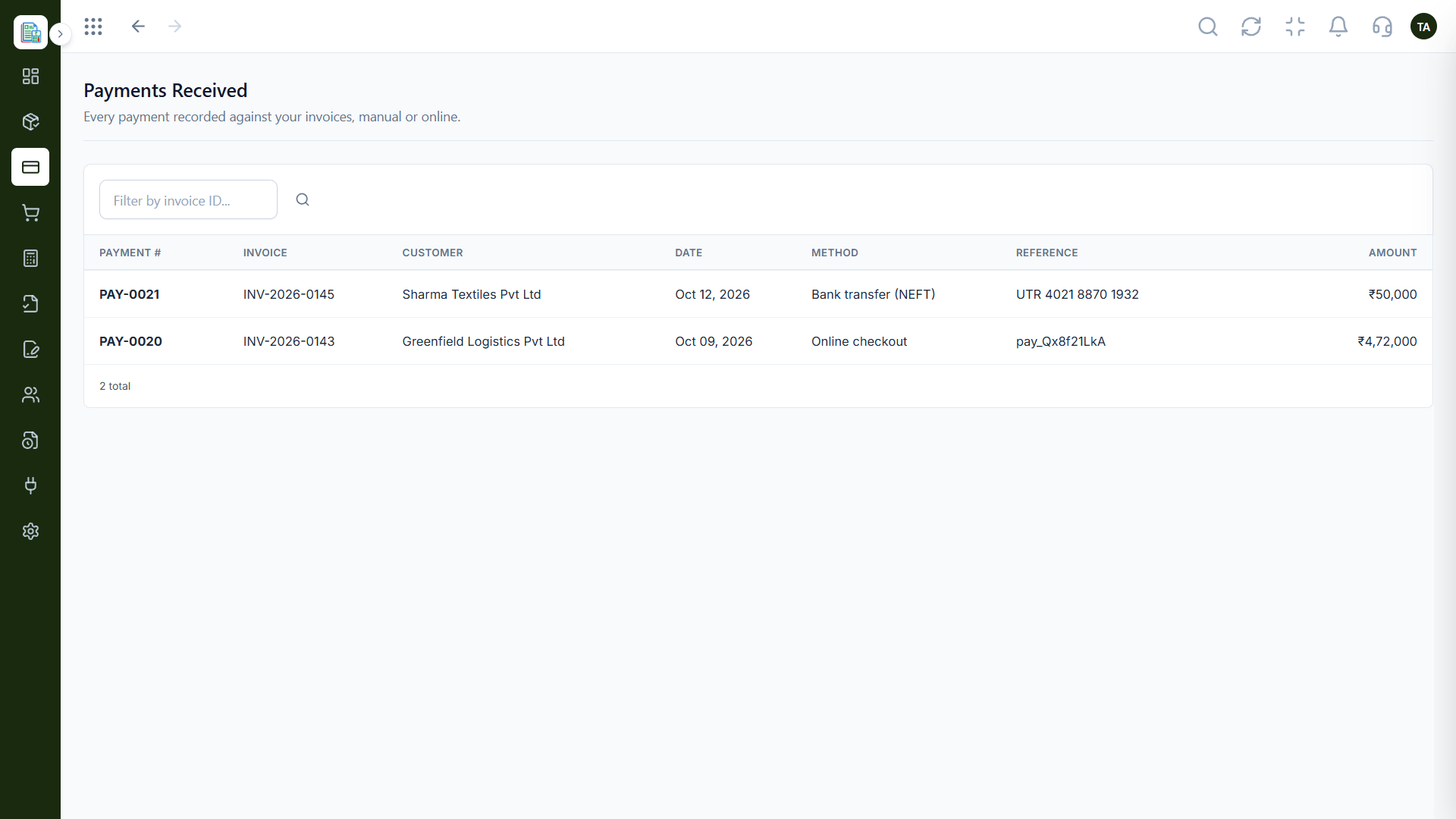
The real screens on this page include Quotations, Payments Received, Invoicing Dashboard and Invoices, all captured from the product.
Request a demo or start a free trial. Our team can also walk you through a guided setup, so your first session ends with something working.
Keep Exploring
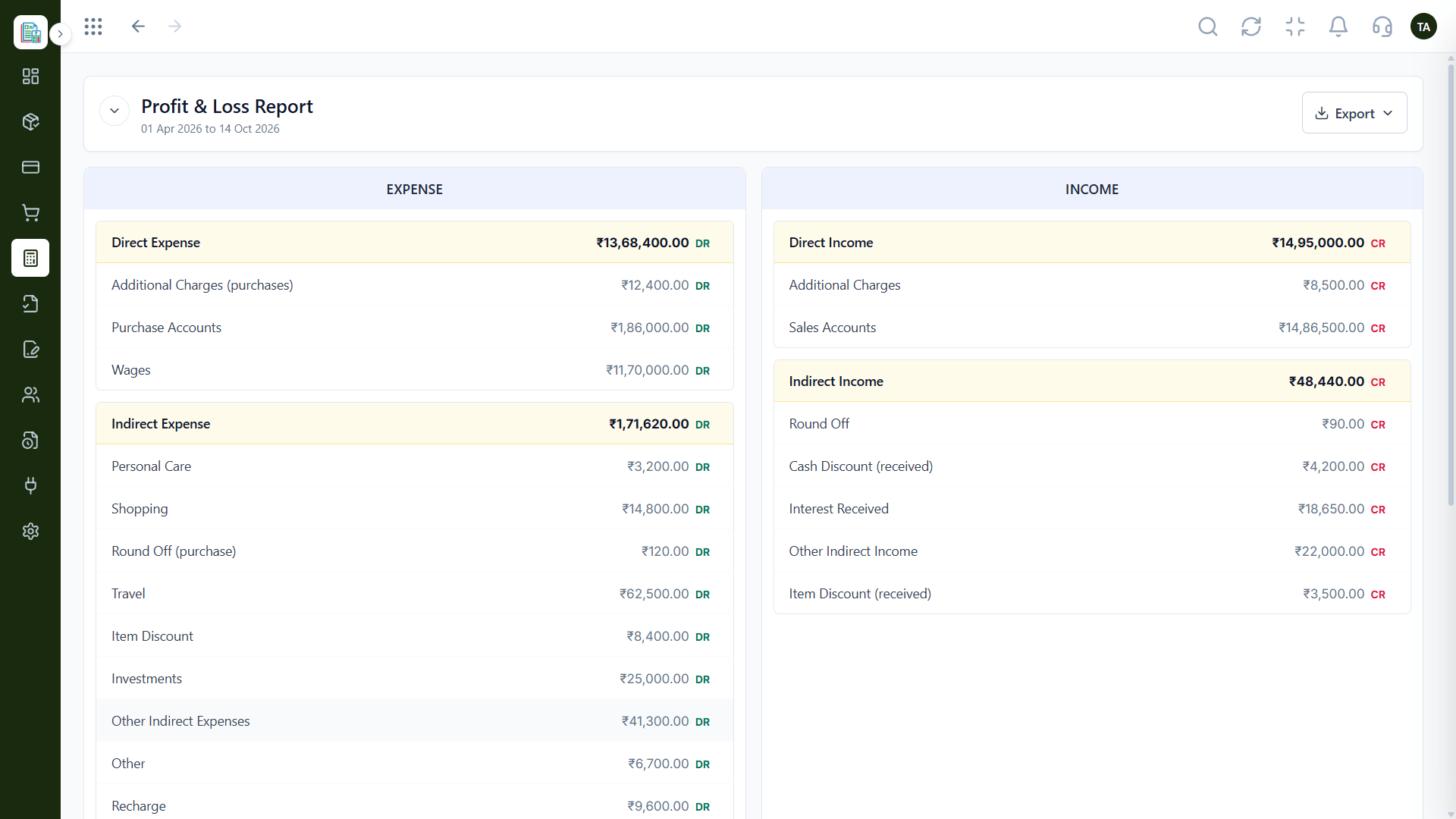
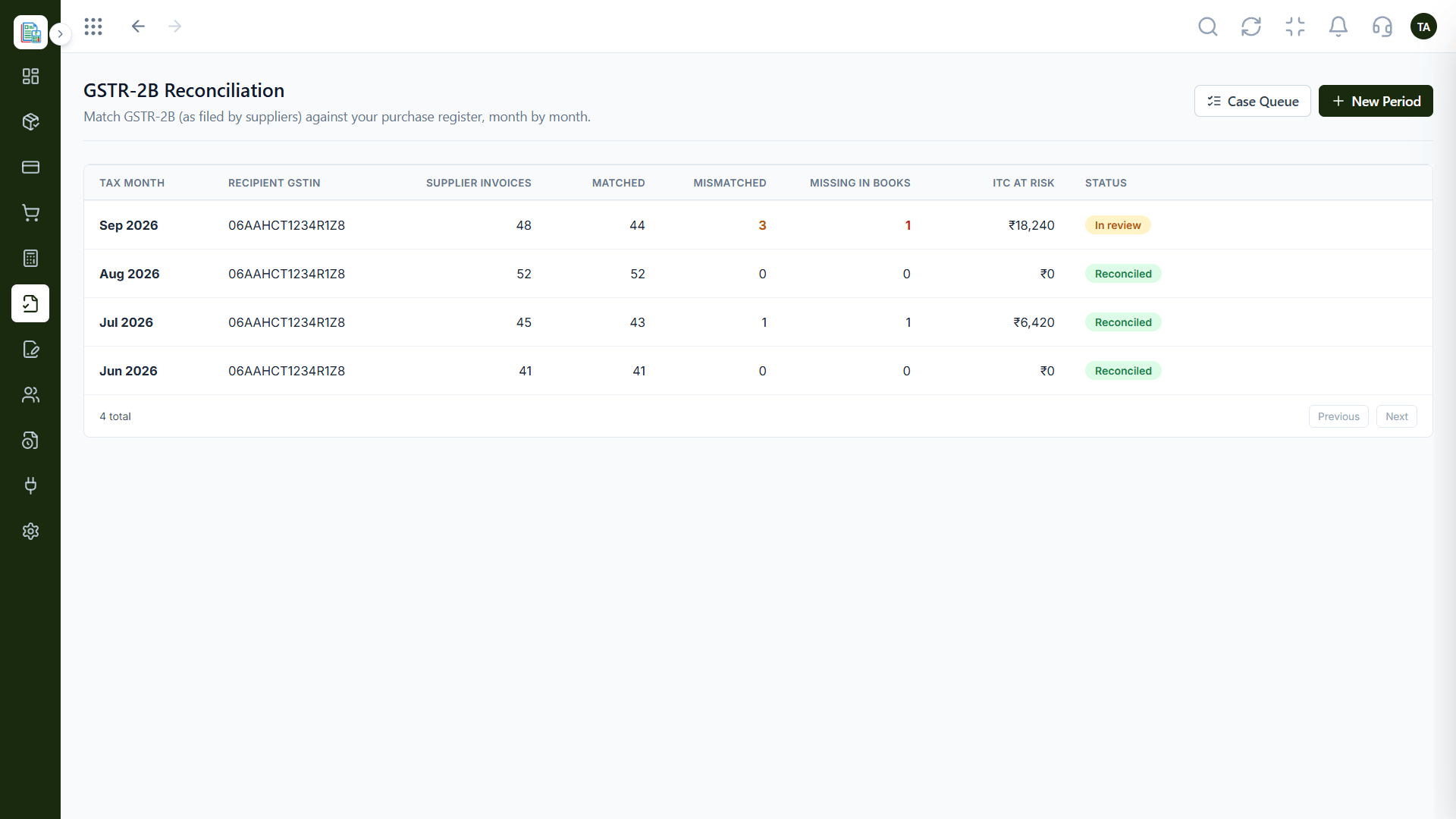
Invoices, expenses, accounting and GST reconciliation in one workspace, connected to sales, payroll and delivery.