The best Business Suite software in India, built to help your business grow. Contact us at +91-8882435276.
[ Contact ]
Phone number
Email address
Head office
Noida office
The right team at TriostackOne will get back to you.
Record
Enter the bill or expense.
Categorise
Choose category and vendor.
Approve
Send for approval.
Review
Filter and report.
Positioning Assessment
Spending hides in cards, cash and inboxes. Without a record, budgets are guesses.
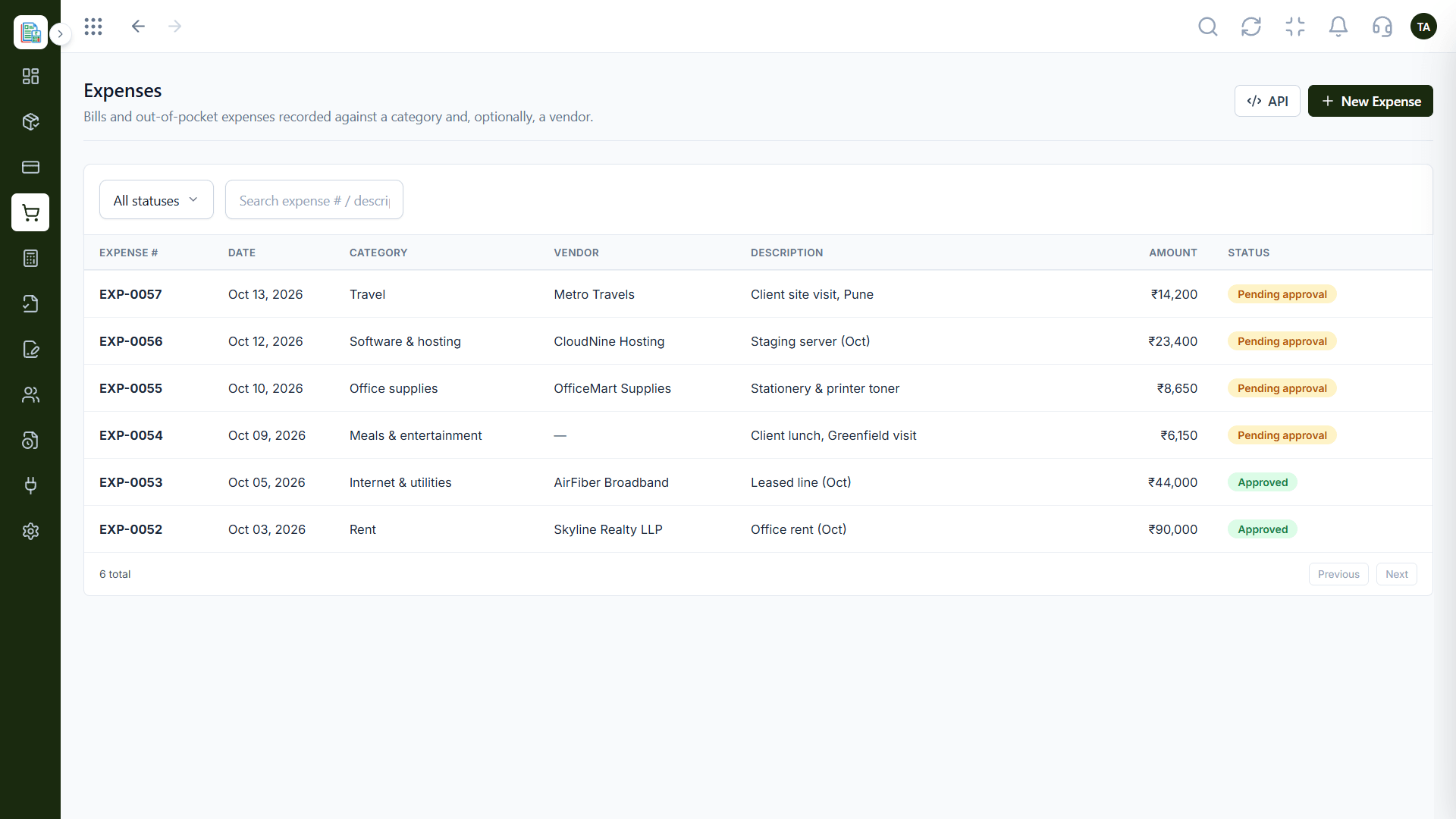
In Triostack Finance, record each bill or expense against a category and, optionally, a vendor, send it for approval and search later by expense number or description. Set recurring bills so regular costs appear on their own.
“We can now answer 'what did we spend on software?' in a filter.”
Sample team scenario
Illustrative example, not a customer testimonial
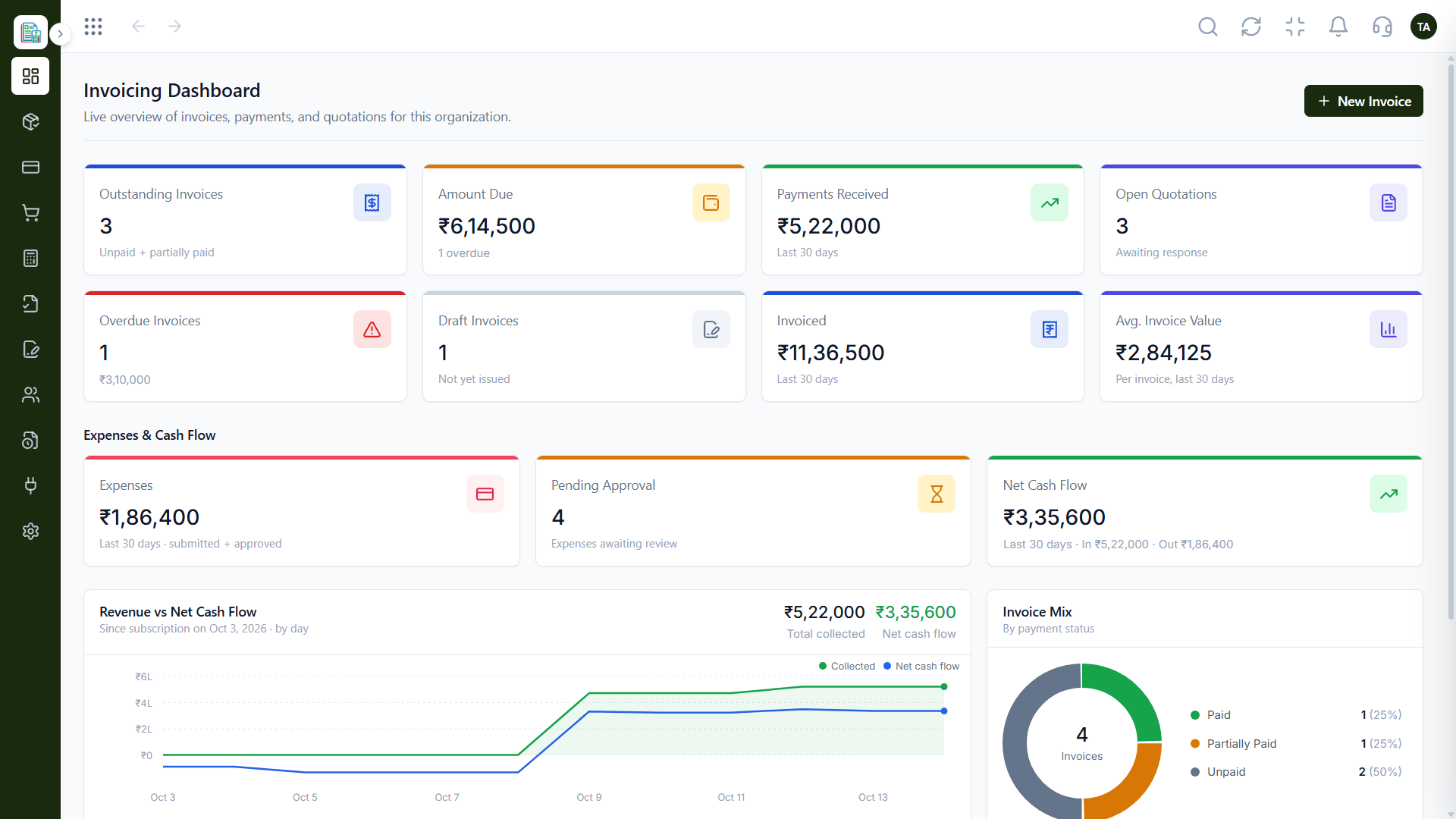
Invoicing Dashboard
Outstanding, overdue and collected at a glance
In the Product
Imagine every rupee leaving with a label on it.
Categories and vendors.
Approval step.
Search and filters.
Platform Integrity
Group spending
Know who you paid
Review first
Find anything
How It Works
What recording adds.
| Dimension | Triostack Finance | Loose Receipts |
|---|---|---|
| Capture | Recorded with category | Photos and paper |
| Vendor | From the directory | Free text |
| Approval | Built in | Chat |
| Search | By number or description | Scroll |
| Repeats | Recurring schedules | Retype |
We will help you create your first customer, invoice and report end to end in your first session.
Live Interface Tour
Real screens captured directly from the Triostack Finance workspace.
Expenses
Recorded and searchable
Feature Breakdown
Captured from the Triostack Finance workspace.
Record and approve.
How it fits the plan
Record. Enter the bill or expense.
Categorise. Choose category and vendor.
Practical tip
Record an expense the day it happens. A receipt is easy to explain today and hard to explain in a month.
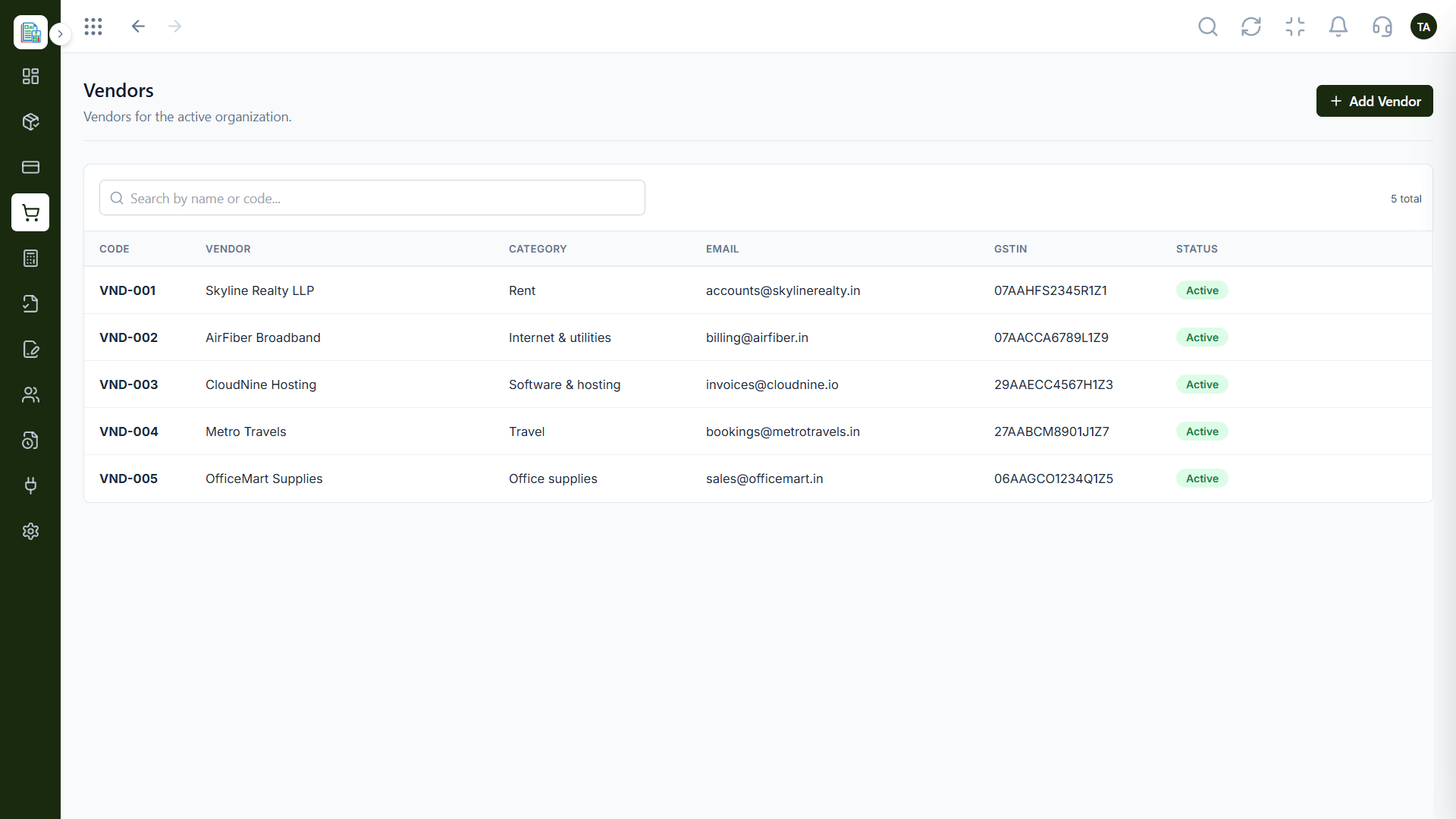
Who you pay.
How it fits the plan
Categorise. Choose category and vendor.
Approve. Send for approval.
In real life
Team purchase
Recorded and approved.
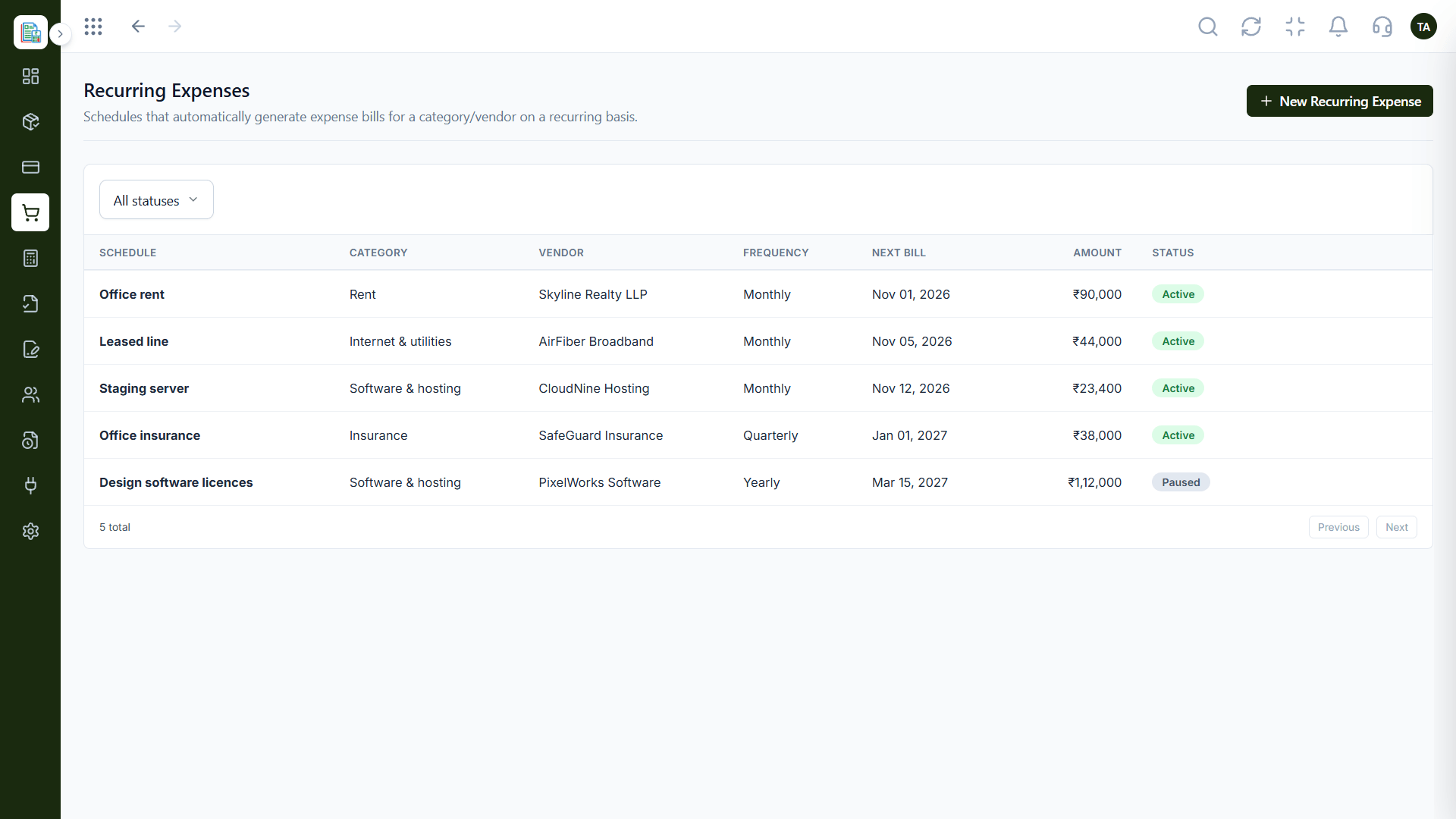
Repeat bills.
How it fits the plan
Approve. Send for approval.
Review. Filter and report.
Watch out for
Leaving the vendor blank, so later you cannot see how much went to one supplier.
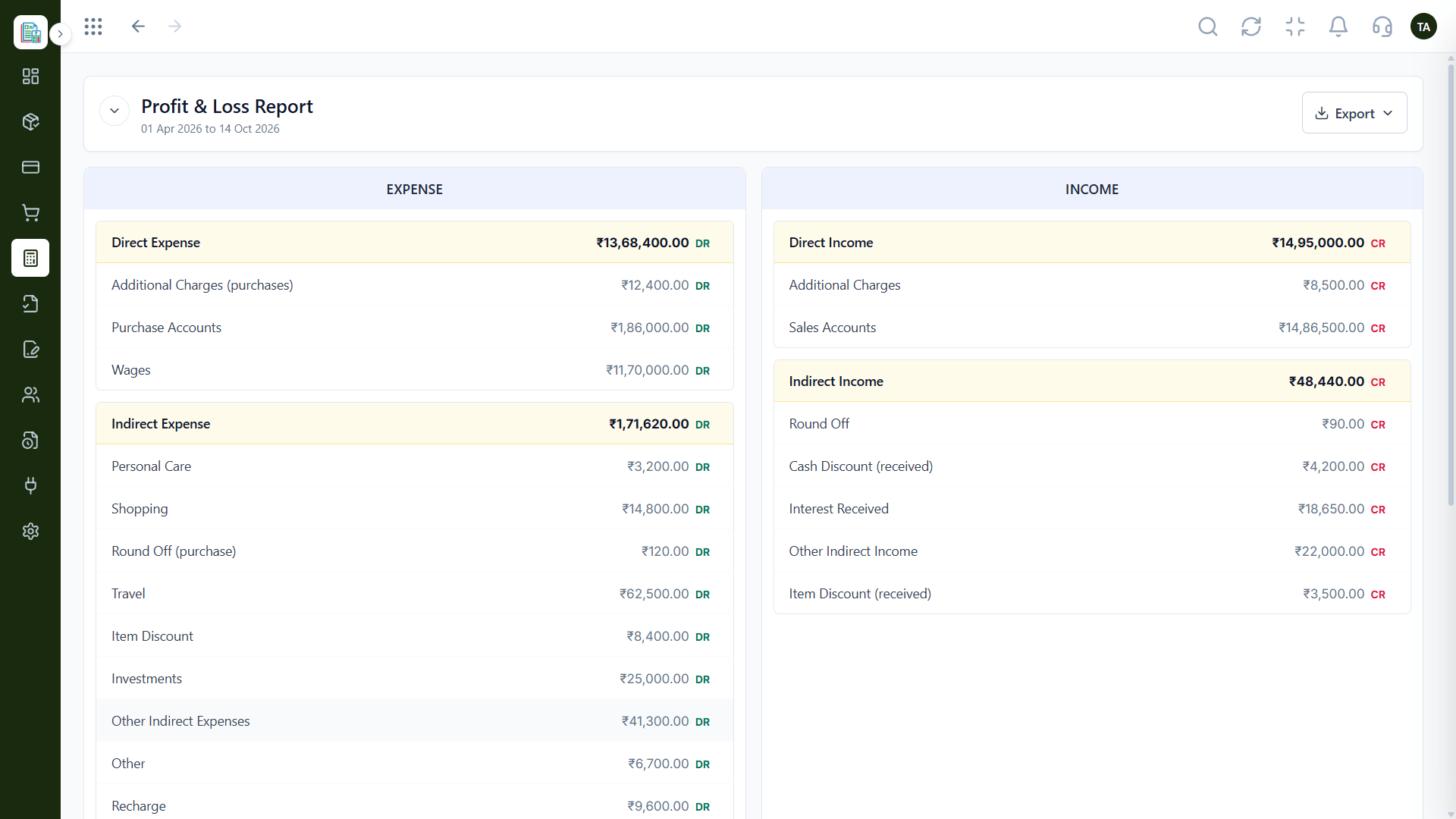
The effect.
How it fits the plan
Review. Filter and report.
Record. Enter the bill or expense.
Before you start
Execution Plan
Enter the bill or expense.
Choose category and vendor.
Send for approval.
Filter and report.
Practical Guide
Before you start
A tip that helps
Record an expense the day it happens. A receipt is easy to explain today and hard to explain in a month.
A common mistake
Leaving the vendor blank, so later you cannot see how much went to one supplier.
In Real Life
Scenario 01
Recorded and approved.
Scenario 02
Categories show where money goes.
Scenario 03
Recurring items are visible.
Straight answers about Track Expenses, from setup to what happens next.
Have a question about Track Expenses?
Book a free callNo. A vendor is optional.
Yes, each expense can be sent through approval.
Search by expense number or description.
Yes. Use recurring expenses.
Record bills and out-of-pocket expenses, assign a category and vendor, send them for approval and search them later.
It runs in 4 steps: Record, Categorise, Approve and Review. Enter the bill or expense.
The real screens on this page include Invoicing Dashboard, General Ledger, Audit Logs and Expenses, all captured from the product.
Request a demo or start a free trial. Our team can also walk you through a guided setup, so your first session ends with something working.
Keep Exploring
Invoices, expenses, accounting and GST reconciliation in one workspace, connected to sales, payroll and delivery.