The best Business Suite software in India, built to help your business grow. Contact us at +91-8882435276.
[ Contact ]
Phone number
Email address
Head office
Noida office
The right team at TriostackOne will get back to you.
Receive
A customer pays.
Record
Save against the invoice.
Confirm
Check the status.
Reconcile
Review at month-end.
Positioning Assessment
A payment that arrives without a clear invoice creates work later. Recording it properly at the time saves the month-end puzzle.
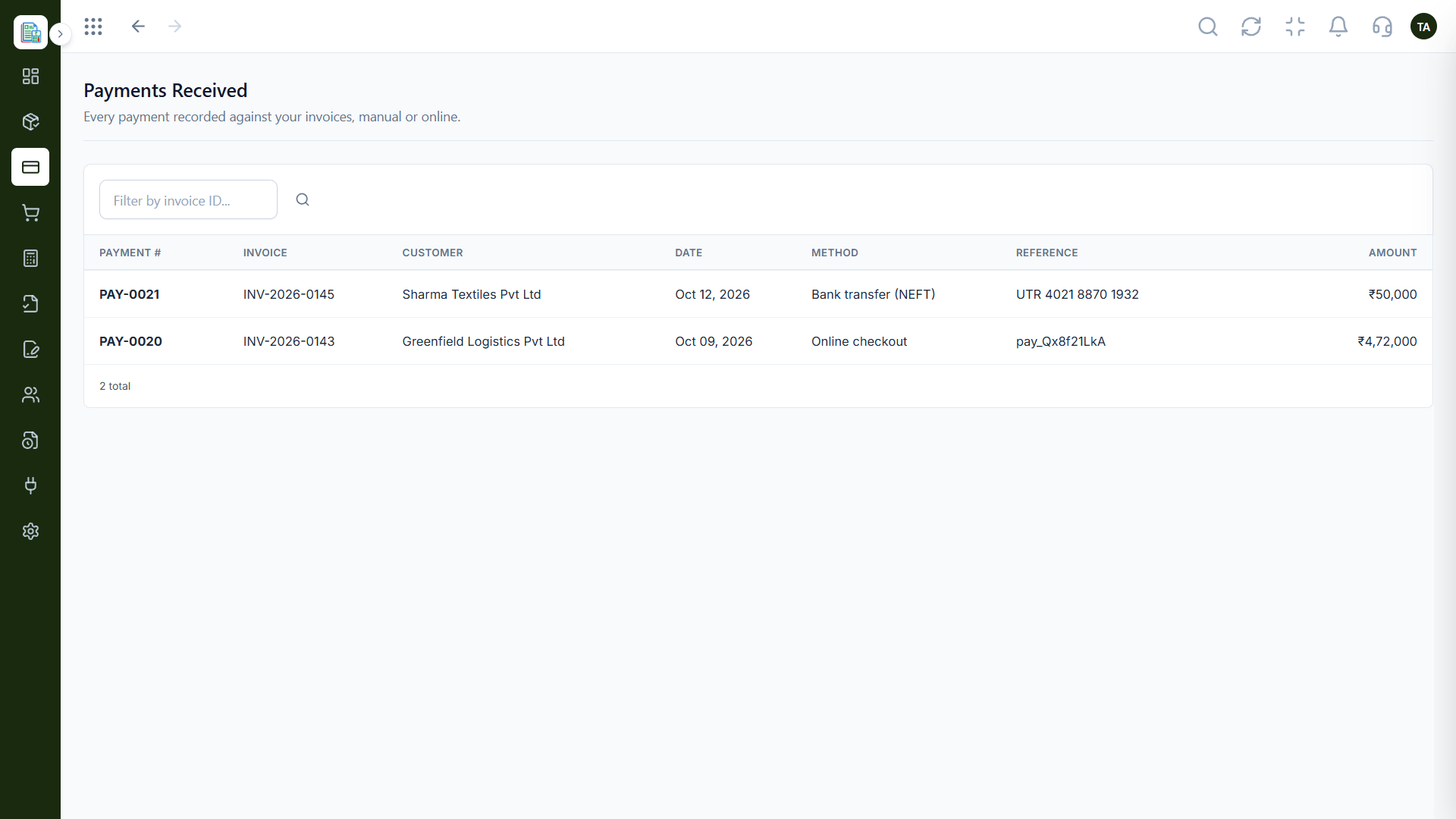
In Triostack Finance, payments are recorded against the invoice they settle, whether marked as paid manually or collected through online checkout. Filter by invoice ID to find any payment fast.
“Every payment already knows which invoice it belongs to.”
Sample team scenario
Illustrative example, not a customer testimonial
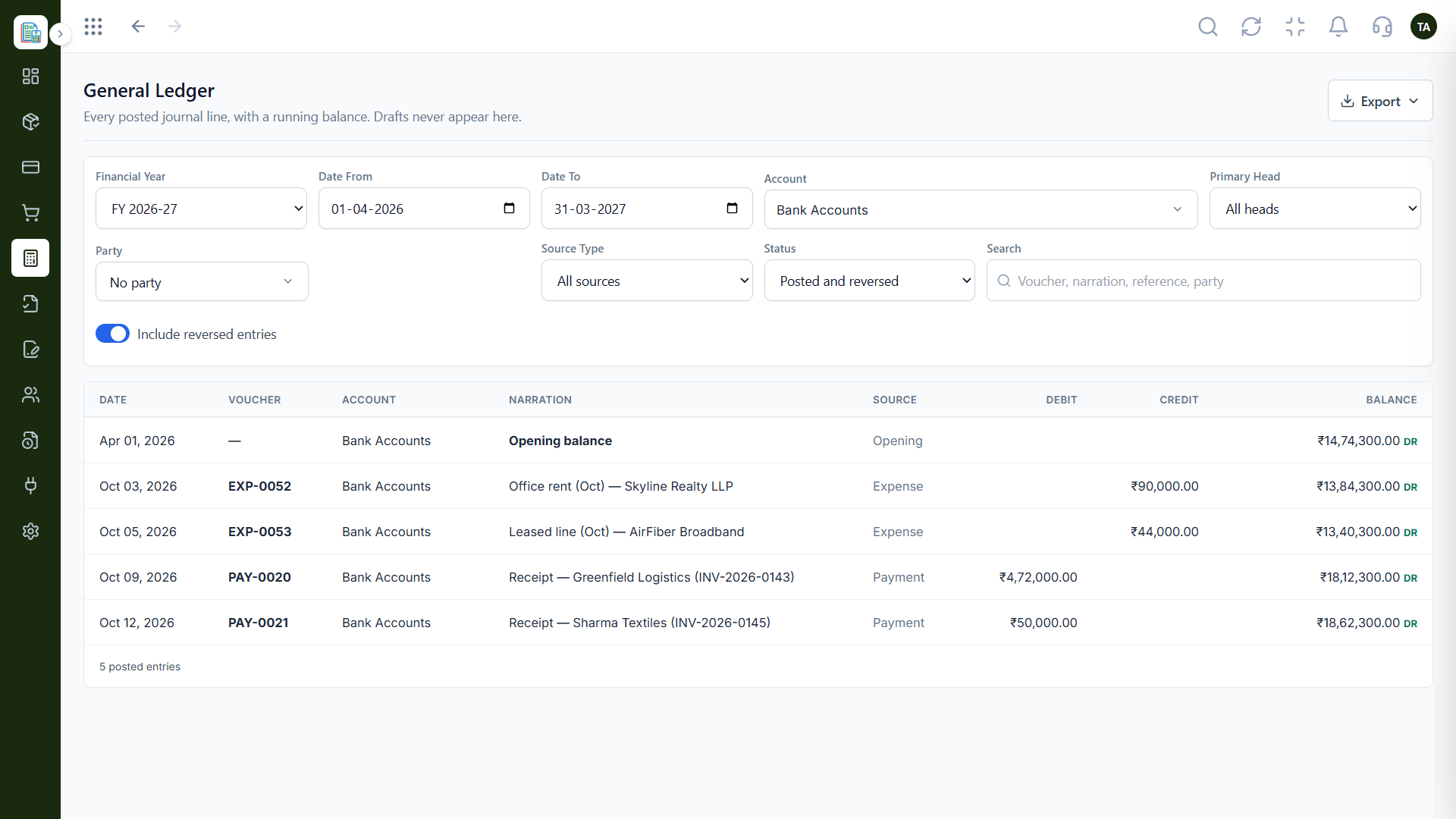
General Ledger
Every posted line with a running balance
In the Product
Imagine each payment sliding into the right folder on arrival.
Payment to invoice.
Both recorded.
Filter by invoice.
Platform Integrity
Filter by invoice ID
Manual and online
A clear record
Close with confidence
How It Works
What recording at the time changes.
| Dimension | Triostack Finance | Bank Lines Only |
|---|---|---|
| Record | Against the invoice | Amount on a statement |
| Lookup | By invoice ID | Search lines |
| Method | Manual or online | Unknown |
| Status | Invoice updates | By hand |
| Month-end | Reconcile from a list | Rebuild |
We will help you create your first customer, invoice and report end to end in your first session.
Live Interface Tour
Real screens captured directly from the Triostack Finance workspace.
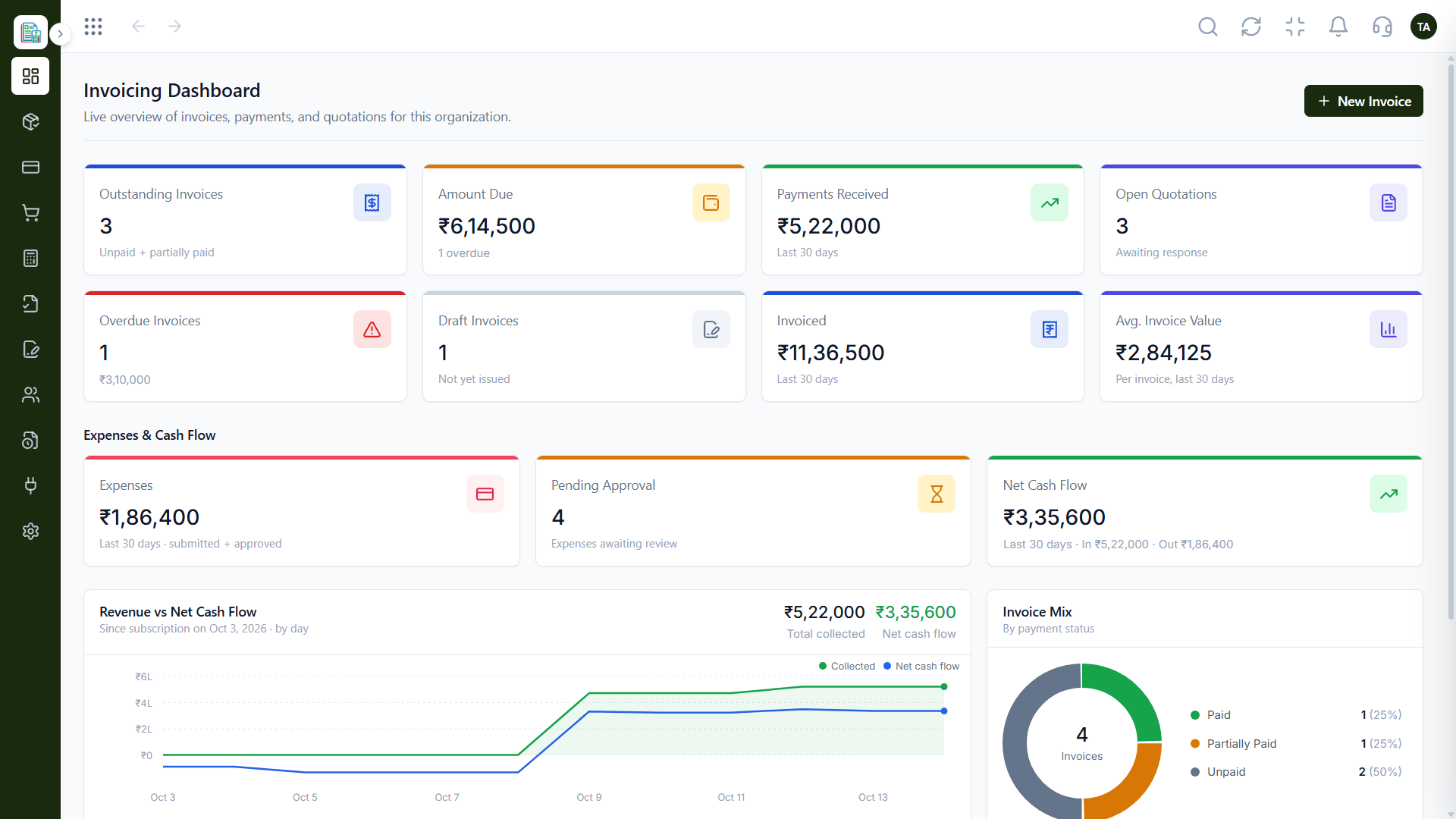
Payments Received
Each payment tied to an invoice
Feature Breakdown
Captured from the Triostack Finance workspace.
The list.
How it fits the plan
Receive. A customer pays.
Record. Save against the invoice.
Practical tip
Note the method and reference when you mark an invoice paid. The reconciliation will thank you.
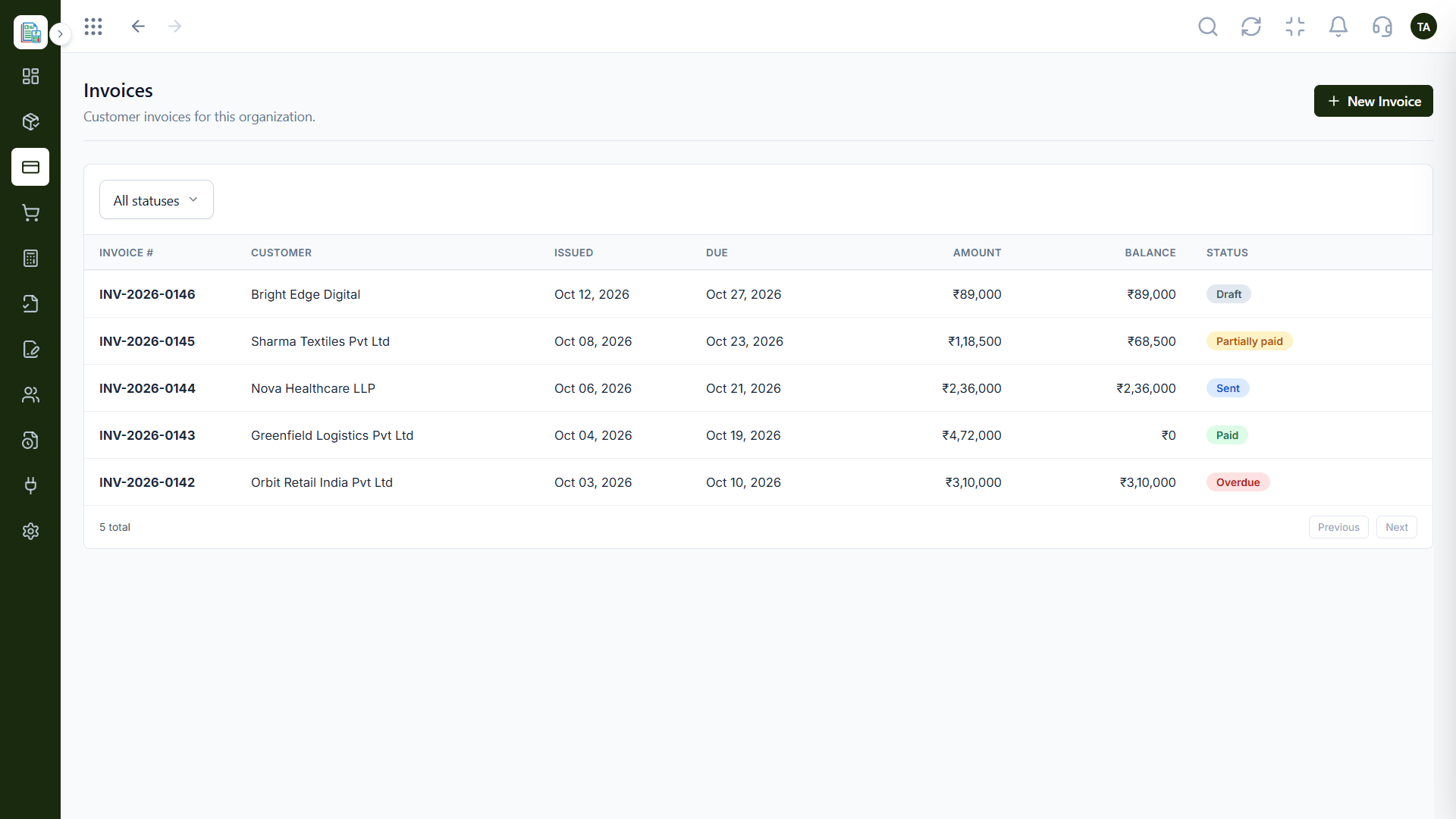
Status.
How it fits the plan
Record. Save against the invoice.
Confirm. Check the status.
In real life
Customer query
Confirm in a filter.
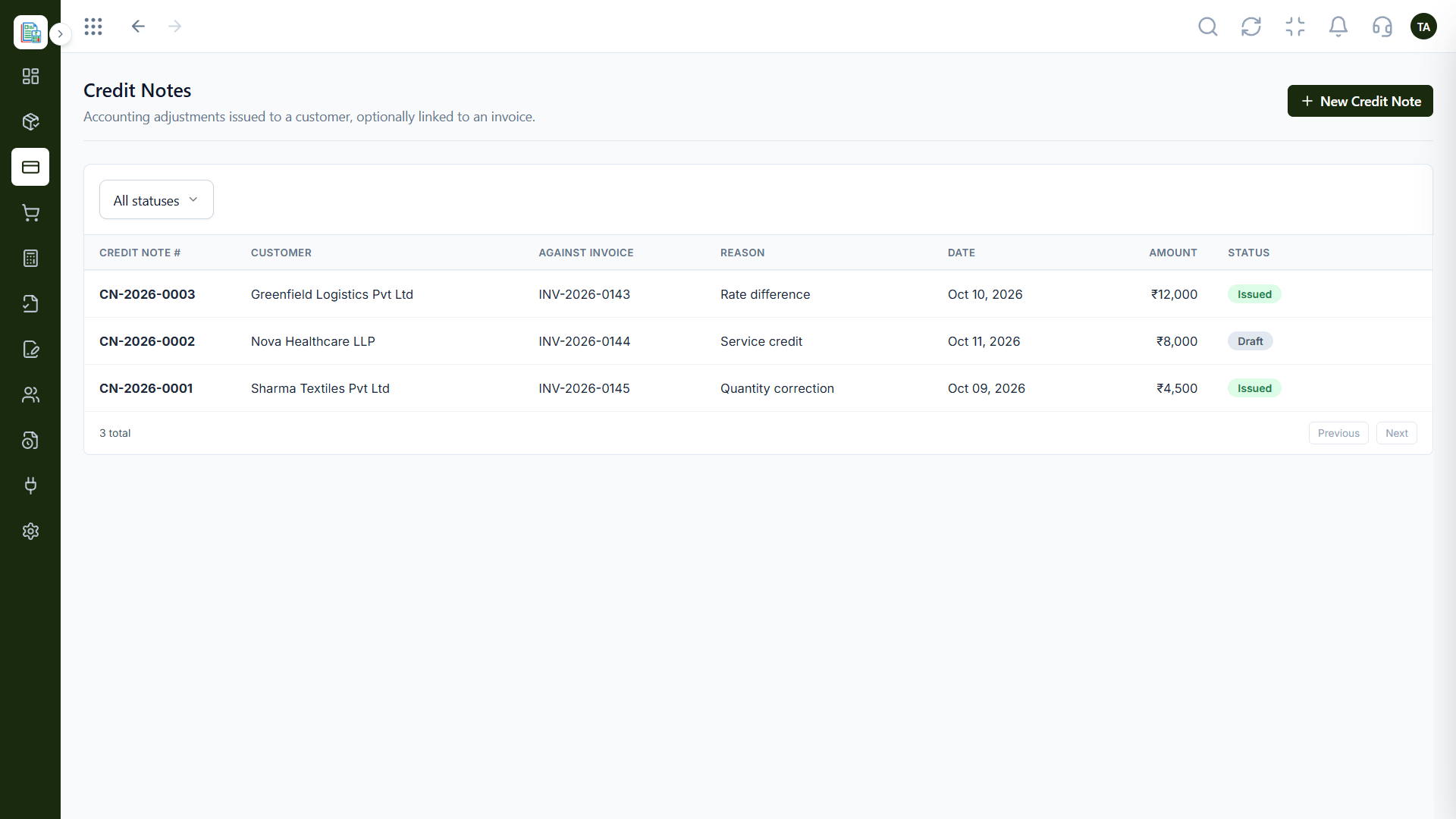
Adjustments.
How it fits the plan
Confirm. Check the status.
Reconcile. Review at month-end.
Watch out for
Recording a part payment as full payment, so the remaining balance disappears.
Cash.
How it fits the plan
Reconcile. Review at month-end.
Receive. A customer pays.
Before you start
Execution Plan
A customer pays.
Save against the invoice.
Check the status.
Review at month-end.
Practical Guide
Before you start
A tip that helps
Note the method and reference when you mark an invoice paid. The reconciliation will thank you.
A common mistake
Recording a part payment as full payment, so the remaining balance disappears.
In Real Life
Scenario 01
Confirm in a filter.
Scenario 02
Reconcile from one list.
Scenario 03
See what remains.
Straight answers about Manage Payments, from setup to what happens next.
Have a question about Manage Payments?
Book a free callMark an invoice as paid or let the customer pay online.
Filter by invoice ID.
Use a credit note linked to the invoice.
The dashboard shows payments received.
Record payments against invoices, whether marked paid or collected online, and see exactly what has been received.
It runs in 4 steps: Receive, Record, Confirm and Reconcile. A customer pays.
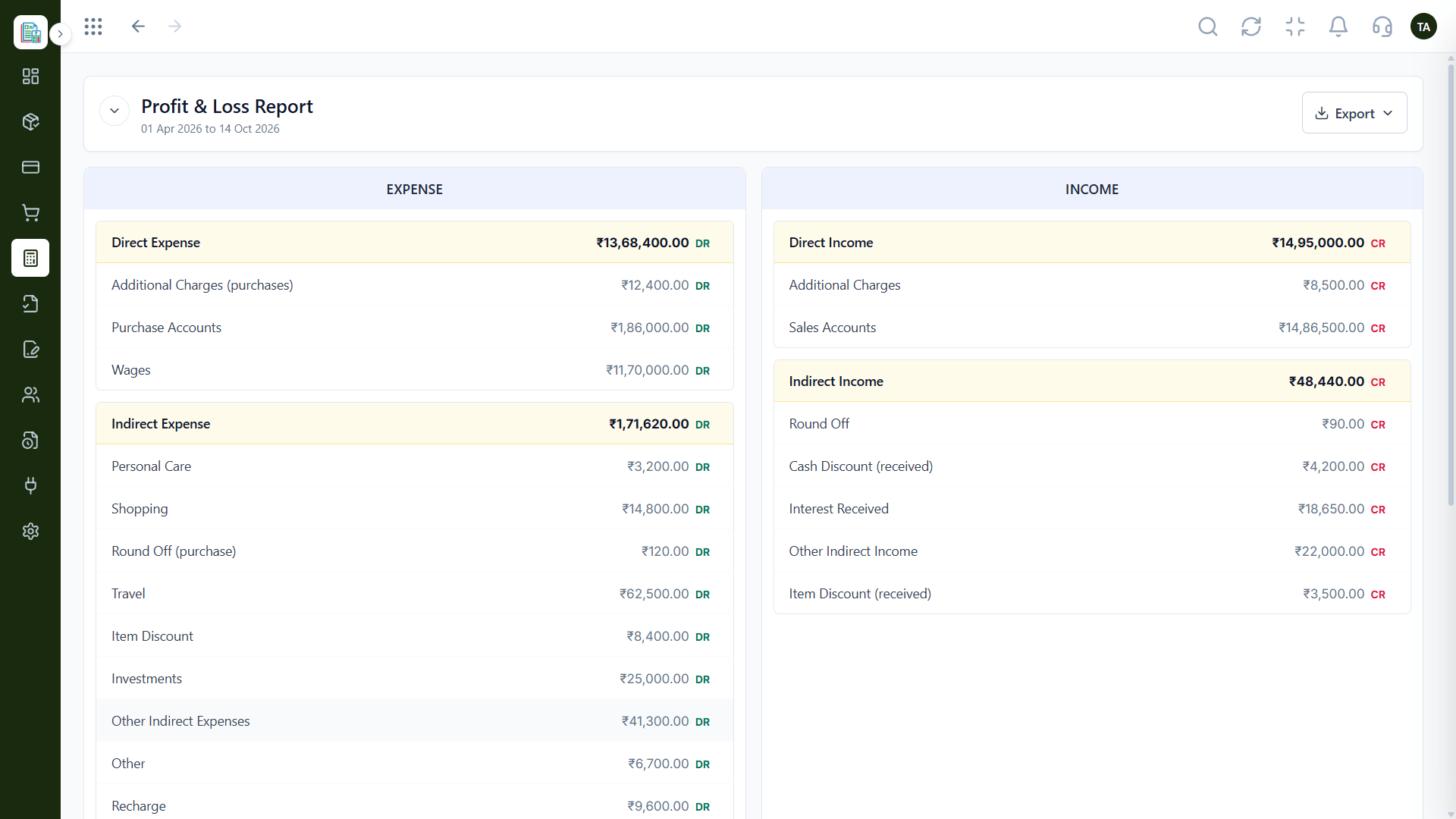
The real screens on this page include General Ledger, Balance Sheet, Profit & Loss and Payments Received, all captured from the product.
Request a demo or start a free trial. Our team can also walk you through a guided setup, so your first session ends with something working.
Keep Exploring
Invoices, expenses, accounting and GST reconciliation in one workspace, connected to sales, payroll and delivery.