The best Business Suite software in India, built to help your business grow. Contact us at +91-8882435276.
[ Contact ]
Phone number
Email address
Head office
Noida office
The right team at TriostackOne will get back to you.
Pick a pattern
A sender, subject or keyword.
Choose an action
File, label or forward.
Save
The rule is on.
Review
Check it after a week.
Positioning Assessment
Moving the same newsletters, receipts and updates into the right folder every day is a small, steady drain.
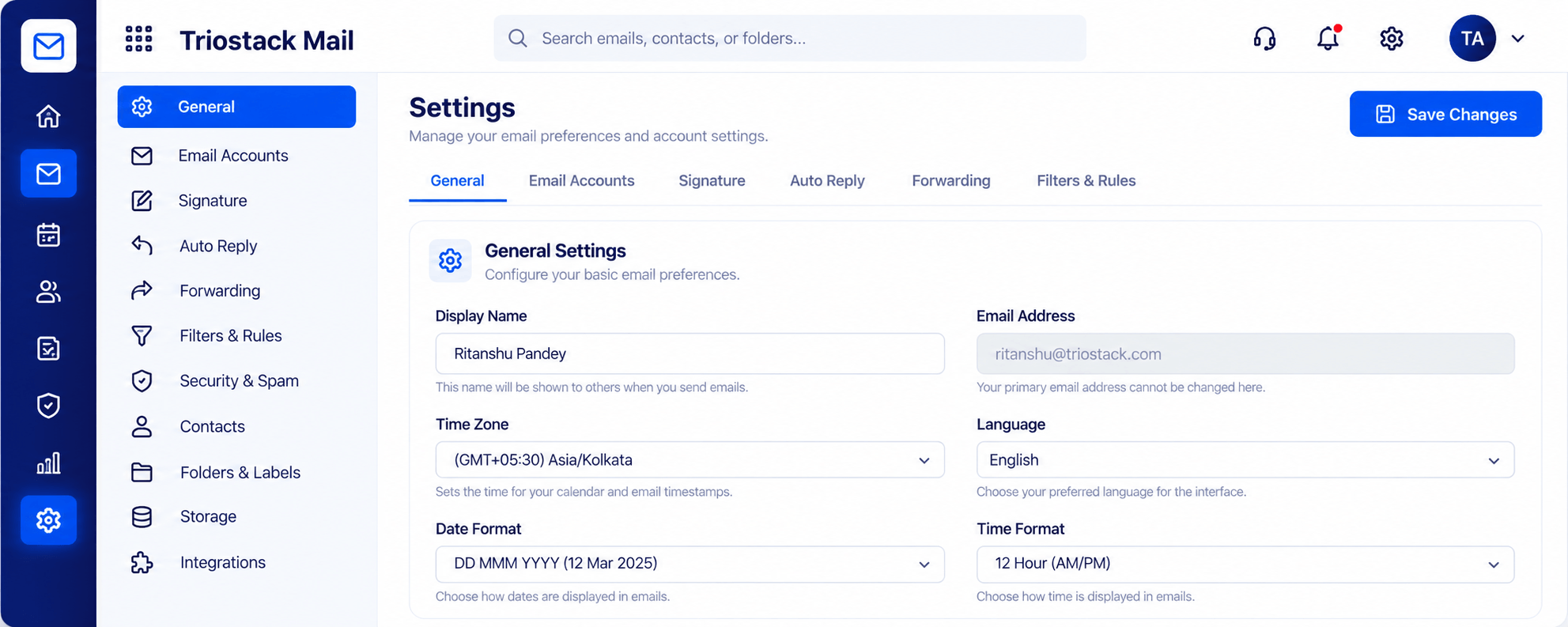
In Triostack Mail Settings, use the filters and rules tab to sort mail automatically, add an auto reply for absences and set up forwarding. Spam, phishing and virus protection keeps working in the background.
“Receipts and updates now file themselves. My inbox is mostly people.”
Sample team scenario
Illustrative example, not a customer testimonial
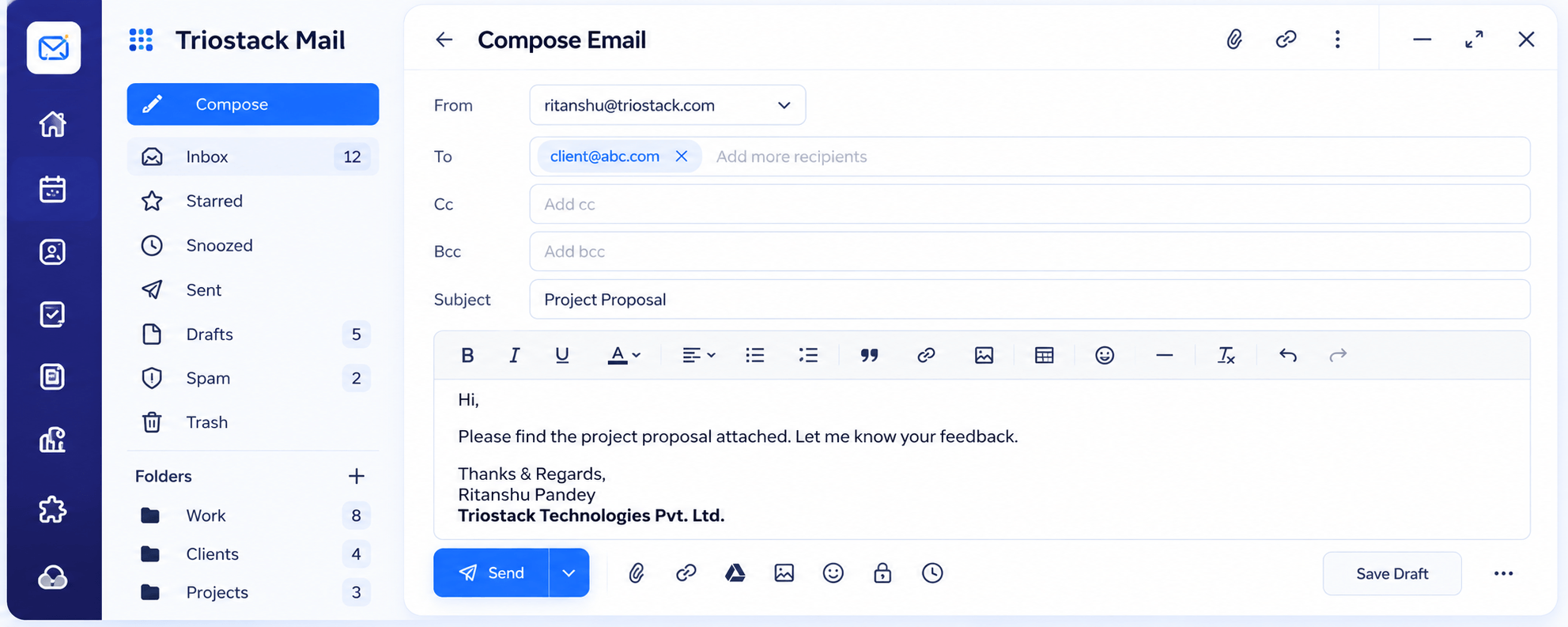
Compose
A full editor with Cc, Bcc, attachments and scheduled send
In the Product
Imagine each letter being slotted into the right tray before you even look.
Rules keep working.
Mail files itself.
Edit or remove any time.
Platform Integrity
Sort automatically
Cover absences
Pass mail on
Spam handled for you
How It Works
What automation saves.
| Dimension | Triostack Mail | Manual Sorting |
|---|---|---|
| Sorting | By rule | By hand |
| Absences | Auto reply | Remember to set |
| Forwarding | Configured once | Forward each |
| Spam | Filtered | Delete |
| Time | Minutes saved daily | Daily chore |
We will help you connect your domain, create your first mailbox and set up your signature in your first session.
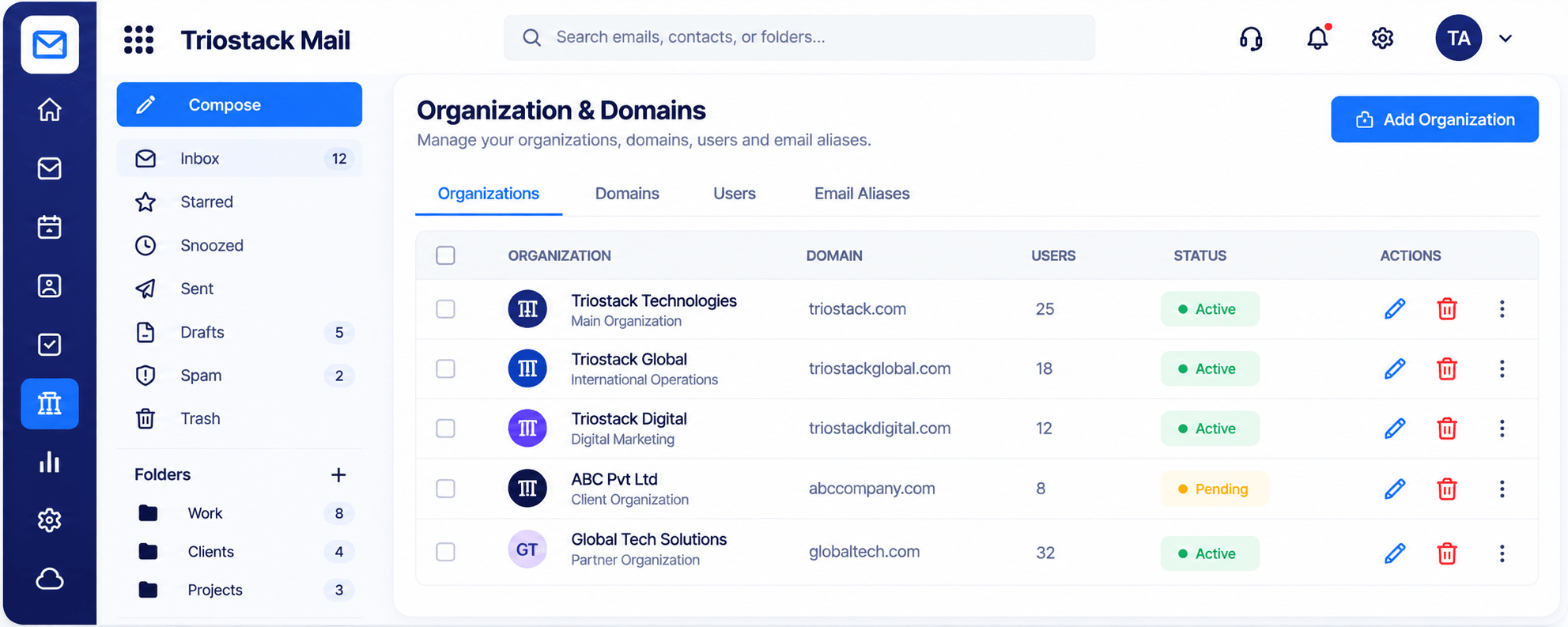
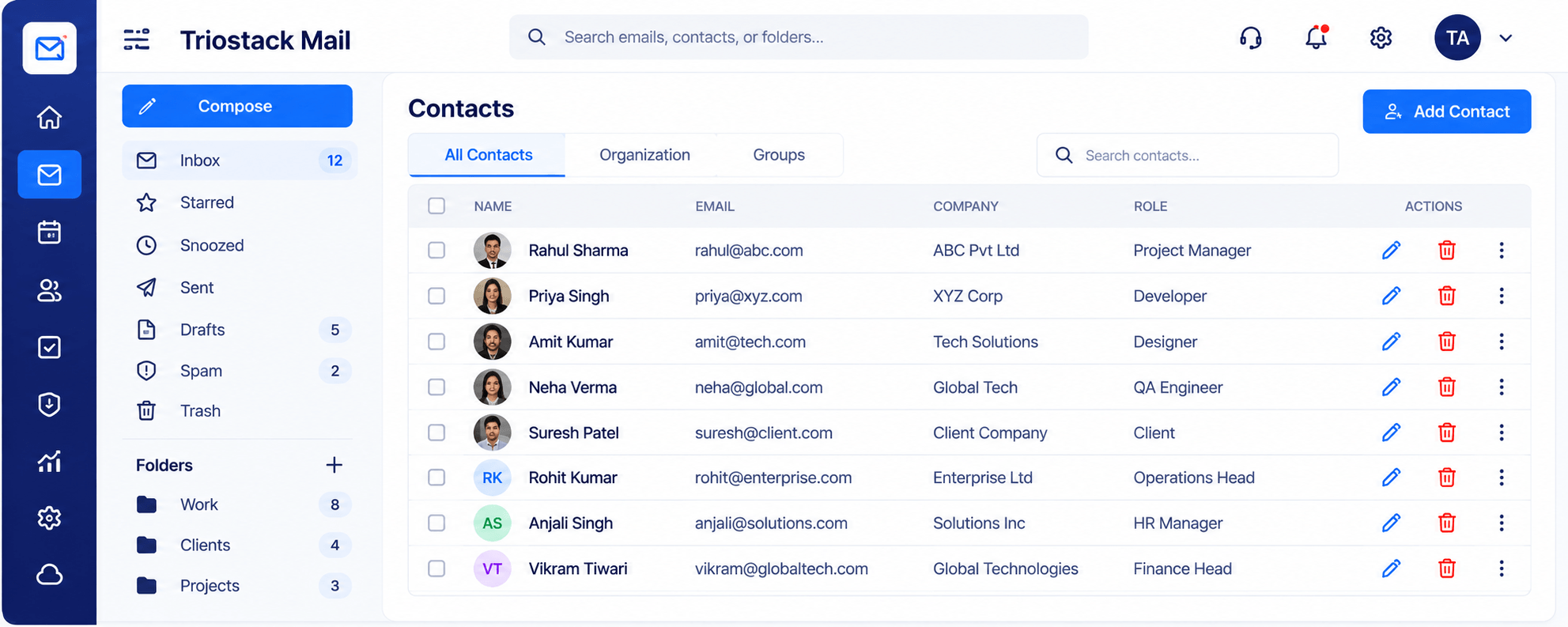
Live Interface Tour
Real screens captured directly from the Triostack Mail workspace.
Settings, Signatures & Rules
Mail filed before you see it
Feature Breakdown
Captured from the Triostack Mail workspace.
Filters and rules.
How it fits the plan
Pick a pattern. A sender, subject or keyword.
Choose an action. File, label or forward.
Practical tip
Start with one rule, such as receipts to Finance, and watch it for a week before adding more.
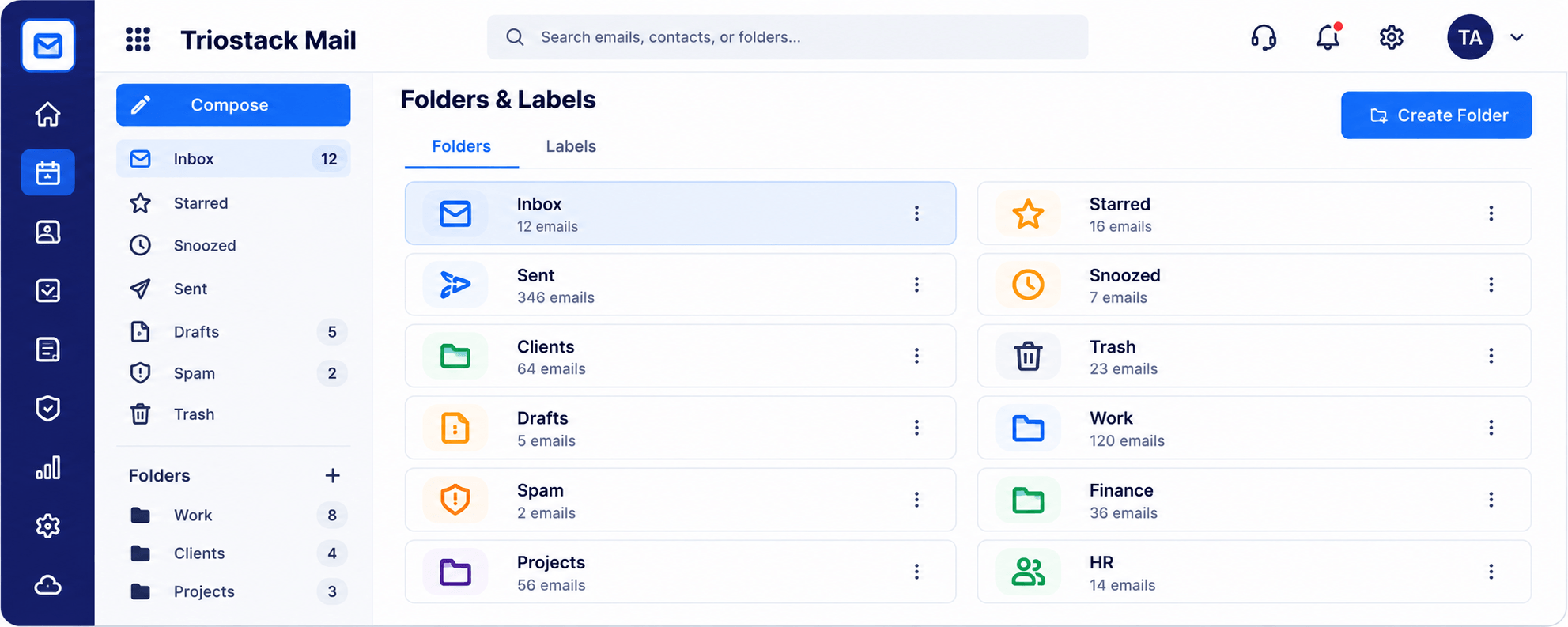
Where mail lands.
How it fits the plan
Choose an action. File, label or forward.
Save. The rule is on.
In real life
Receipts
Filed to Finance automatically.
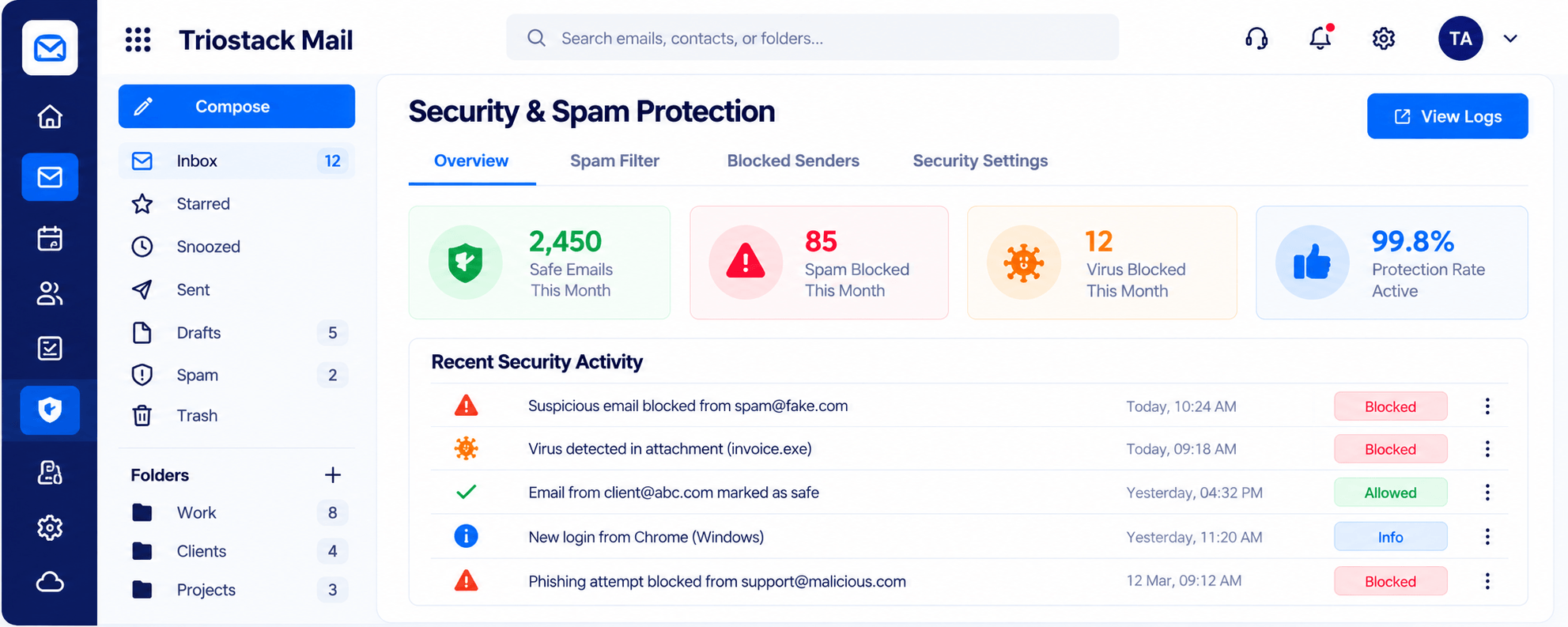
Spam handled.
How it fits the plan
Save. The rule is on.
Review. Check it after a week.
Watch out for
Writing broad rules that quietly file important mail where nobody looks.
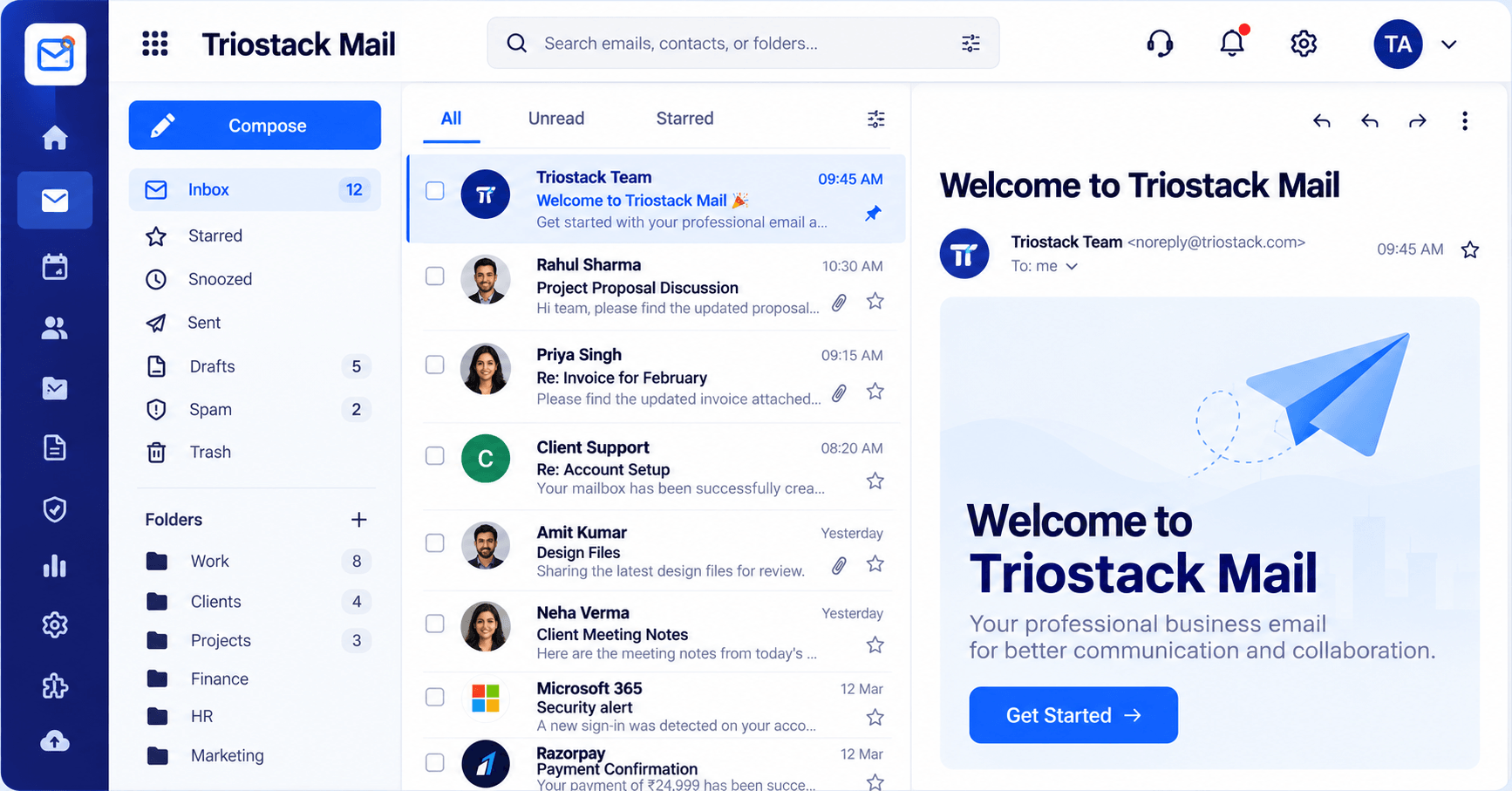
A calmer view.
How it fits the plan
Review. Check it after a week.
Pick a pattern. A sender, subject or keyword.
Before you start
Execution Plan
A sender, subject or keyword.
File, label or forward.
The rule is on.
Check it after a week.
Practical Guide
Before you start
A tip that helps
Start with one rule, such as receipts to Finance, and watch it for a week before adding more.
A common mistake
Writing broad rules that quietly file important mail where nobody looks.
In Real Life
Scenario 01
Filed to Finance automatically.
Scenario 02
Auto reply and forwarding cover you.
Scenario 03
Moved out of the main view.
Straight answers about Automate with Rules, from setup to what happens next.
Have a question about Automate with Rules?
Book a free callYes, with filters and rules in Settings.
Yes.
Yes.
Spam filtering continues alongside your rules.
Set up filters and rules, auto reply and forwarding so incoming mail is sorted, answered or passed on without you doing it by hand.
It runs in 4 steps: Pick a pattern, Choose an action, Save and Review. A sender, subject or keyword.
The real screens on this page include Compose, Contacts & Groups, Integrations & Reports and Settings, all captured from the product.
Request a demo or start a free trial. Our team can also walk you through a guided setup, so your first session ends with something working.
Keep Exploring
Custom-domain inboxes, shared folders, contacts and spam protection in one workspace, connected to CRM and support.