The best Business Suite software in India, built to help your business grow. Contact us at +91-8882435276.
[ Contact ]
Phone number
Email address
Head office
Noida office
The right team at TriostackOne will get back to you.
Add
Add your organisation and domain.
Verify
Update your DNS as shown.
Create
Add users and aliases.
Confirm
Wait for 'active'.
Positioning Assessment
Many teams put it off because DNS sounds technical. It does not need to be, with a clear table and a plan.
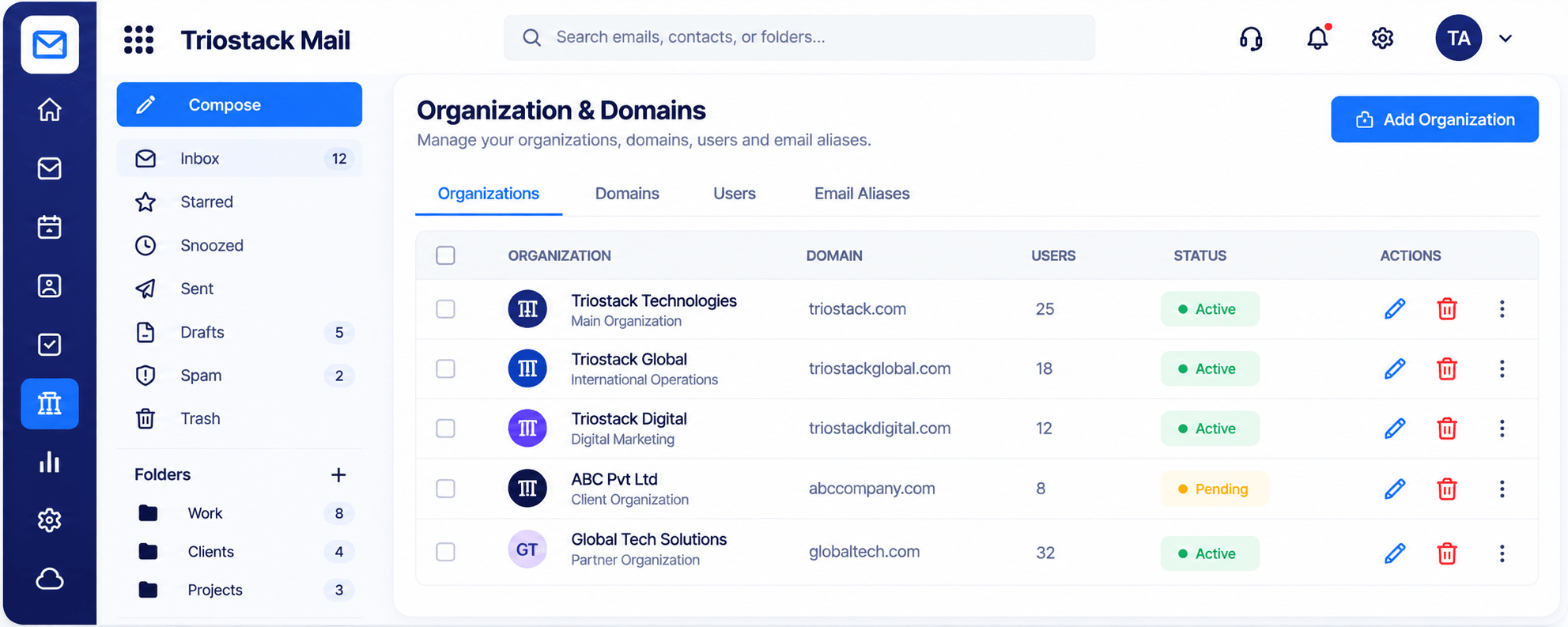
In Triostack Mail, open Organizations & Domains, add your organisation and domain, then add users and email aliases. Each organisation appears with its domain, user count and status, so you can see when it is ready.
“Seeing 'pending' turn to 'active' was the moment it became real.”
Sample team scenario
Illustrative example, not a customer testimonial
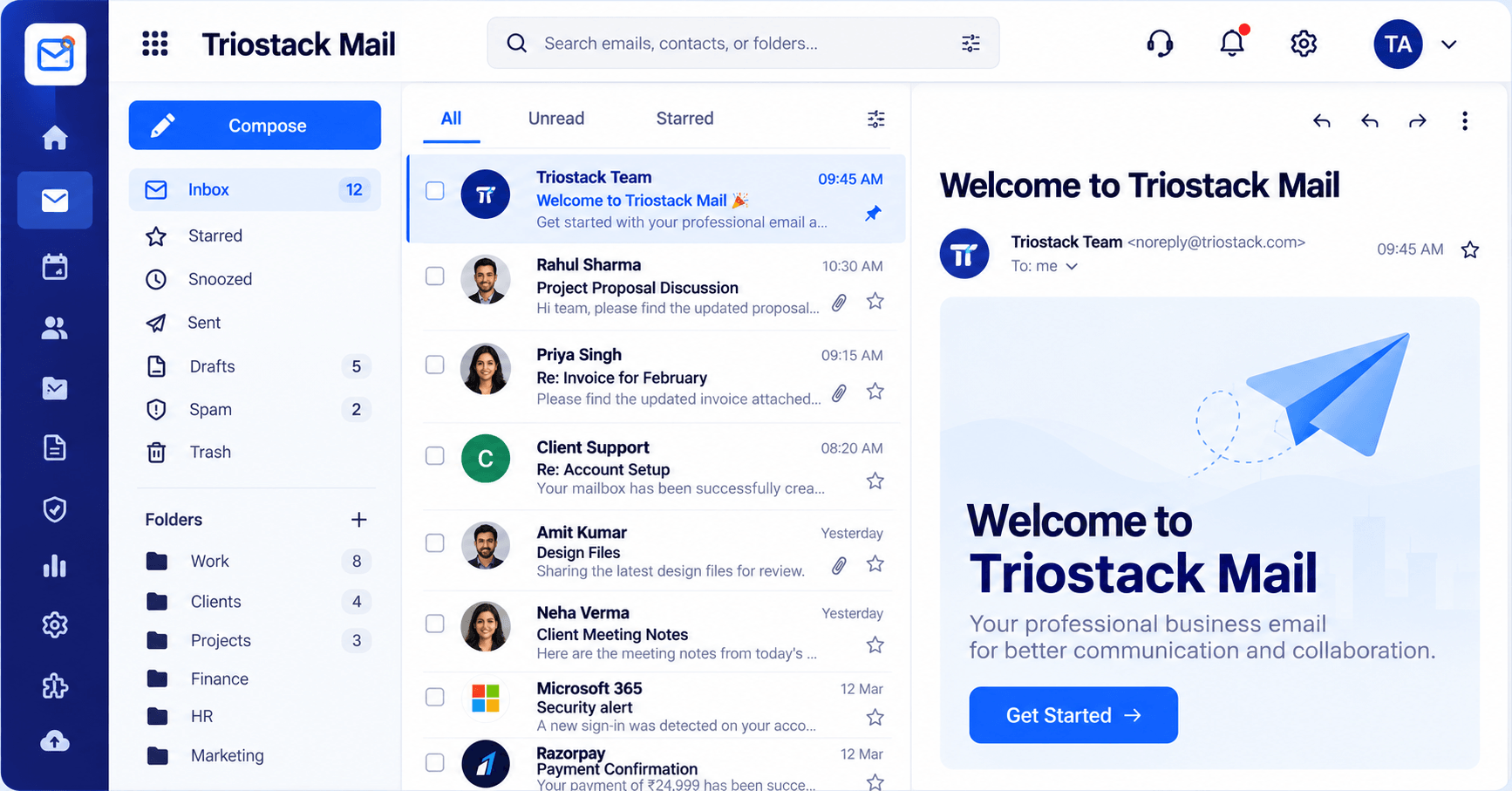
Inbox & Reading Pane
Folders, message list and reading pane in one view
In the Product
Imagine every road to your business ending at a sign that spells it correctly.
On every address.
Status you can read.
We guide DNS.
Platform Integrity
Add who it belongs to
Connect your name
Create mailboxes
info@, billing@
How It Works
What a clear flow adds.
| Dimension | Triostack Mail | DIY Setup |
|---|---|---|
| Add | Organisation and domain in one table | Several consoles |
| Users | Added per domain | Separate |
| Aliases | Managed alongside | Elsewhere |
| Status | Active or pending | Unknown |
| Help | We guide you | Alone |
We will help you connect your domain, create your first mailbox and set up your signature in your first session.
Live Interface Tour
Real screens captured directly from the Triostack Mail workspace.
Organizations & Domains
A clear status for every domain
Feature Breakdown
Captured from the Triostack Mail workspace.
The table.
How it fits the plan
Add. Add your organisation and domain.
Verify. Update your DNS as shown.
Practical tip
Keep the DNS login to hand. Most delays are waiting for someone to find the password.
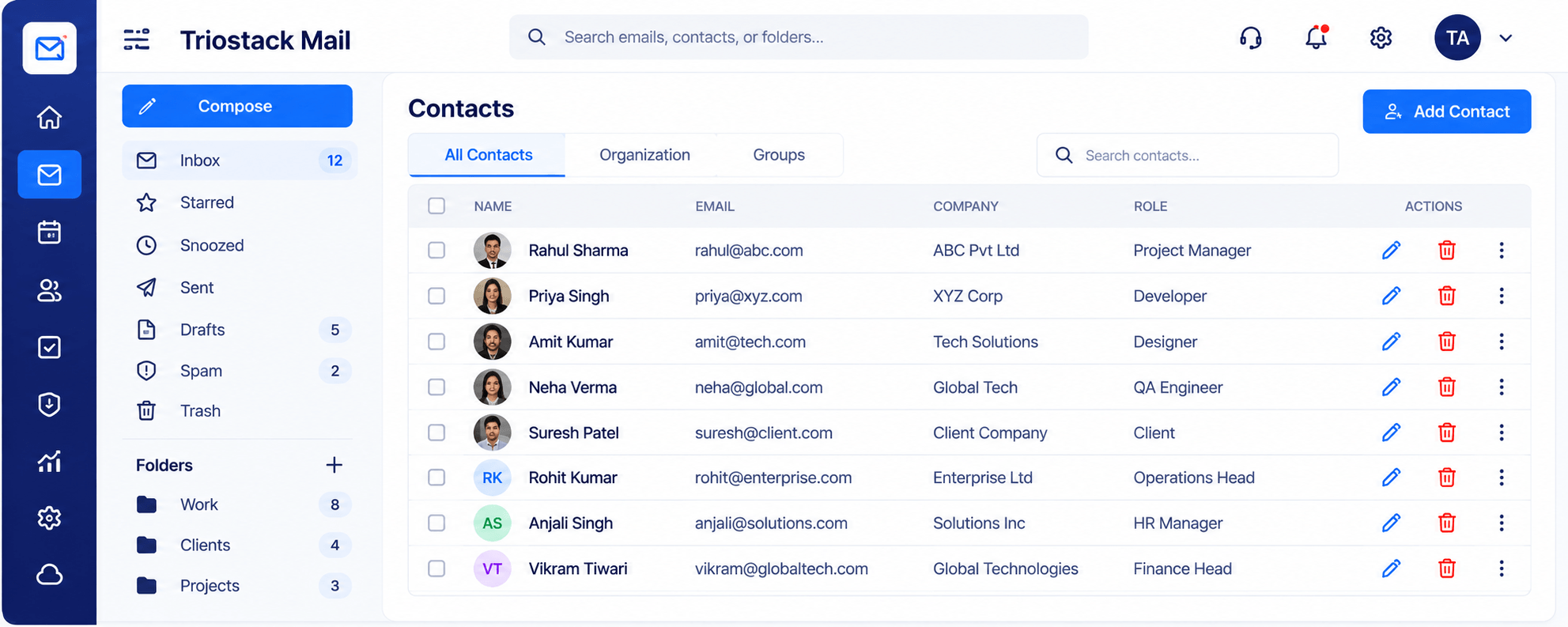
Next step.
How it fits the plan
Verify. Update your DNS as shown.
Create. Add users and aliases.
In real life
New company
A domain is connected on day one.
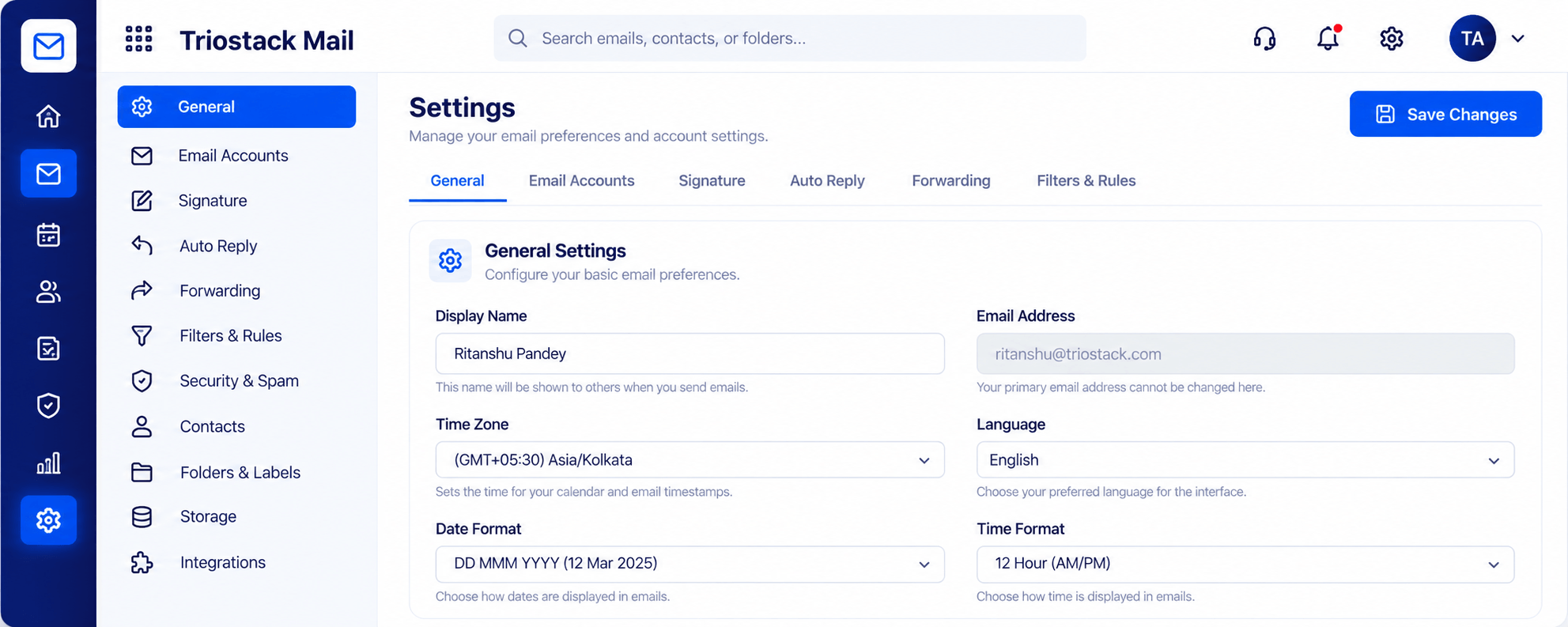
Your signature.
How it fits the plan
Create. Add users and aliases.
Confirm. Wait for 'active'.
Watch out for
Changing DNS records without noting what was there before.
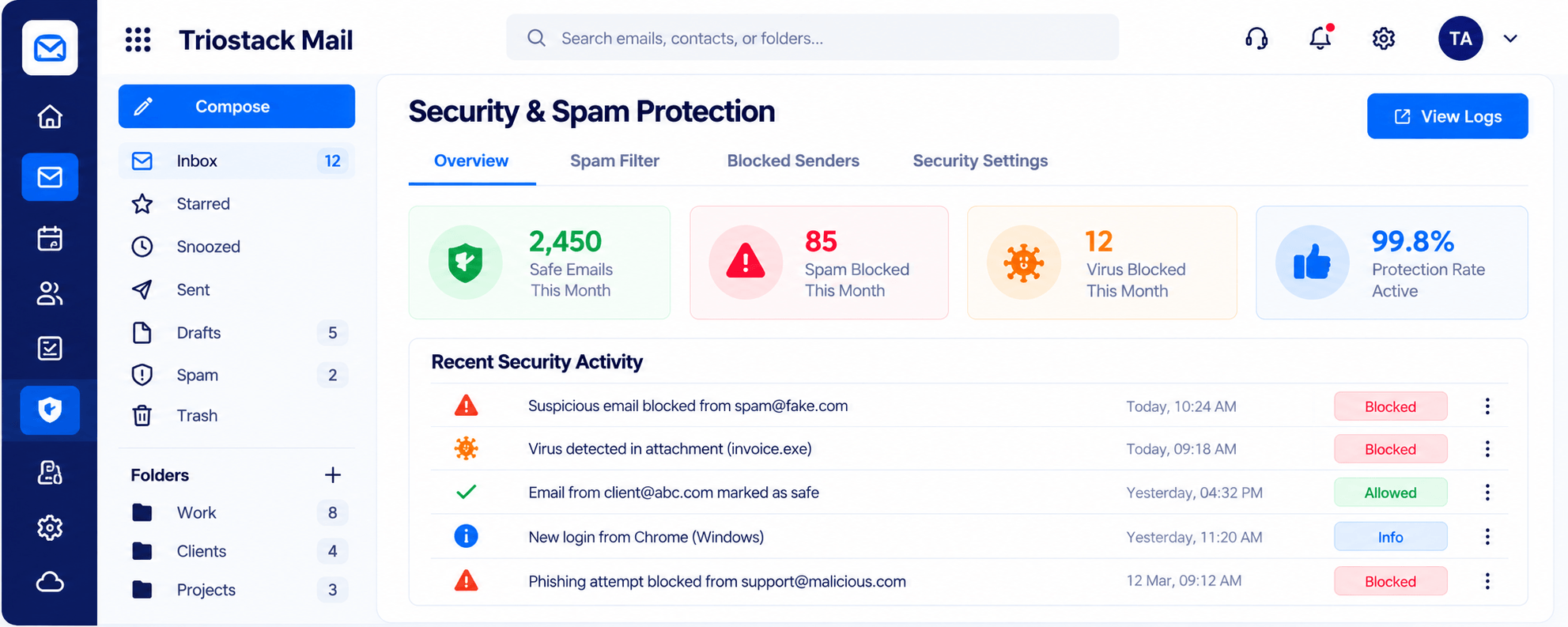
Protect it.
How it fits the plan
Confirm. Wait for 'active'.
Add. Add your organisation and domain.
Before you start
Execution Plan
Add your organisation and domain.
Update your DNS as shown.
Add users and aliases.
Wait for 'active'.
Practical Guide
Before you start
A tip that helps
Keep the DNS login to hand. Most delays are waiting for someone to find the password.
A common mistake
Changing DNS records without noting what was there before.
In Real Life
Scenario 01
A domain is connected on day one.
Scenario 02
A second domain runs beside the first.
Scenario 03
A temporary address is created.
Straight answers about Connect Your Domain, from setup to what happens next.
Have a question about Connect Your Domain?
Book a free callFrom Organizations & Domains.
The status changes from pending to active.
Yes.
Yes. Ask our team.
Add your organisation and domain, create users and aliases and watch the status move from pending to active.
It runs in 4 steps: Add, Verify, Create and Confirm. Add your organisation and domain.
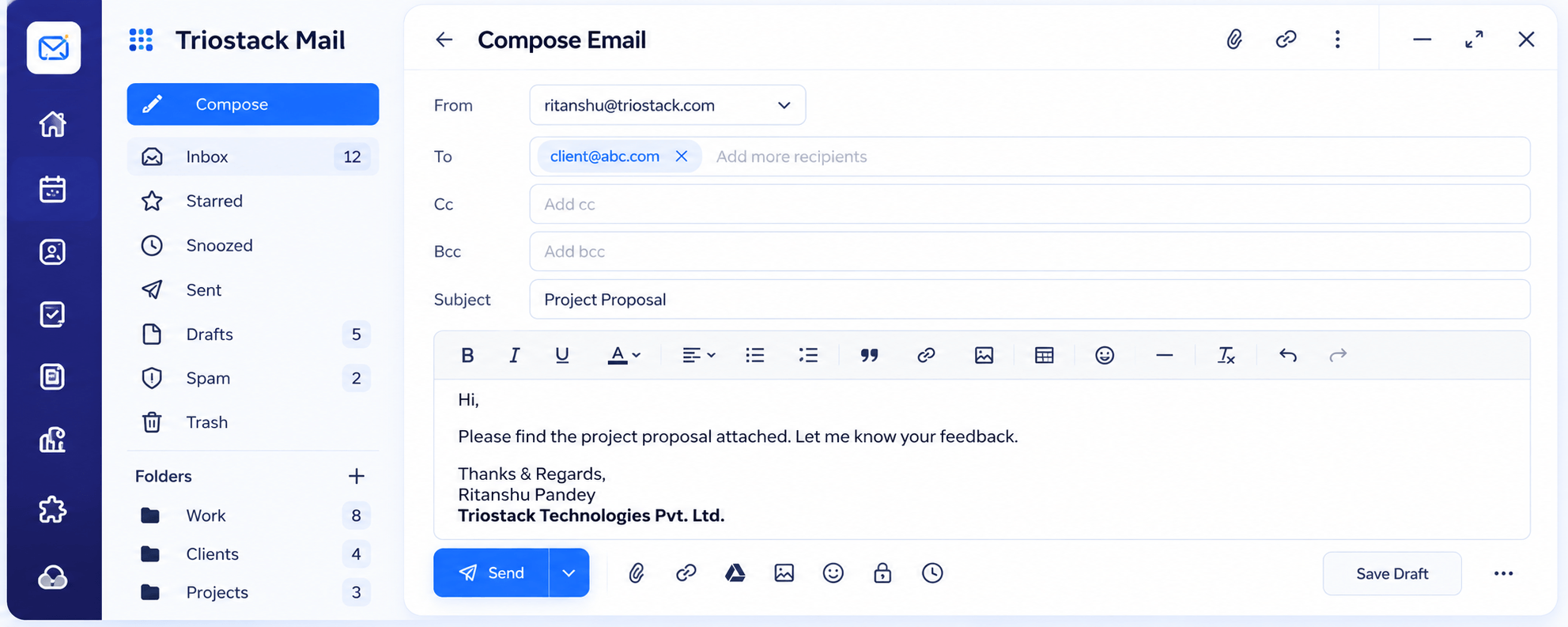
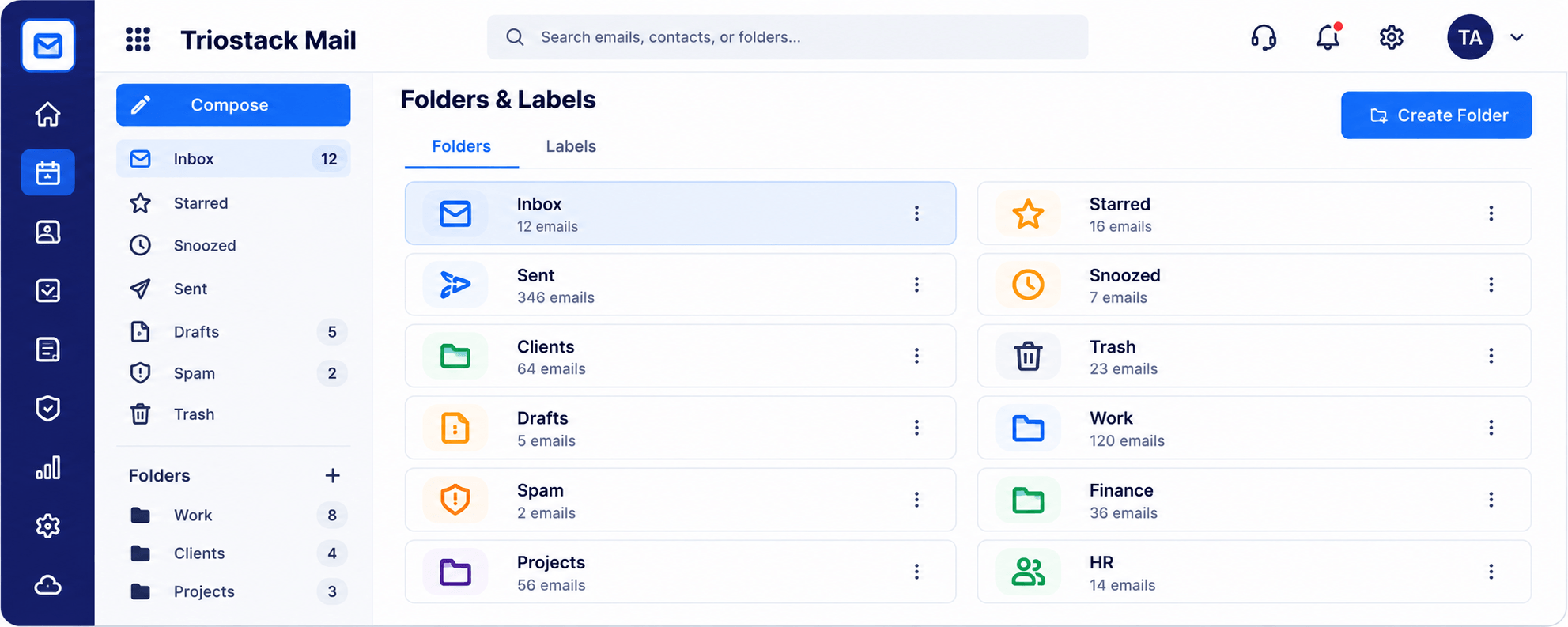
The real screens on this page include Inbox & Reading Pane, Compose, Folders & Labels and Organizations & Domains, all captured from the product.
Request a demo or start a free trial. Our team can also walk you through a guided setup, so your first session ends with something working.
Keep Exploring
Custom-domain inboxes, shared folders, contacts and spam protection in one workspace, connected to CRM and support.