The best Business Suite software in India, built to help your business grow. Contact us at +91-8882435276.
[ Contact ]
Phone number
Email address
Head office
Noida office
The right team at TriostackOne will get back to you.
Positioning Assessment
Signatures written by hand in every email look different, miss a phone number or go out with an old job title.
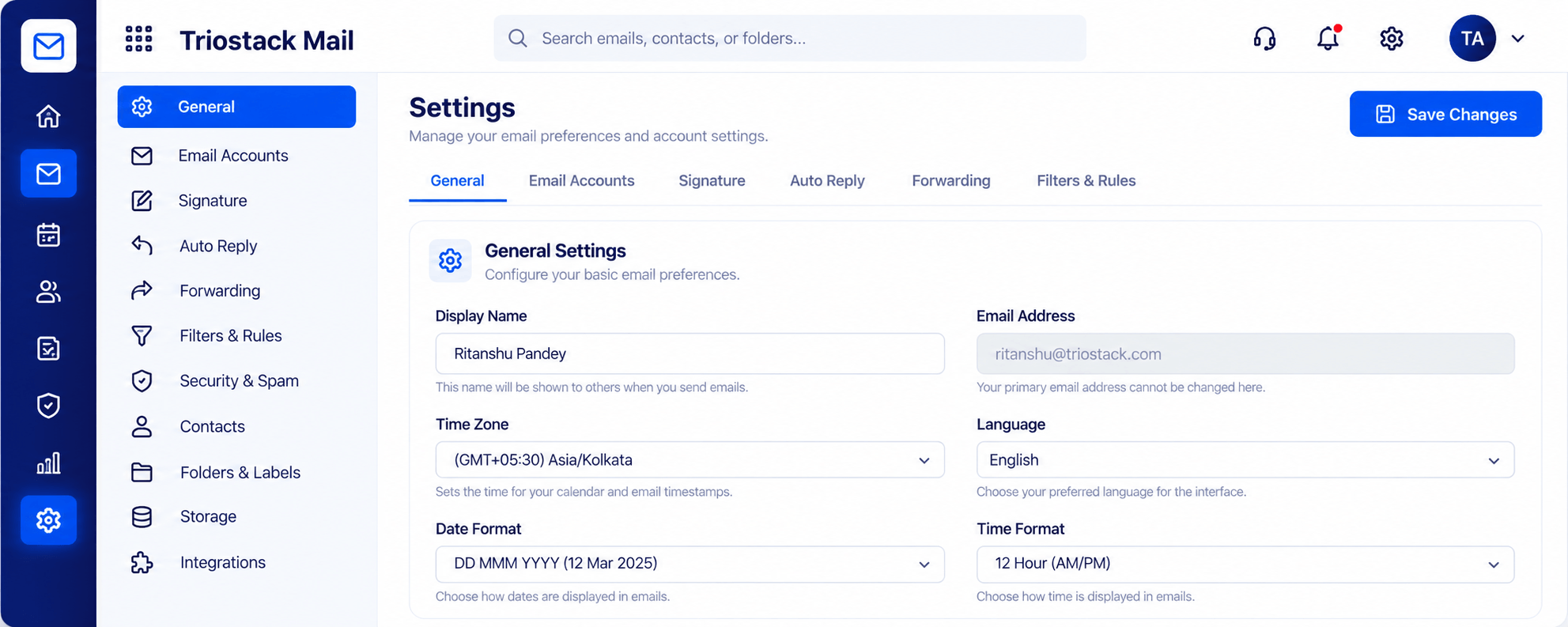
In Triostack Mail settings you set your display name, time zone, language and date format, then add a signature that follows every message. Auto reply and forwarding live in the same place.
“New joiners used to copy a signature from a colleague. Now it is the first thing they set up.”
Sample team scenario
Illustrative example, not a customer testimonial
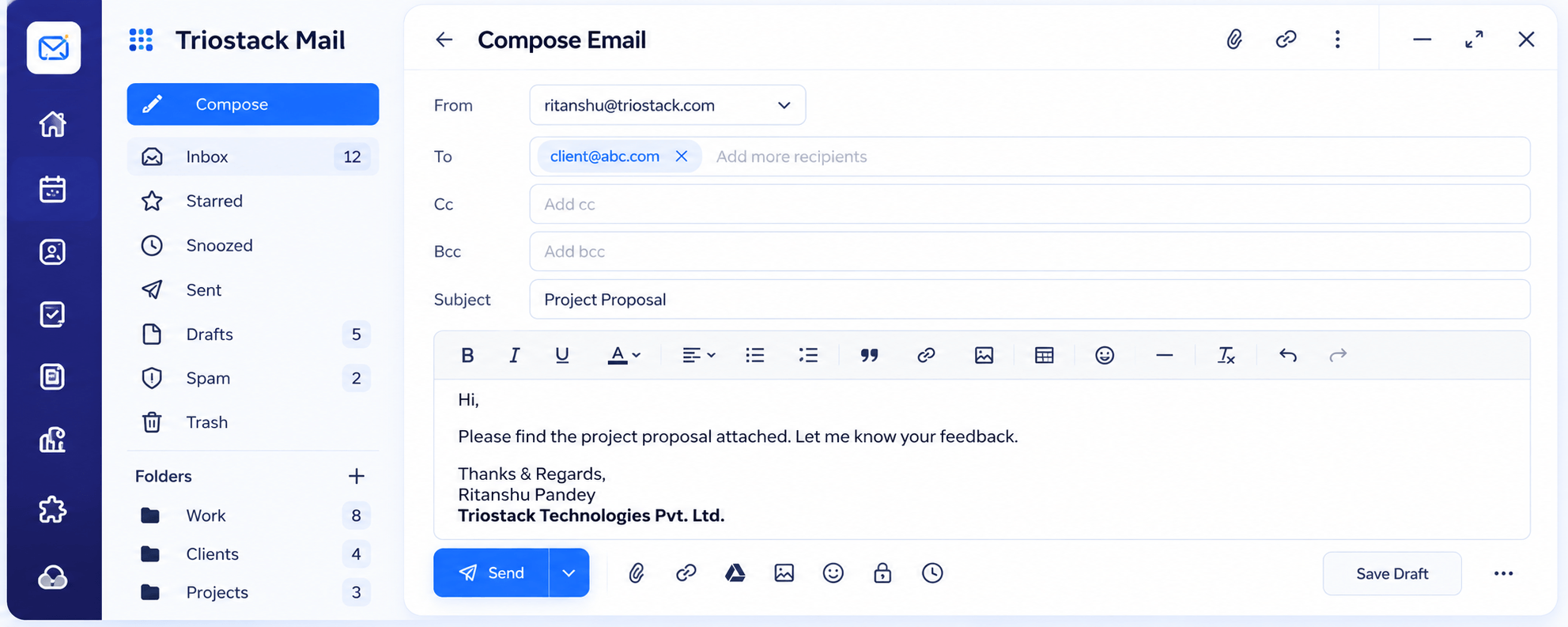
Compose
A full editor with Cc, Bcc, attachments and scheduled send
In the Product
Picture company stationery that is added to every letter without anyone remembering to do it.
Added to each message.
Change it once.
One look across the team.
Platform Integrity
Added automatically
Show the right name
Cover absences
Match your region
How It Works
What changes when sign-offs are consistent.
| Dimension | Triostack Mail | Manual Sign-Offs |
|---|---|---|
| Setup | Once, in settings | Every email |
| Consistency | Same format each time | Varies by person |
| Updates | Edit in one place | Re-send to everyone |
| Extras | Auto reply and forwarding nearby | Elsewhere |
| Brand | Matches your company | Personal styles |
Book a walkthrough and we will set up a sandbox with a sample domain and inboxes so you can try mail, shared folders and rules before you commit.
Live Interface Tour
Real screens captured directly from the Triostack Mail workspace.
Settings, Signatures & Rules
Added to every message you send
Feature Breakdown
Captured from the Triostack Mail workspace.
Signature, reply and forwarding.
How it fits the plan
Open. Go to Settings and the Signature tab.
Write. Add your name, role and contact details.
Practical tip
Keep the signature short: name, role, one phone number and your website. Long ones are skipped.
See it when you write.
On this screen: A full editor with Cc, Bcc, attachments and scheduled send.
How it fits the plan
Write. Add your name, role and contact details.
Save. It is added to your messages.
In real life
New joiner
Sets a signature on day one.
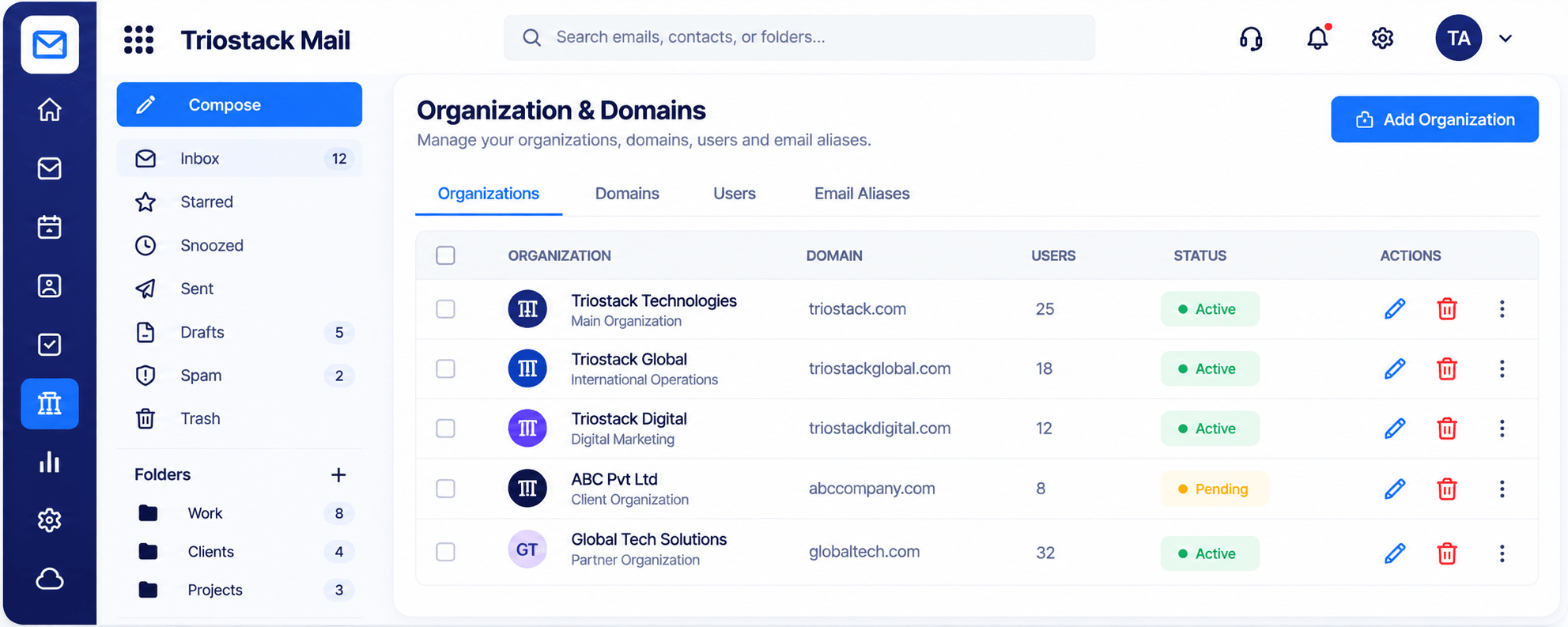
Right address, right name.
On this screen: Domains, users and aliases managed in one place.
How it fits the plan
Save. It is added to your messages.
Review. Send a test to yourself.
Watch out for
Pasting a signature with a large image that loads slowly and looks different in every client.
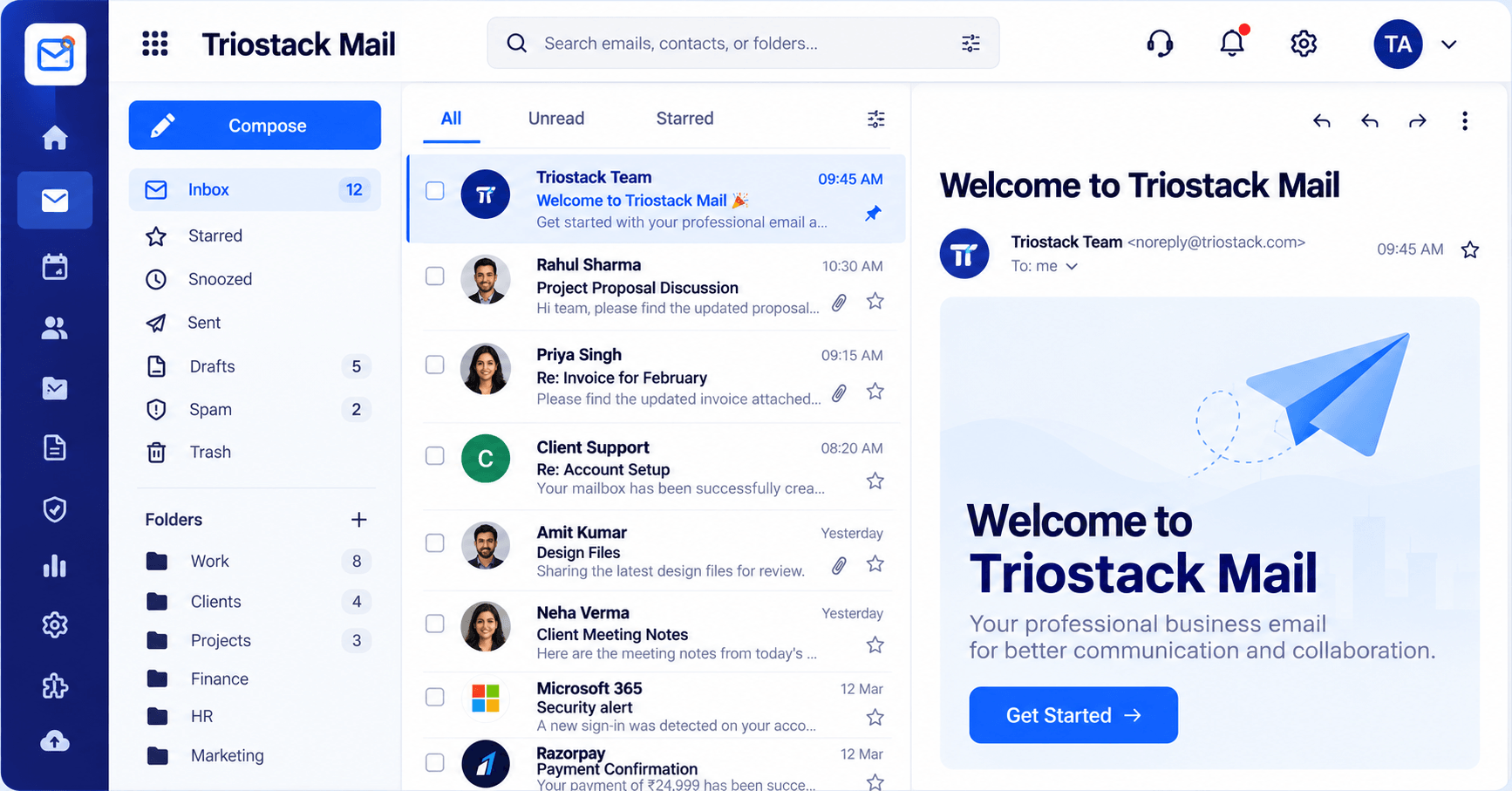
Where replies arrive.
On this screen: Folders, message list and reading pane in one view.
How it fits the plan
Review. Send a test to yourself.
Open. Go to Settings and the Signature tab.
Before you start
Execution Plan
Go to Settings and the Signature tab.
Add your name, role and contact details.
It is added to your messages.
Send a test to yourself.
Practical Guide
Before you start
A tip that helps
Keep the signature short: name, role, one phone number and your website. Long ones are skipped.
A common mistake
Pasting a signature with a large image that loads slowly and looks different in every client.
In Real Life
Scenario 01
Sets a signature on day one.
Scenario 02
The company updates sign-offs in minutes.
Scenario 03
An auto reply sets expectations.
Straight answers about Email Signatures, from setup to what happens next.
Have a question about Email Signatures?
Book a free callIn Settings, on the Signature tab.
Yes, in the same settings area.
Yes, with date format too.
Ask us how signatures are applied across accounts on your plan.
Add a signature to every message from your settings, alongside your display name, time zone and language, so every email looks like it came from the same company.
It runs in 4 steps: Open, Write, Save and Review. Go to Settings and the Signature tab.
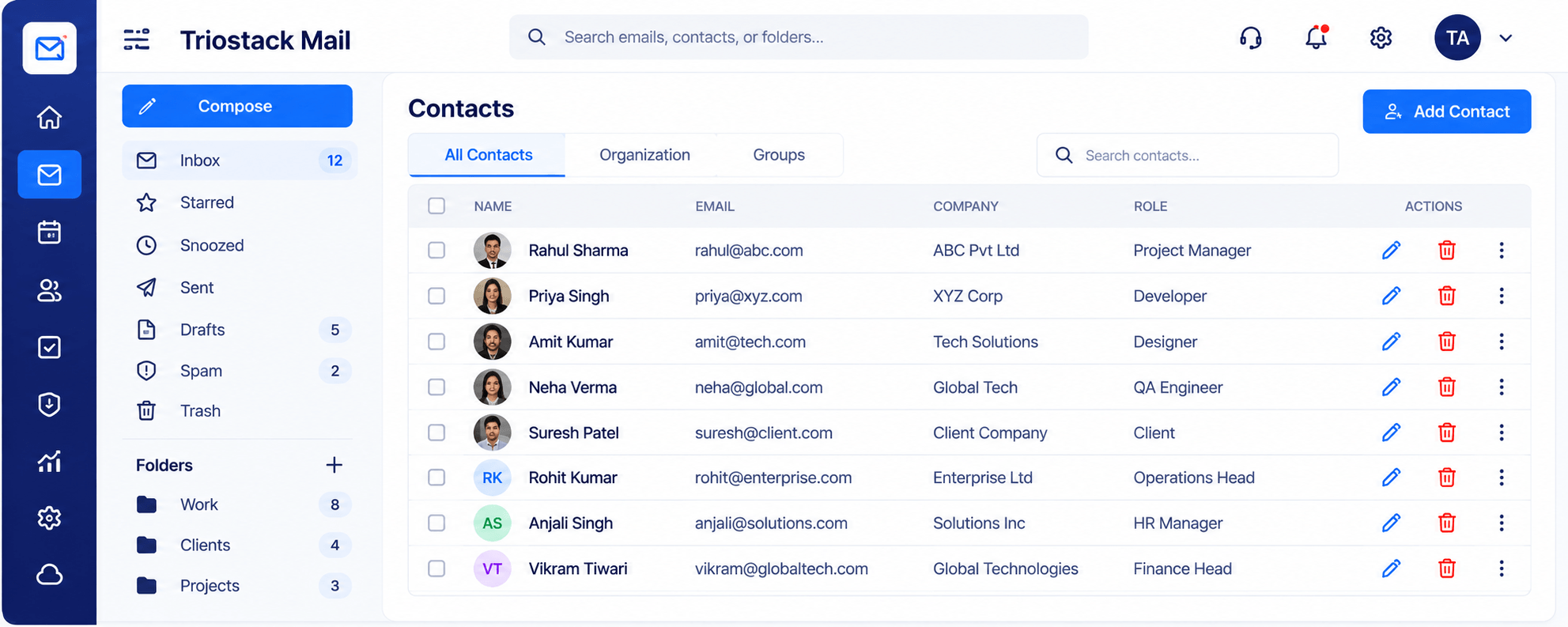
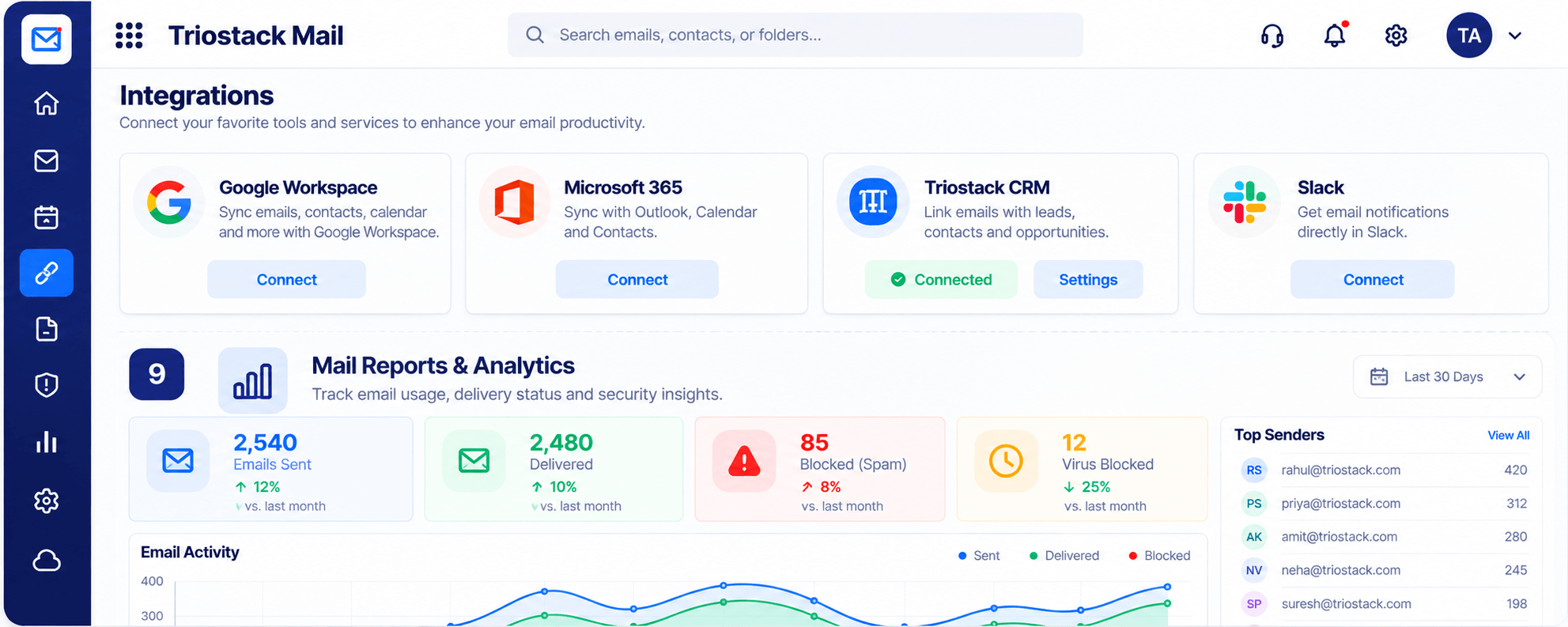
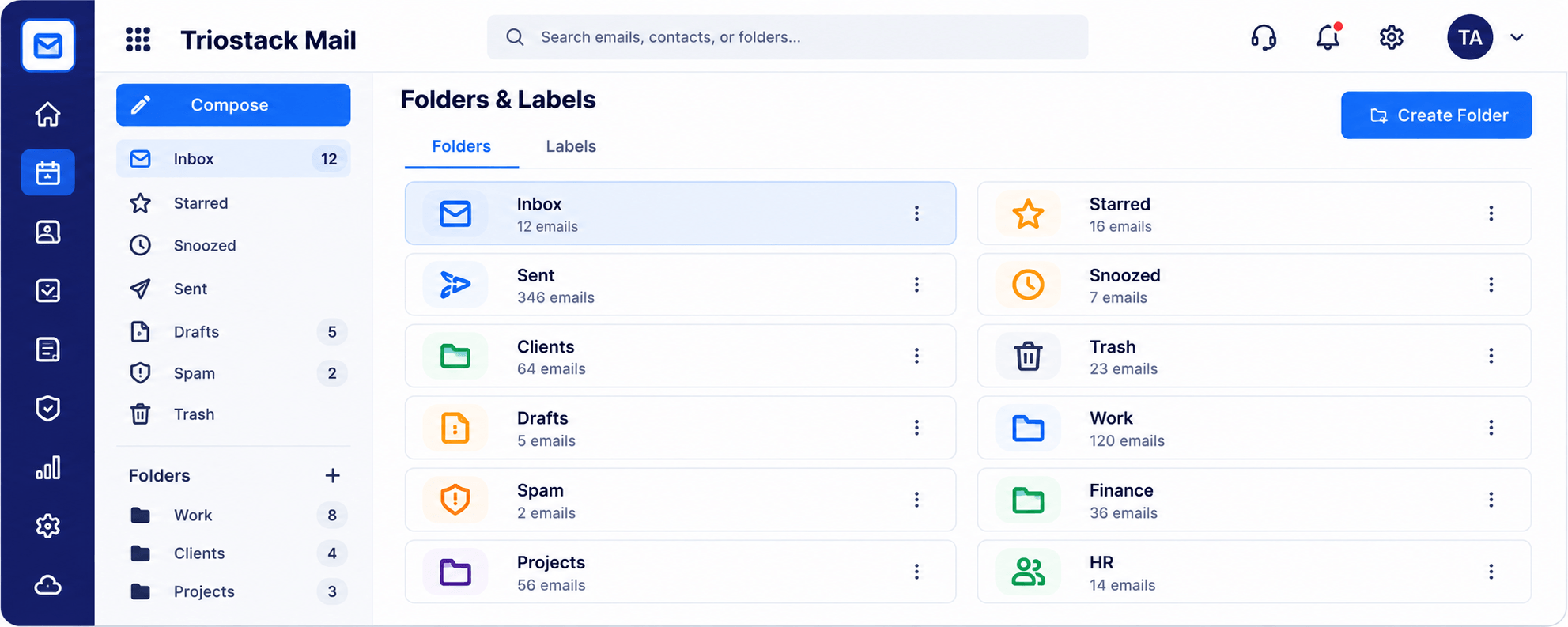
The real screens on this page include Compose, Organizations & Domains, Inbox & Reading Pane and Settings, all captured from the product.
Request a demo or start a free trial. Our team can also walk you through a guided setup, so your first session ends with something working.
Keep Exploring
Custom-domain inboxes, shared folders, contacts and spam protection in one workspace, connected to CRM and support.