The best Business Suite software in India, built to help your business grow. Contact us at +91-8882435276.
[ Contact ]
Phone number
Email address
Head office
Noida office
The right team at TriostackOne will get back to you.
Open Settings
Go to the Signature tab.
Write
Add name, role and contact details.
Save
It follows your messages.
Test
Send yourself a message.
Positioning Assessment
A missing signature looks careless; an old one sends people to a phone number that no longer works.
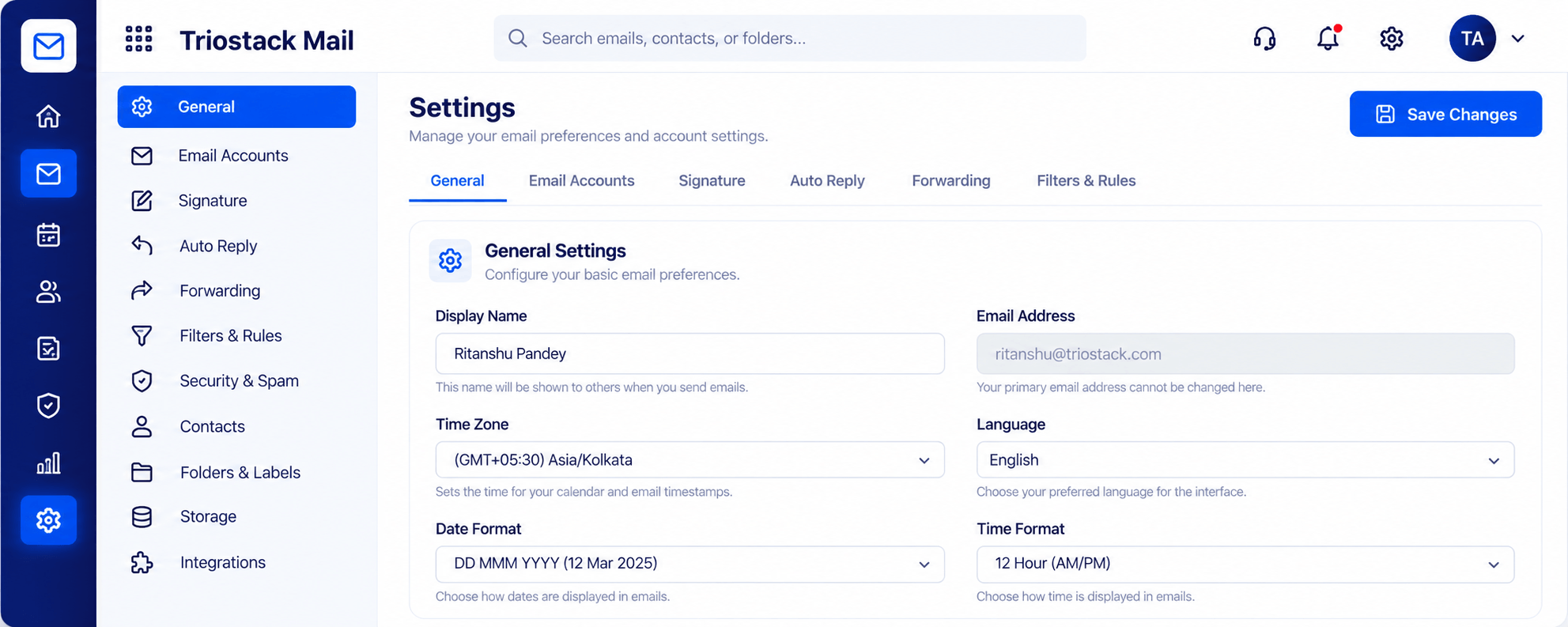
In Triostack Mail, open Settings, set your display name, time zone, language and date format, then add a signature on its own tab. Auto reply, forwarding and filters live nearby.
“I wrote my signature once and forgot about it, which is what a signature should be.”
Sample team scenario
Illustrative example, not a customer testimonial
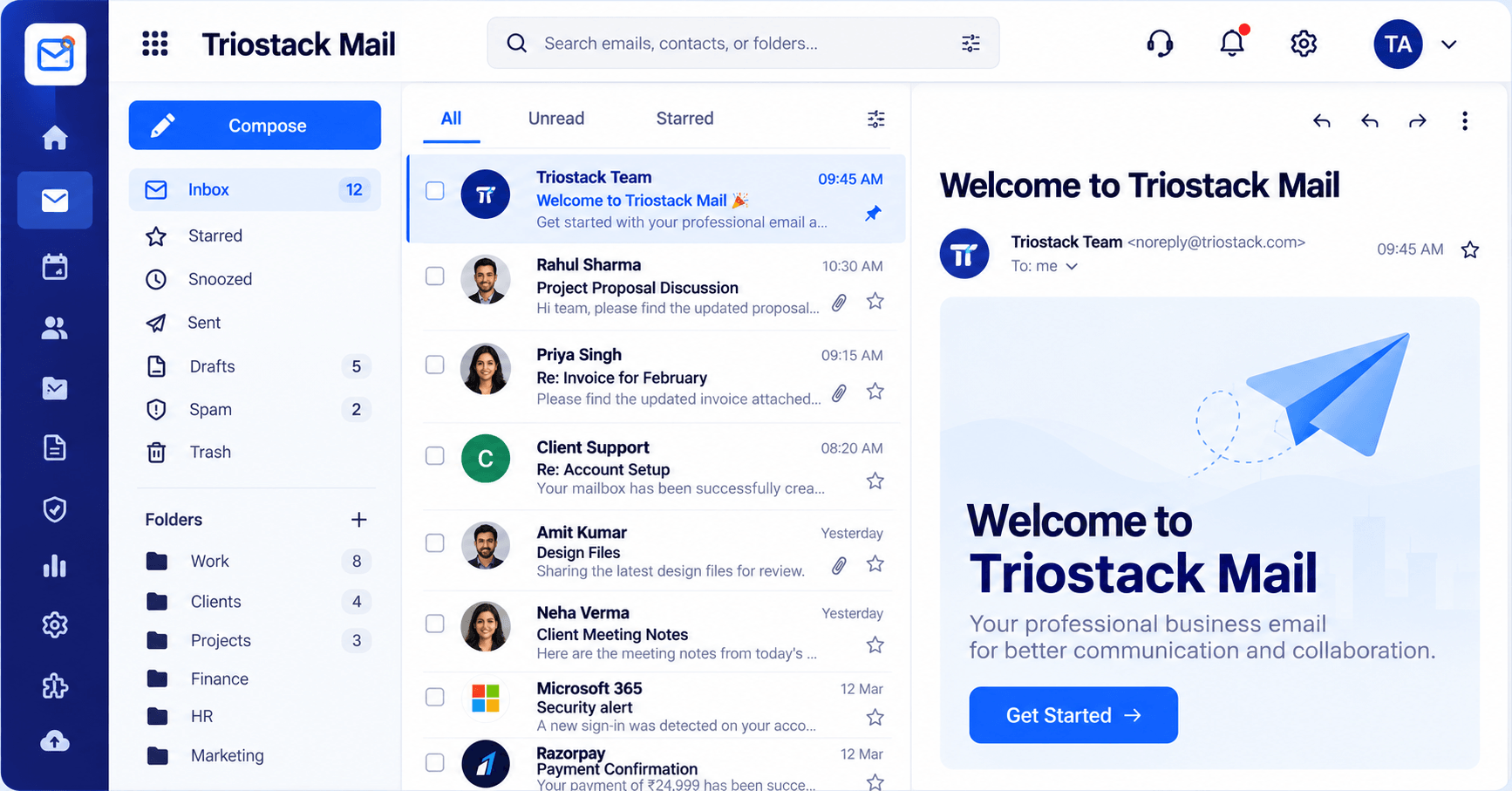
Inbox & Reading Pane
Folders, message list and reading pane in one view
In the Product
Imagine a finishing touch that is applied to every letter without you thinking about it.
Minutes, not meetings.
On every message.
Edit in one place.
Platform Integrity
How you appear
Name, role, contact
Out-of-office text
Match your region
How It Works
What setting it once changes.
| Dimension | Triostack Mail | Typing It Each Time |
|---|---|---|
| Effort | Once | Every email |
| Accuracy | Always the same | Often outdated |
| Updates | One place | Everywhere |
| Extras | Auto reply nearby | Elsewhere |
| Look | Consistent | Varied |
We will help you connect your domain, create your first mailbox and set up your signature in your first session.
Live Interface Tour
Real screens captured directly from the Triostack Mail workspace.
Settings, Signatures & Rules
From Settings to a finished signature
Feature Breakdown
Captured from the Triostack Mail workspace.
Where to start.
How it fits the plan
Open Settings. Go to the Signature tab.
Write. Add name, role and contact details.
Practical tip
Send yourself a test and read it on a phone. That is how most recipients will see it.
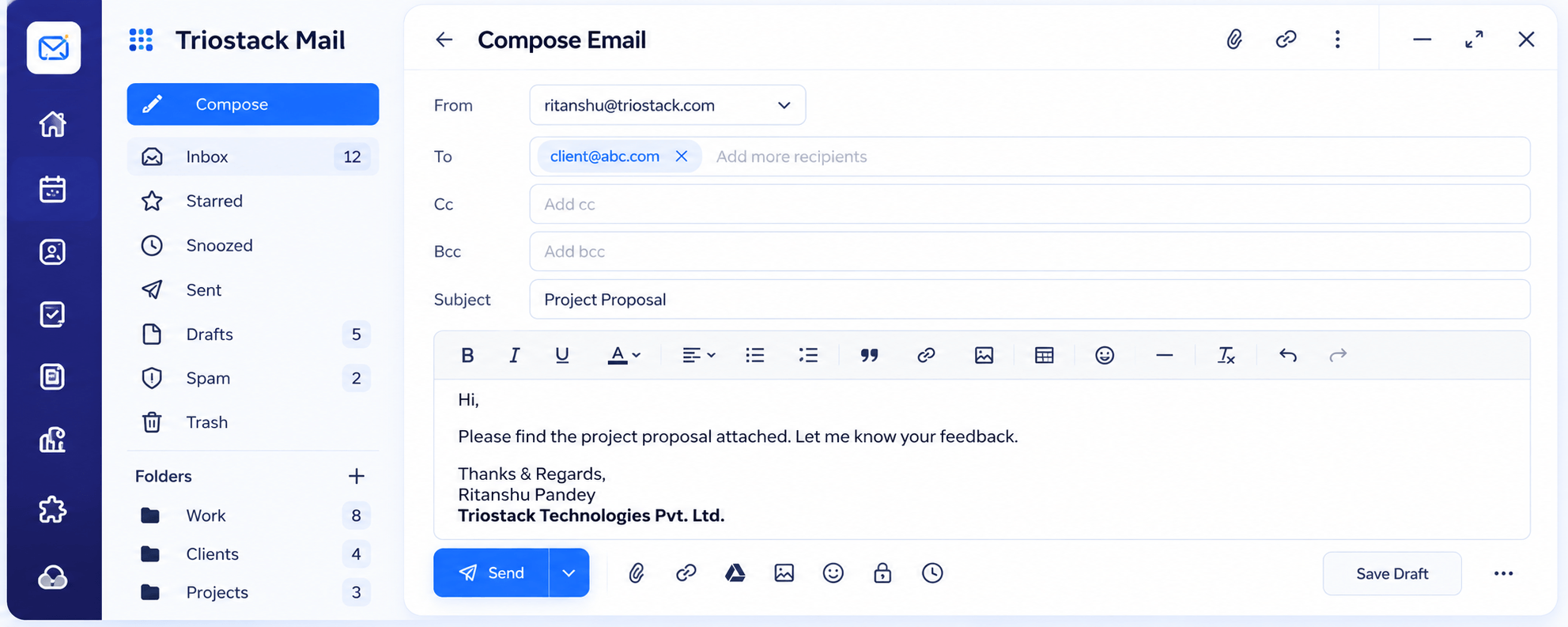
See it in action.
How it fits the plan
Write. Add name, role and contact details.
Save. It follows your messages.
In real life
First day
A new joiner sets it up.
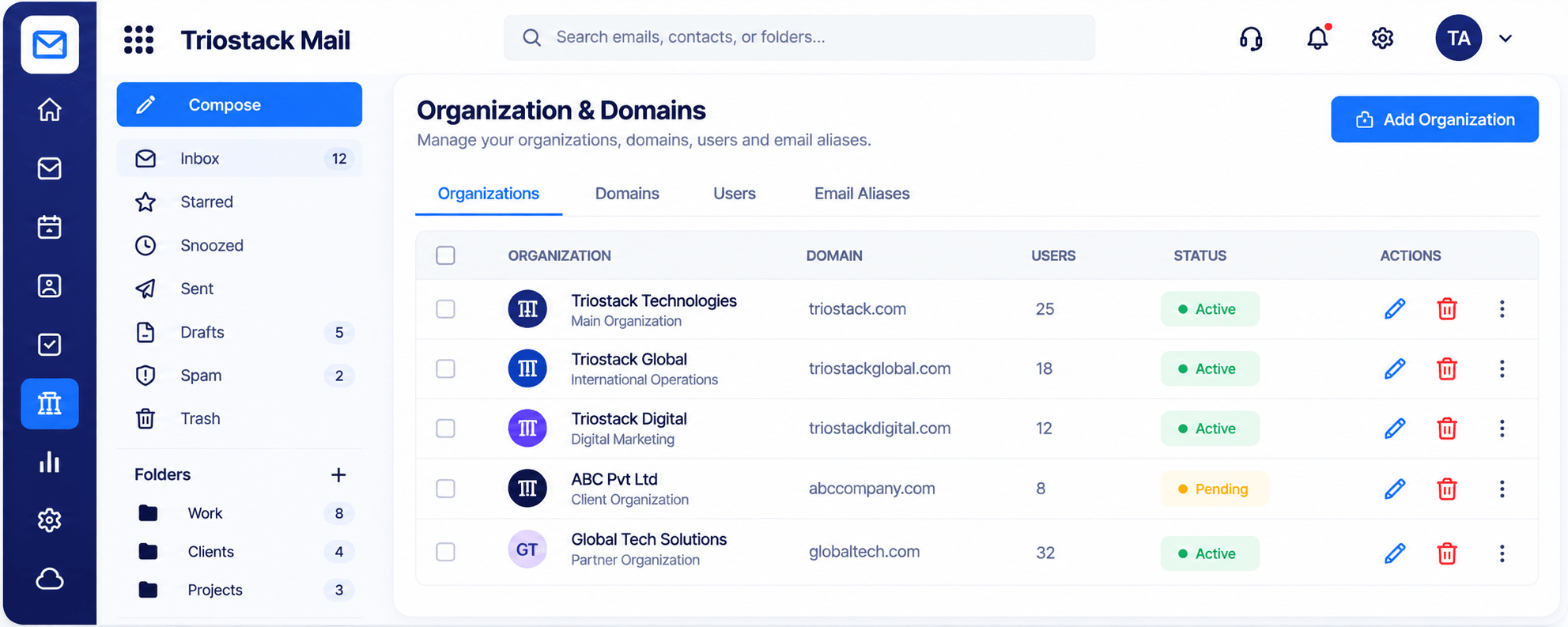
Your addresses.
How it fits the plan
Save. It follows your messages.
Test. Send yourself a message.
Watch out for
Using different signatures across the team, so the company looks like five companies.
Replies.
On this screen: Folders, message list and reading pane in one view.
How it fits the plan
Test. Send yourself a message.
Open Settings. Go to the Signature tab.
Before you start
Execution Plan
Go to the Signature tab.
Add name, role and contact details.
It follows your messages.
Send yourself a message.
Practical Guide
Before you start
A tip that helps
Send yourself a test and read it on a phone. That is how most recipients will see it.
A common mistake
Using different signatures across the team, so the company looks like five companies.
In Real Life
Scenario 01
A new joiner sets it up.
Scenario 02
It is updated once.
Scenario 03
An auto reply is switched on.
Straight answers about Create Email Signatures, from setup to what happens next.
Have a question about Create Email Signatures?
Book a free callIn Settings, on the Signature tab.
Yes, in the auto reply area.
Yes.
Yes. Edit it any time.
Open Settings, add your name, role and contact details as a signature and set an auto reply, so every message looks finished.
It runs in 4 steps: Open Settings, Write, Save and Test. Go to the Signature tab.
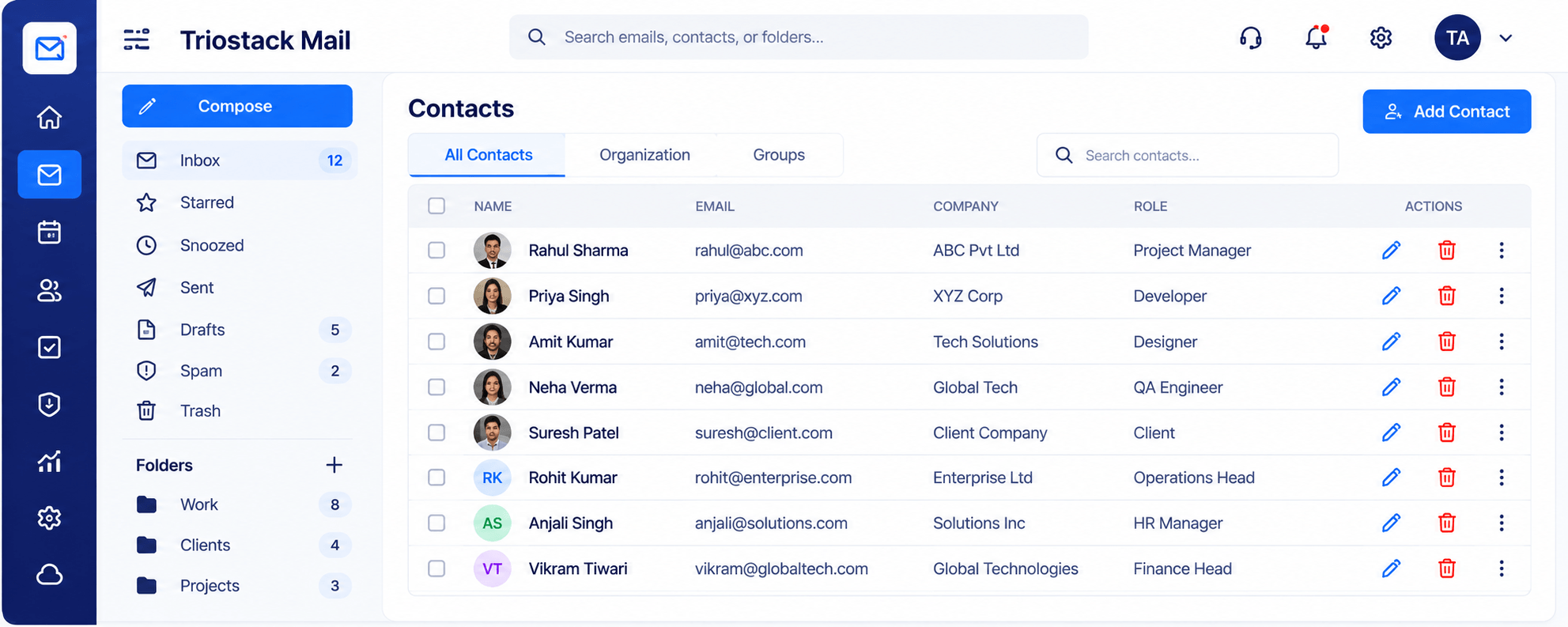
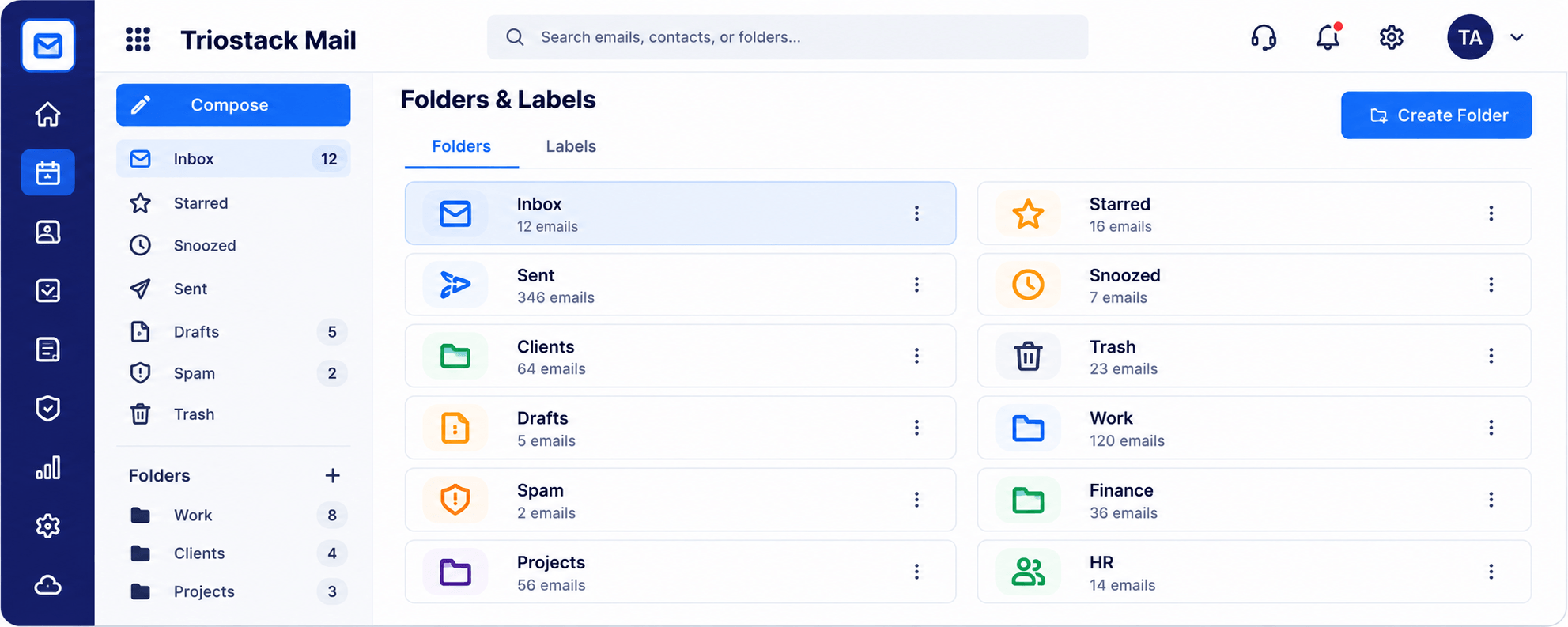
The real screens on this page include Inbox & Reading Pane, Folders & Labels, Integrations & Reports and Settings, all captured from the product.
Request a demo or start a free trial. Our team can also walk you through a guided setup, so your first session ends with something working.
Keep Exploring
Custom-domain inboxes, shared folders, contacts and spam protection in one workspace, connected to CRM and support.