The best Business Suite software in India, built to help your business grow. Contact us at +91-8882435276.
[ Contact ]
Phone number
Email address
Head office
Noida office
The right team at TriostackOne will get back to you.
Positioning Assessment
When integrations are set up in different places, nobody knows what is connected, to what, or whether it is still working.
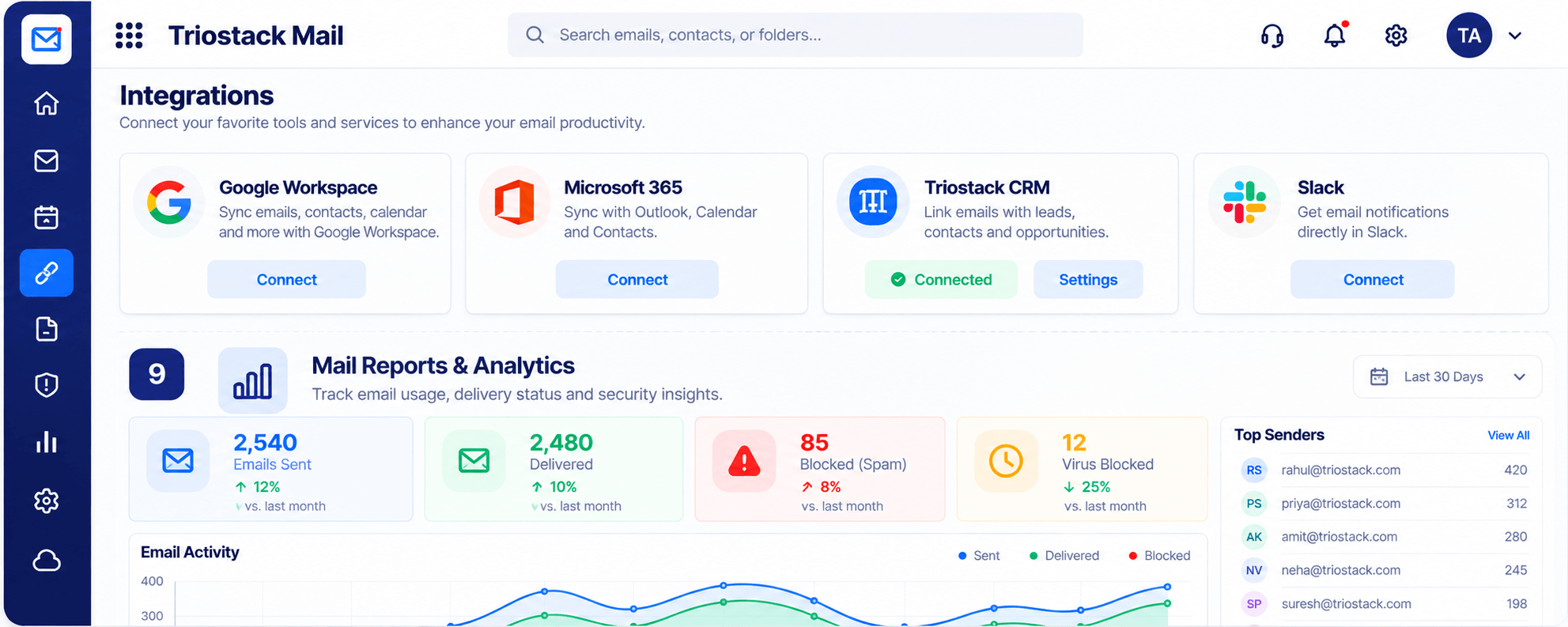
Triostack Mail shows its integrations for Google Workspace, Microsoft 365, Triostack CRM and Slack alongside mail reports for emails sent, delivered and blocked and your top senders.
“One page told us what was connected and how much mail was getting through.”
Sample team scenario
Illustrative example, not a customer testimonial
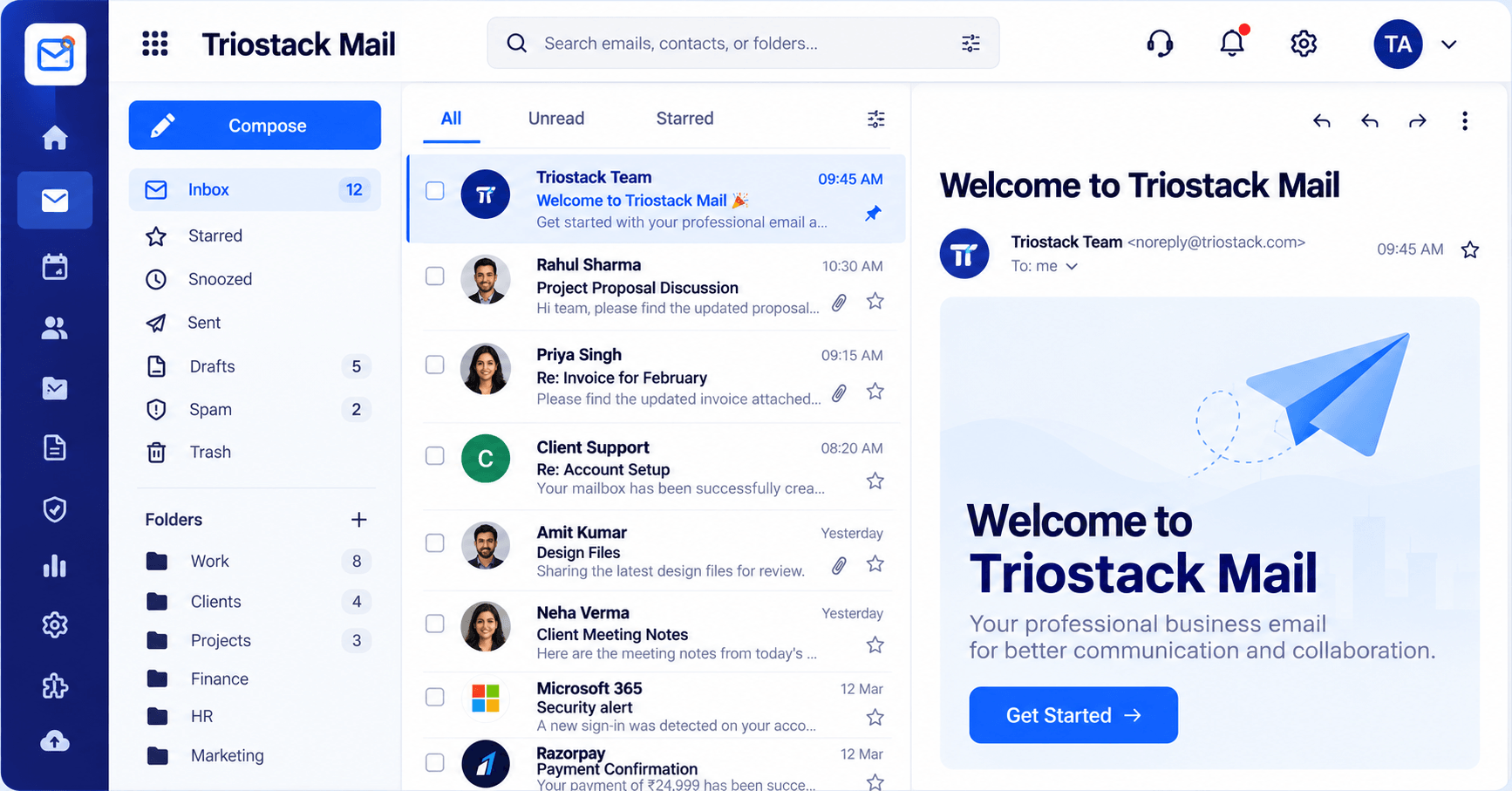
Inbox & Reading Pane
Folders, message list and reading pane in one view
In the Product
Imagine one panel that shows what is plugged in and how much is flowing through.
Connections in one view.
Sent, delivered, blocked.
Know what is working.
Platform Integrity
Google, Microsoft, CRM, Slack
Track over time
See what was stopped
Who sends the most
How It Works
What changes when connections are in one place.
| Dimension | Triostack Mail | Scattered Settings |
|---|---|---|
| Visibility | Connections in one view | Many settings pages |
| Reports | Sent, delivered, blocked | Separate tool |
| Senders | Top senders listed | Not tracked |
| Setup | Guided | DIY |
| Suite | Part of TriostackOne | Standalone |
Our team can walk you through the connection, permissions and a first test so Mail fits into the tools your team already uses.
Live Interface Tour
Real screens captured directly from the Triostack Mail workspace.
Integrations & Reports
Connections and reports together
Feature Breakdown
Captured from the Triostack Mail workspace.
01
IntegrationsThe hub.
How it fits the plan
Open. View connected integrations.
Add. Connect another tool.
Practical tip
Check the hub monthly. A quick look confirms every connection is still doing its job.
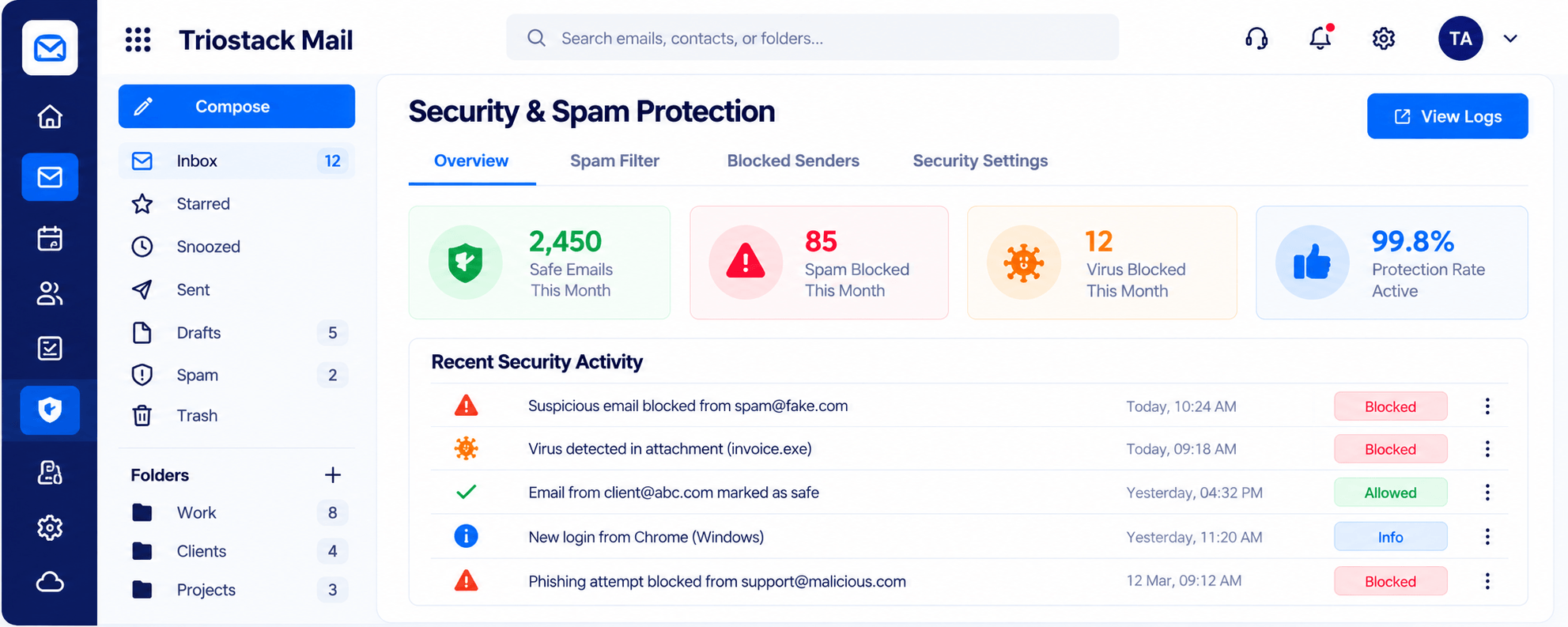
02
IntegrationsBlocked mail.
How it fits the plan
Add. Connect another tool.
Review. Check mail reports.
In real life
Admin review
A quick look confirms every connection.
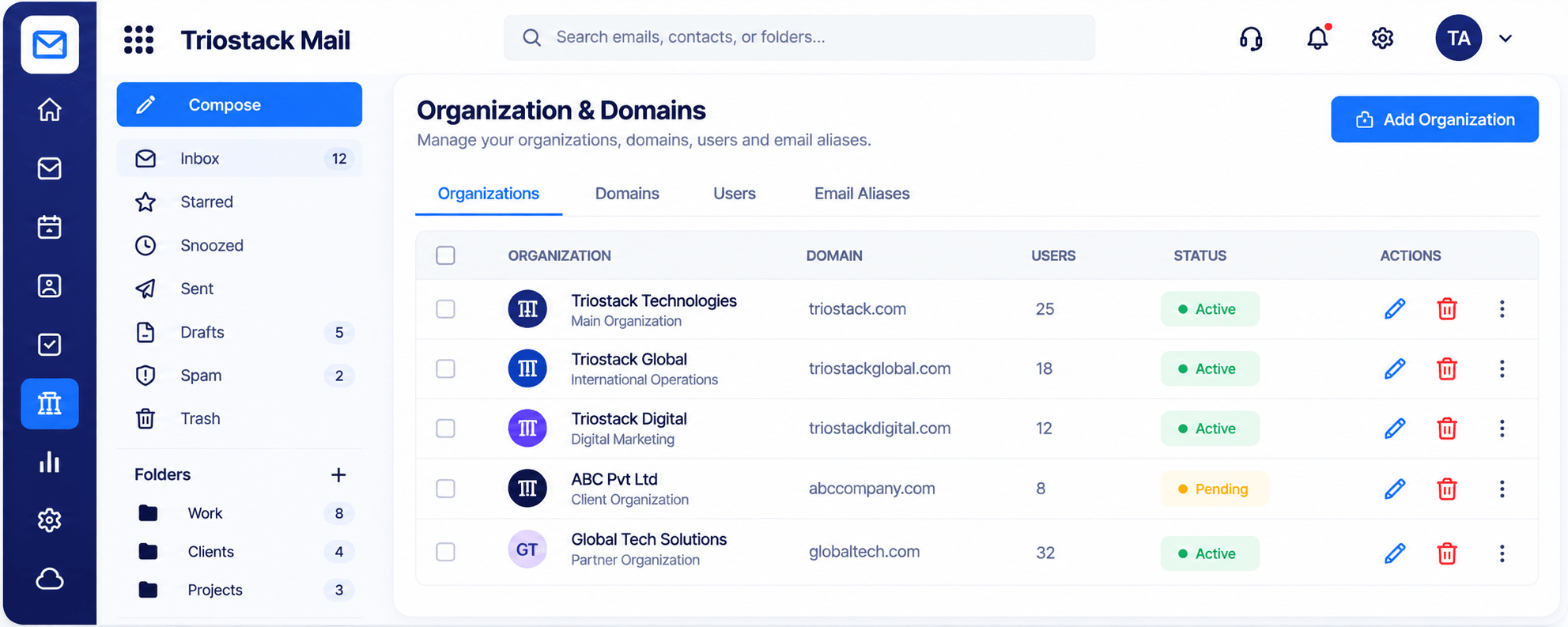
03
IntegrationsWhere it sends from.
How it fits the plan
Review. Check mail reports.
Tune. Adjust rules and senders.
Watch out for
Connecting a tool once and never checking it again.
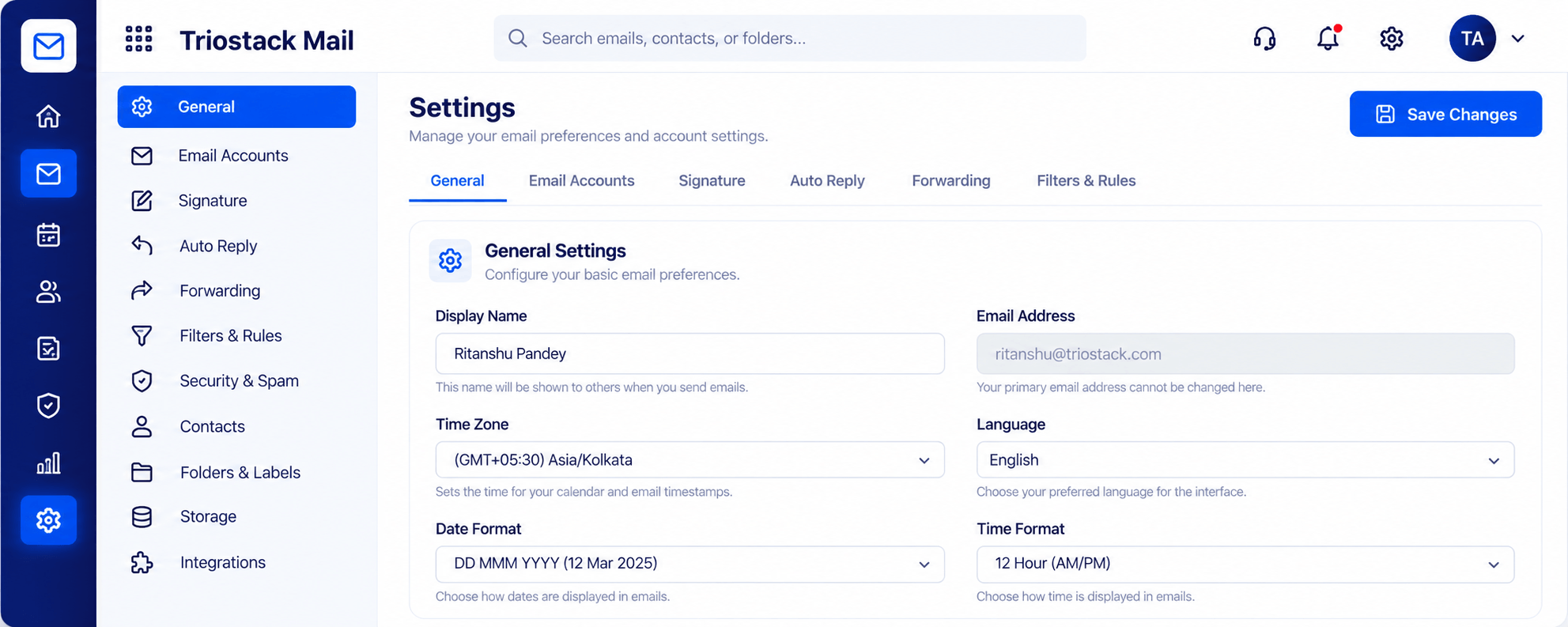
04
IntegrationsRules and filters.
How it fits the plan
Tune. Adjust rules and senders.
Open. View connected integrations.
Before you start
Execution Plan
View connected integrations.
Connect another tool.
Check mail reports.
Adjust rules and senders.
Practical Guide
Before you start
A tip that helps
Check the hub monthly. A quick look confirms every connection is still doing its job.
A common mistake
Connecting a tool once and never checking it again.
In Real Life
Scenario 01
A quick look confirms every connection.
Scenario 02
Reports show what is getting through.
Scenario 03
Blocked mail is explained.
Straight answers about Integrations Hub, from setup to what happens next.
Have a question about Integrations Hub?
Book a free callIntegrations and mail reports, including sent, delivered, blocked and top senders.
Google Workspace, Microsoft 365, Triostack CRM and Slack.
Ask us about other connections.
Mostly. Ask us how access is set up.
See and manage the integrations connected to Triostack Mail, and the reports that show emails sent, delivered, blocked and your top senders.
It runs in 4 steps: Open, Add, Review and Tune. View connected integrations.
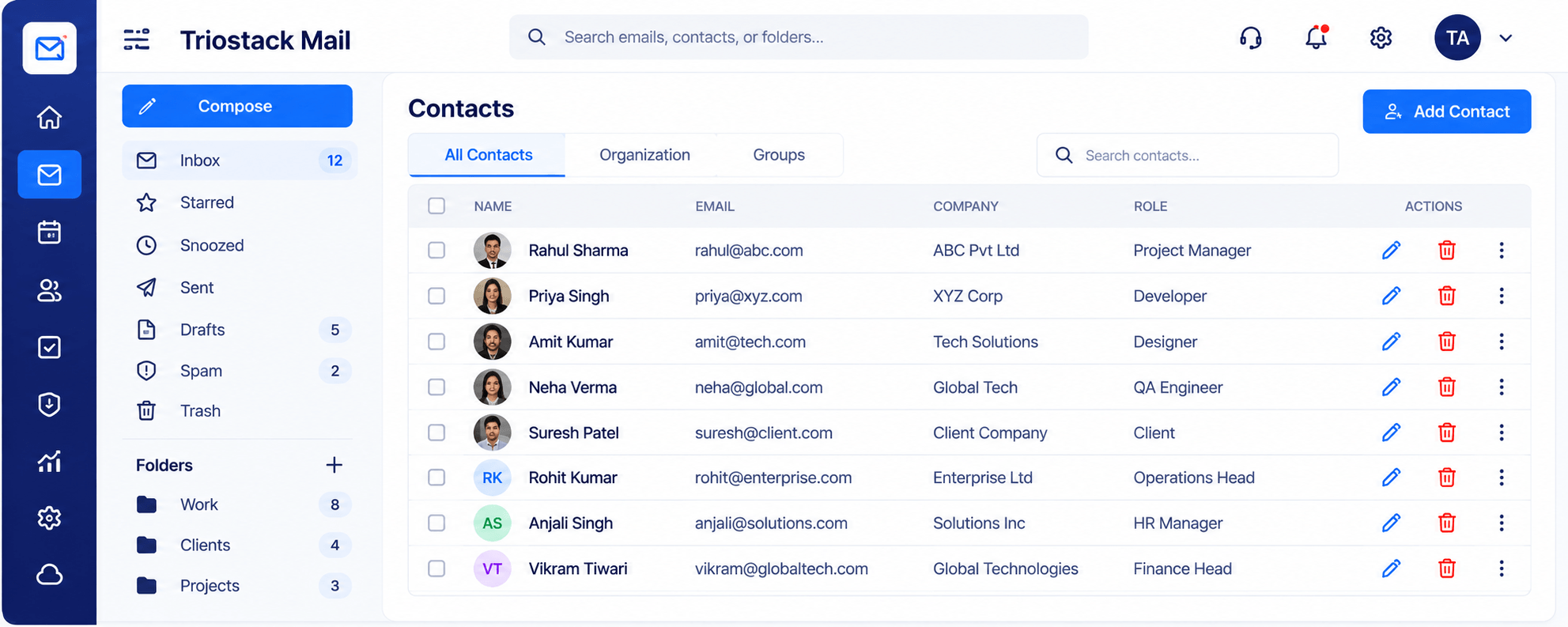
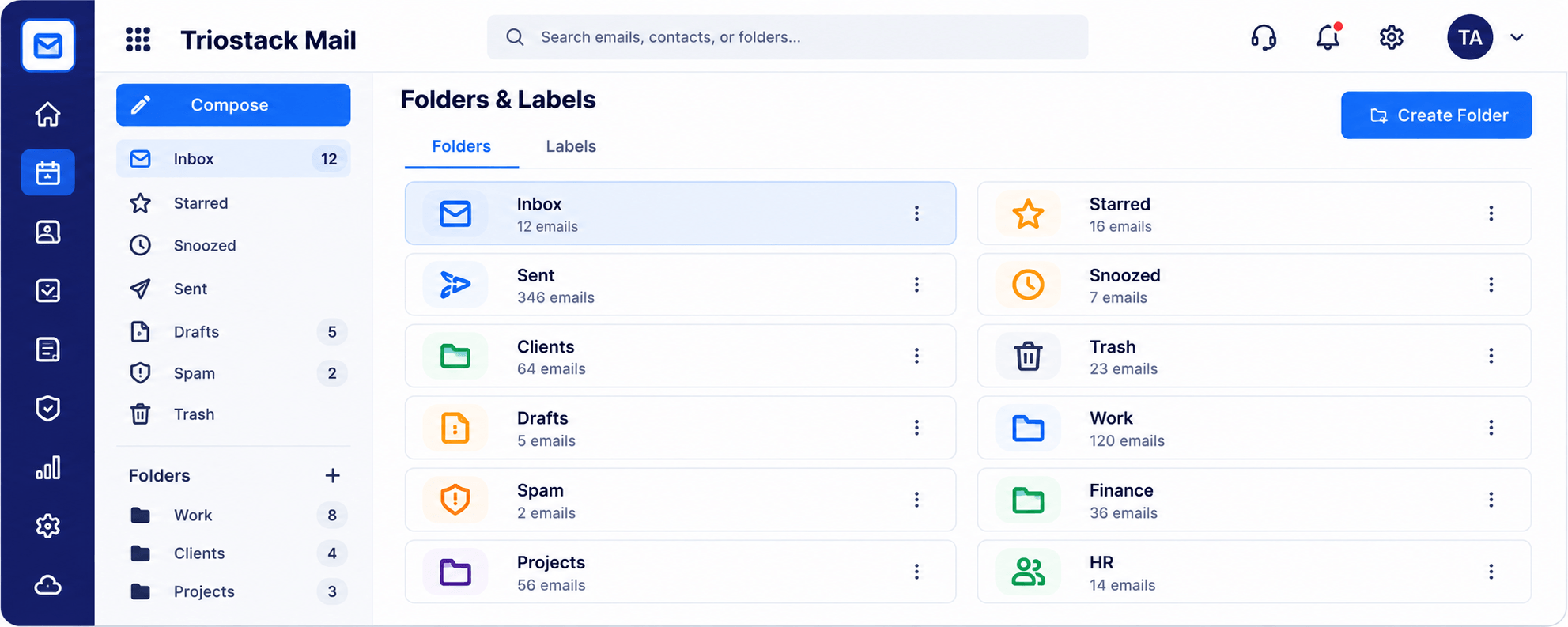
The real screens on this page include Inbox & Reading Pane, Contacts & Groups, Folders & Labels and Integrations & Reports, all captured from the product.
Request a demo or start a free trial. Our team can also walk you through a guided setup, so your first session ends with something working.
Keep Exploring
Custom-domain inboxes, shared folders, contacts and spam protection in one workspace, connected to CRM and support.