The best Business Suite software in India, built to help your business grow. Contact us at +91-8882435276.
[ Contact ]
Phone number
Email address
Head office
Noida office
The right team at TriostackOne will get back to you.
Positioning Assessment
Team addresses like info@ or support@ often land in one person's inbox, and the rest of the team finds out about a message days later.
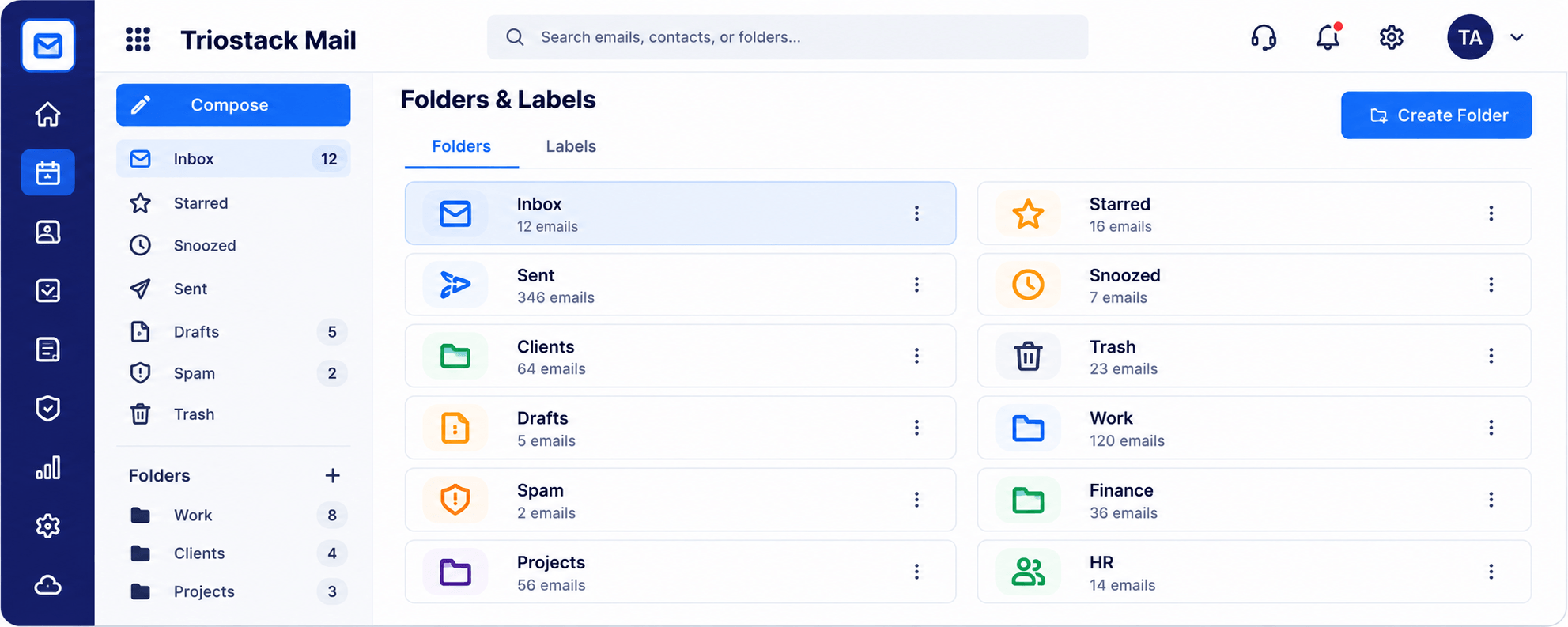
Triostack Mail is built around shared inboxes: organise mail into folders and labels, keep Clients, Work, Finance, HR and Projects apart, and let the team work from the same view. Ask us how shared access is set up for your plan.
“The shared address stopped being one person's problem and became the team's.”
Sample team scenario
Illustrative example, not a customer testimonial
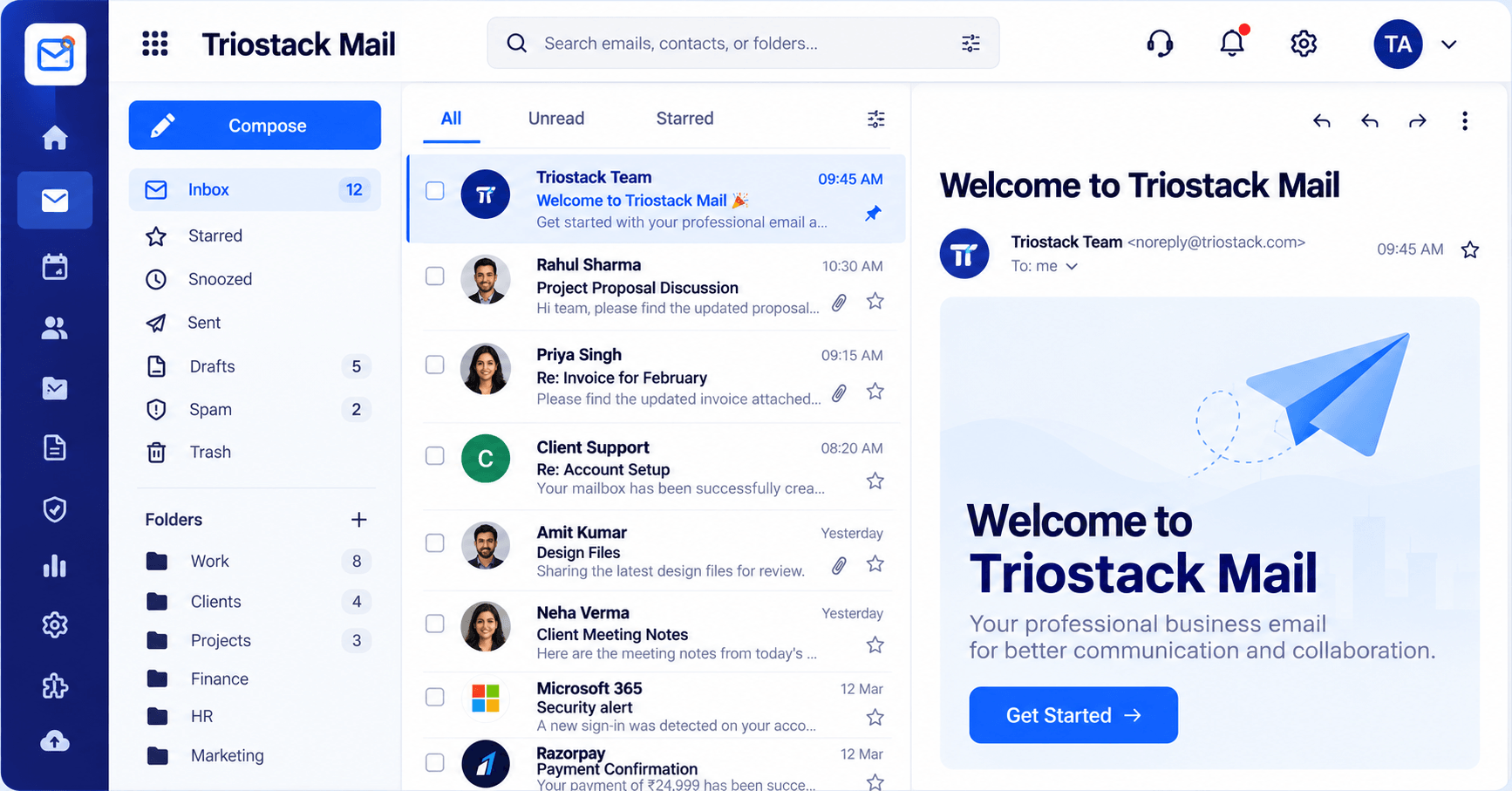
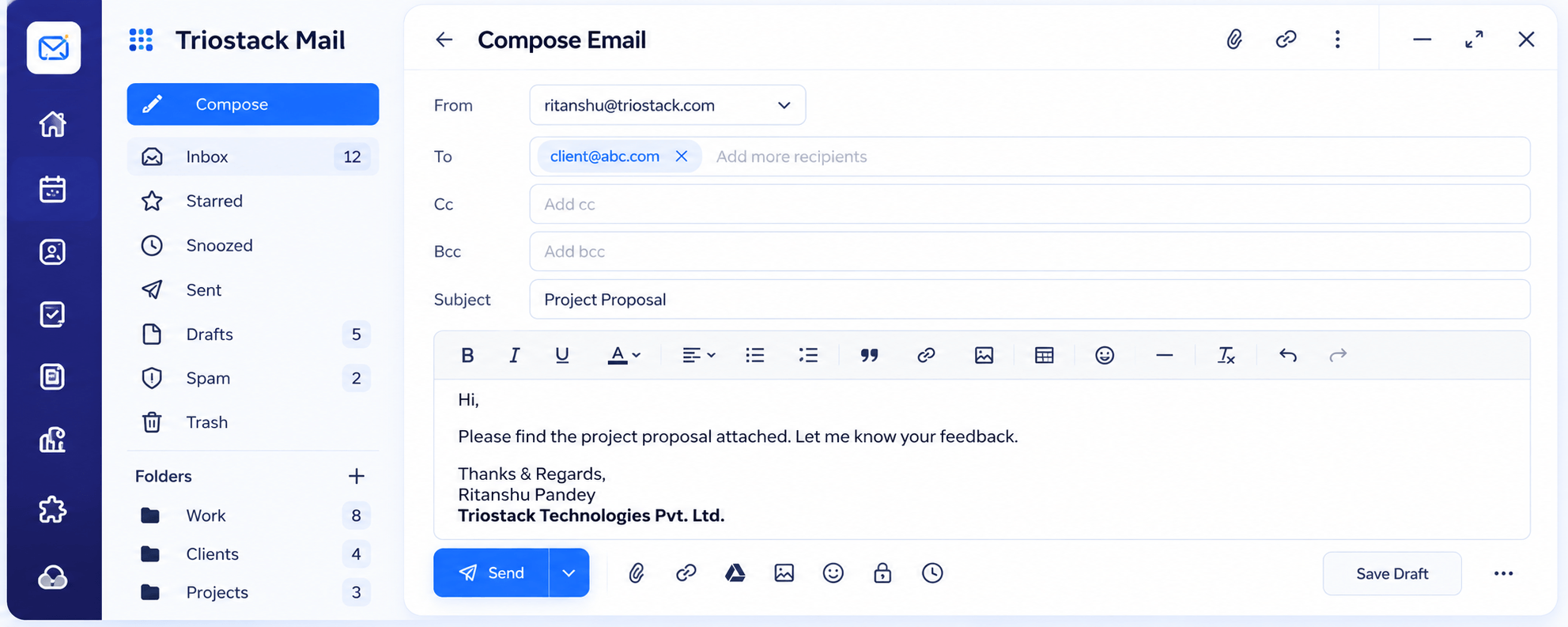
Inbox & Reading Pane
Folders, message list and reading pane in one view
In the Product
Imagine a reception table where every letter is logged, filed and visible to the whole team.
No more forwarding.
Folders everyone understands.
Pick up where a colleague left off.
Platform Integrity
support@, sales@, info@
Everyone sees the same structure
Mark what each thread is about
Context stays with the thread
How It Works
What changes when a team shares an address properly.
| Dimension | Triostack Mail | Forwarding & CC |
|---|---|---|
| Visibility | Team sees the same folders | Only whoever was copied |
| Organisation | Folders and labels with counts | Personal rules |
| Handover | History stays in the thread | Re-forward everything |
| Admin | Aliases managed centrally | Set up per person |
| Suite fit | Connects to CRM and Desk | Separate tool |
Book a walkthrough and we will set up a sandbox with a sample domain and inboxes so you can try mail, shared folders and rules before you commit.
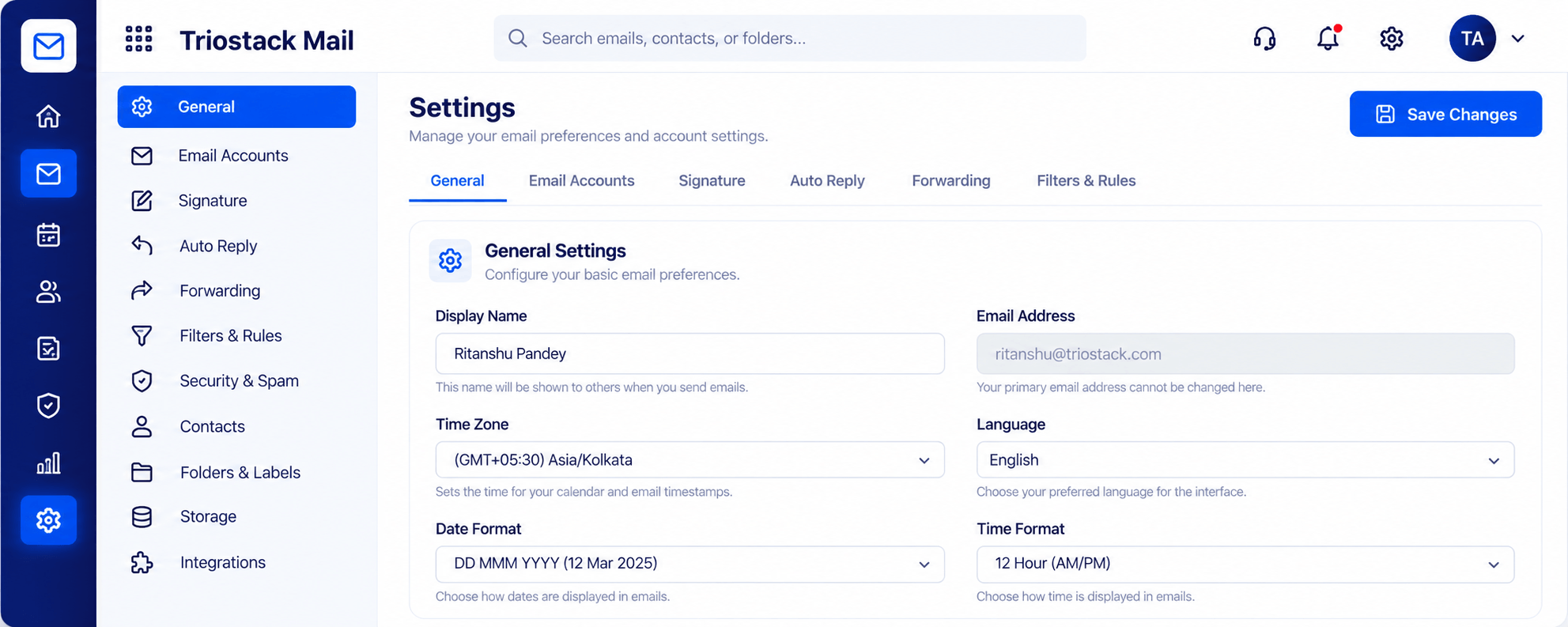
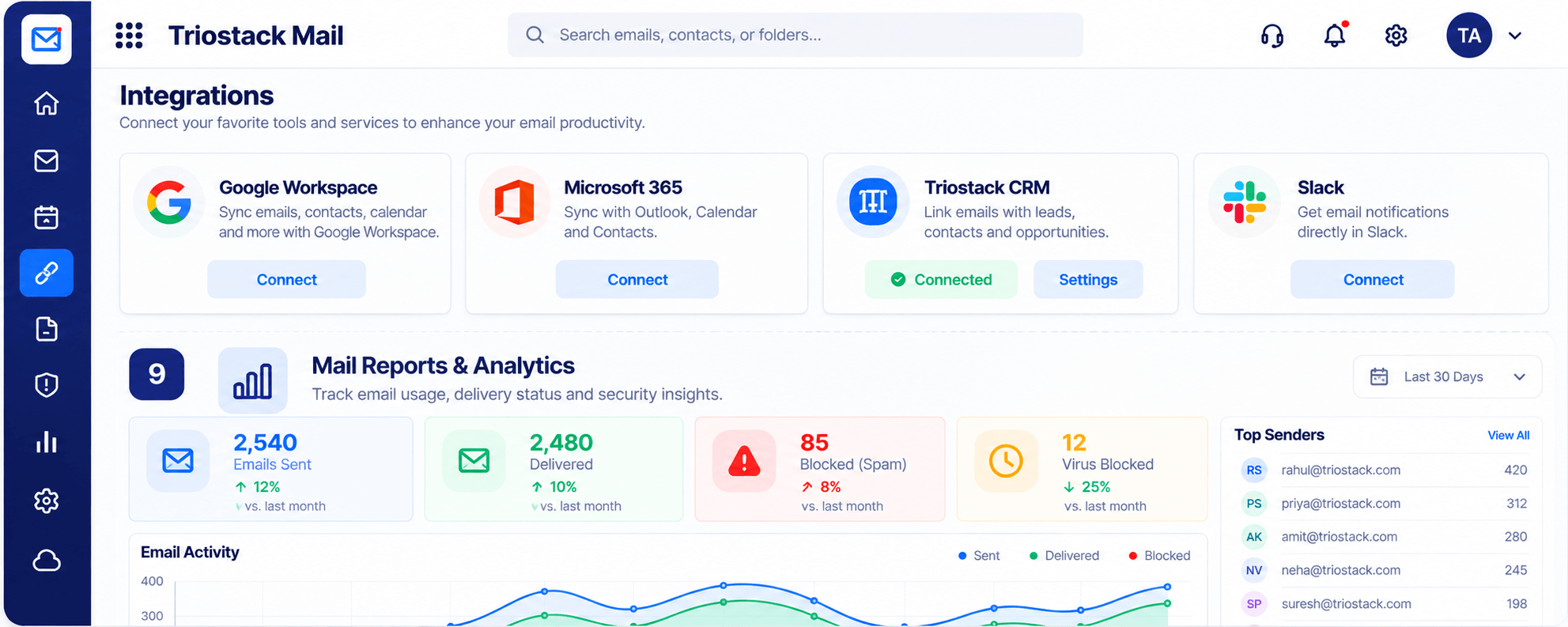
Live Interface Tour
Real screens captured directly from the Triostack Mail workspace.
Folders & Labels
Looked after by the whole team
Feature Breakdown
Captured from the Triostack Mail workspace.
A structure the team shares.
How it fits the plan
Create. Add the address or alias.
Share. Give the team access.
Practical tip
Agree one rule for who replies. A shared address works when everyone knows whose turn it is.
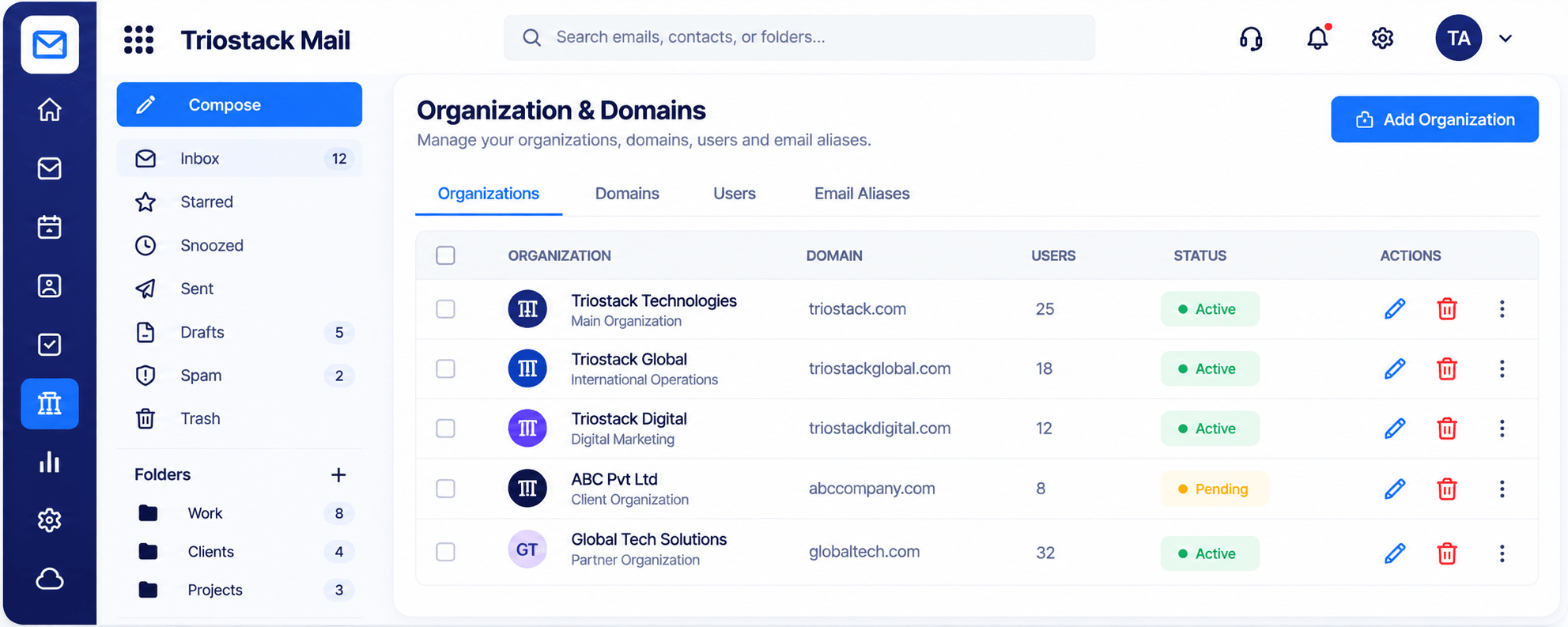
Who the mail belongs to.
On this screen: Domains, users and aliases managed in one place.
How it fits the plan
Share. Give the team access.
Organise. Set folders and labels.
In real life
Support queue
Anyone can answer; the thread shows what was said.
Work through it together.
On this screen: Folders, message list and reading pane in one view.
How it fits the plan
Organise. Set folders and labels.
Work. Reply from the shared address.
Watch out for
Letting the whole team reply to the same message, so the customer gets three answers.
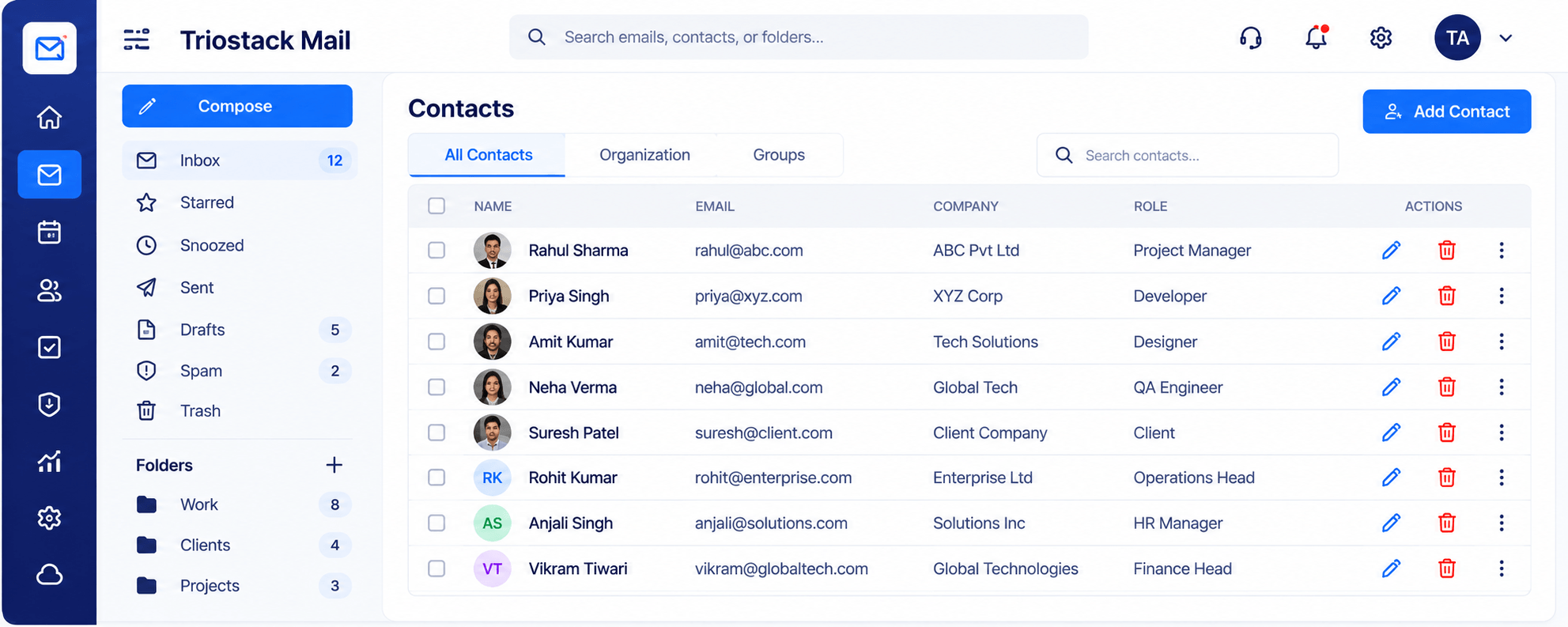
Know who is writing.
On this screen: One directory for names, companies and roles.
How it fits the plan
Work. Reply from the shared address.
Create. Add the address or alias.
Before you start
Execution Plan
Add the address or alias.
Give the team access.
Set folders and labels.
Reply from the shared address.
Practical Guide
Before you start
A tip that helps
Agree one rule for who replies. A shared address works when everyone knows whose turn it is.
A common mistake
Letting the whole team reply to the same message, so the customer gets three answers.
In Real Life
Scenario 01
Anyone can answer; the thread shows what was said.
Scenario 02
The right person picks it up without a forward.
Scenario 03
A colleague sees the full folder, not a handover note.
Straight answers about Shared Mailbox, from setup to what happens next.
Have a question about Shared Mailbox?
Book a free callYes. That is what shared inboxes are for. Ask us how access is configured on your plan.
Yes. Use folders and labels such as Clients and Projects.
Yes. Aliases are managed alongside domains and users.
Mail connects with Triostack Desk, which can turn emails into support tickets.
Give a team a shared address such as support or sales, keep conversations in shared folders and make sure every message has an owner.
It runs in 4 steps: Create, Share, Organise and Work. Add the address or alias.
The real screens on this page include Inbox & Reading Pane, Organizations & Domains, Contacts & Groups and Folders & Labels, all captured from the product.
Request a demo or start a free trial. Our team can also walk you through a guided setup, so your first session ends with something working.
Keep Exploring
Custom-domain inboxes, shared folders, contacts and spam protection in one workspace, connected to CRM and support.