The best Business Suite software in India, built to help your business grow. Contact us at +91-8882435276.
[ Contact ]
Phone number
Email address
Head office
Noida office
The right team at TriostackOne will get back to you.
Positioning Assessment
A CRM holds customer data and commercial detail. A new rep does not need every customer's history, a manager needs the team's view, and an admin needs the settings. Giving everyone the same access is convenient and risky.
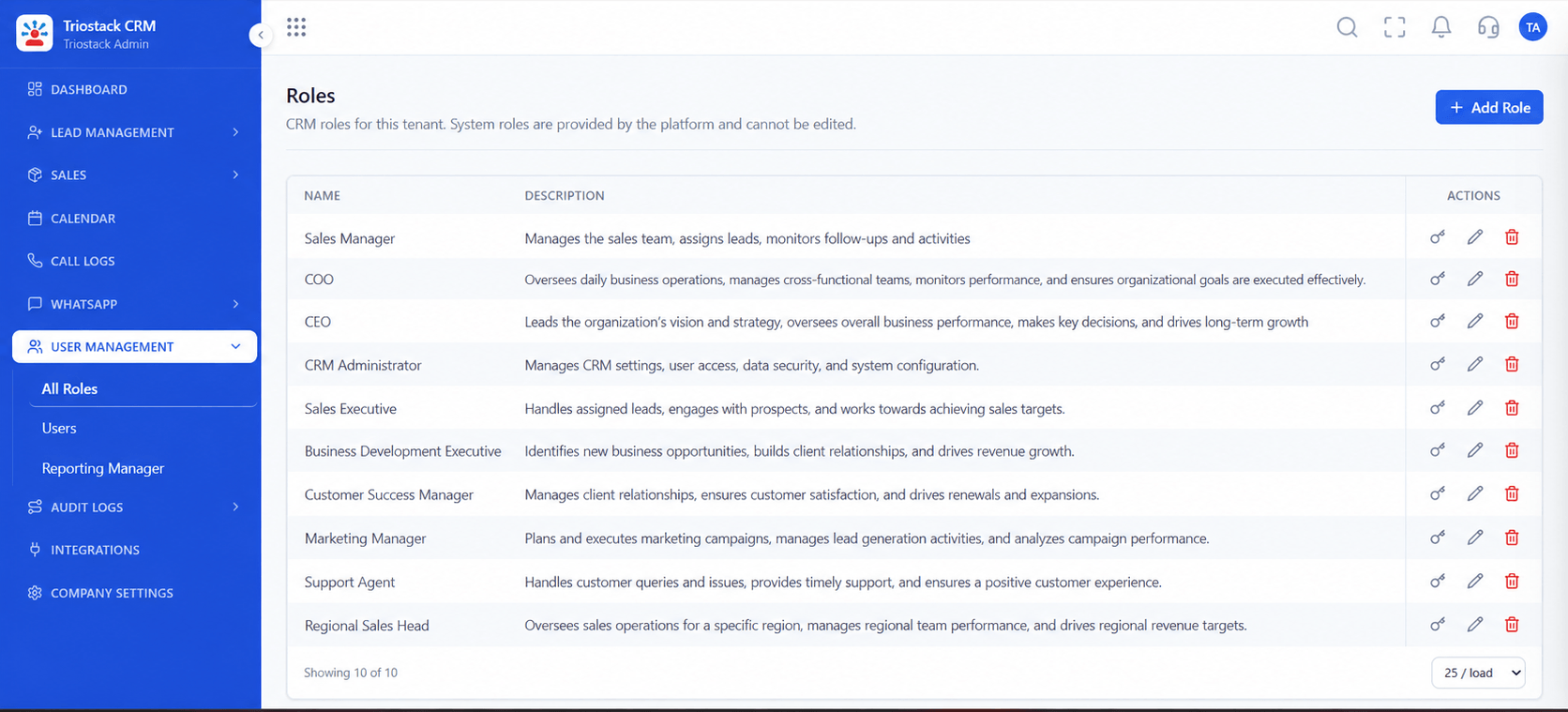
Triostack CRM controls access by role. Define roles, set what each can see and do, and place people under reporting managers so visibility follows the team structure. Audit logs record who did what, so changes can be traced.
Ask us about field-level controls and custom role definitions on your plan.
“A new rep started on Monday. By Monday afternoon they could see exactly their own leads, and nothing else.”
Sample team scenario
Illustrative example, not a customer testimonial
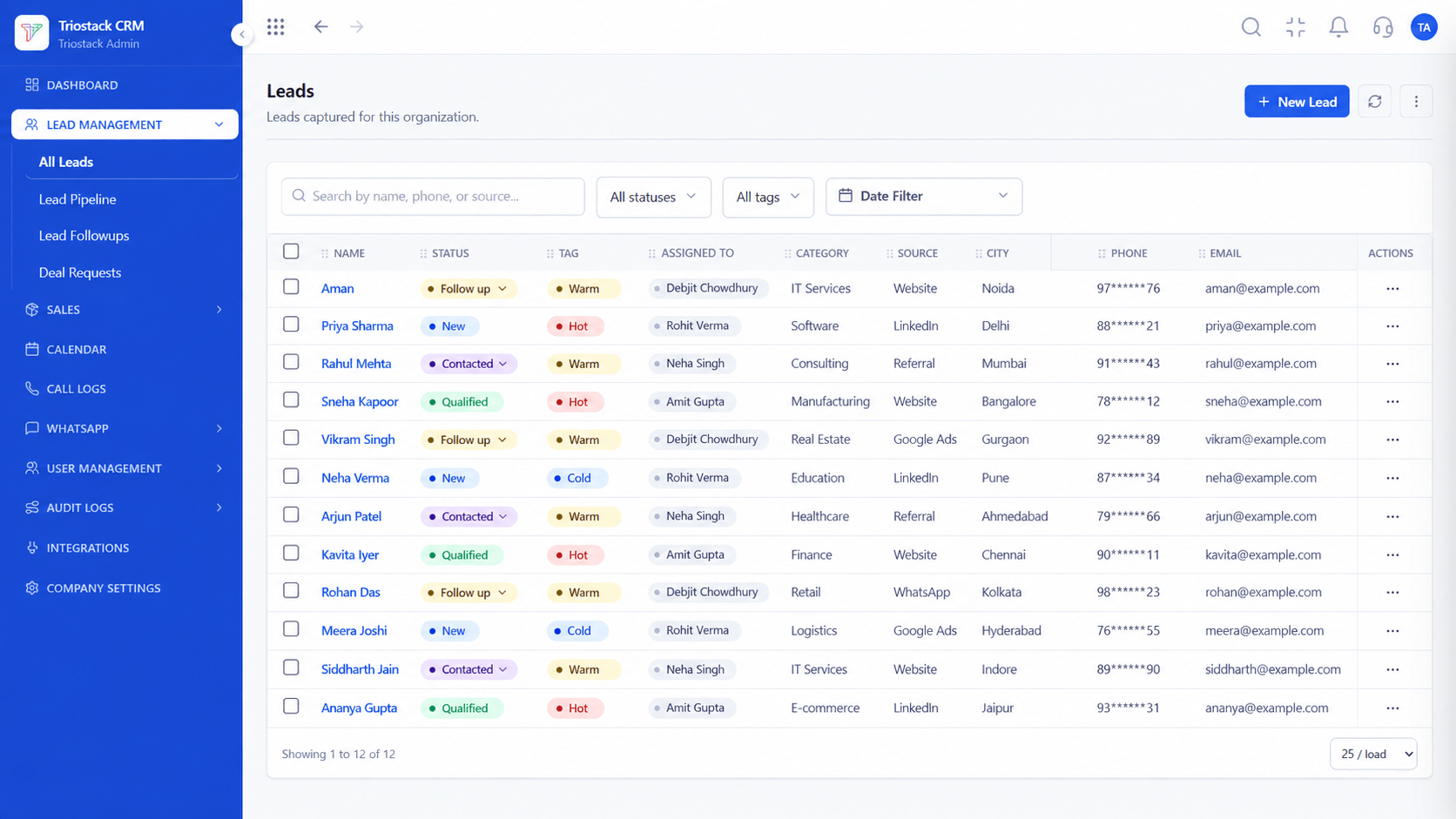
All Leads
Every lead with its source, status and owner
In the Product
Imagine each person's key opening exactly the rooms they work in.
Only what is needed.
Follows your team.
Audit logs.
Platform Integrity
Rep, manager, admin
Per role
Reporting managers
Who did what
At a Glance
What controlled access changes.
| Dimension | Triostack CRM | Open Access |
|---|---|---|
| Visibility | By role and team | All records for all |
| New joiners | Scoped from day one | Over-exposed |
| Managers | See their team's work | Ask for exports |
| Changes | Traceable in audit logs | Anonymous |
| Custom roles | Ask us about your case | Not available |
Book a walkthrough and we will set up a sandbox with sample leads, a WhatsApp inbox and a pipeline, so you can try it before you commit.
Live Interface Tour
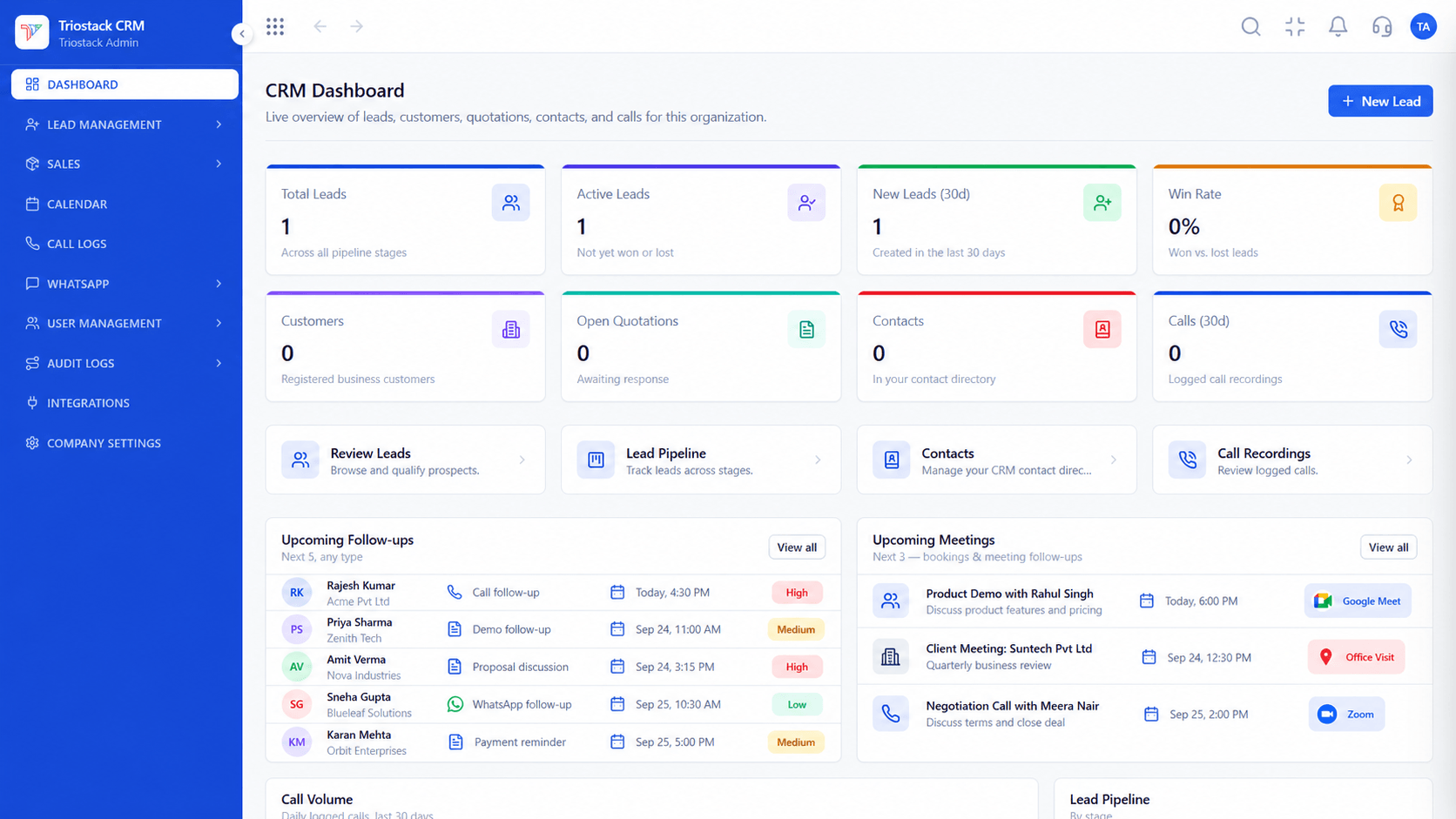
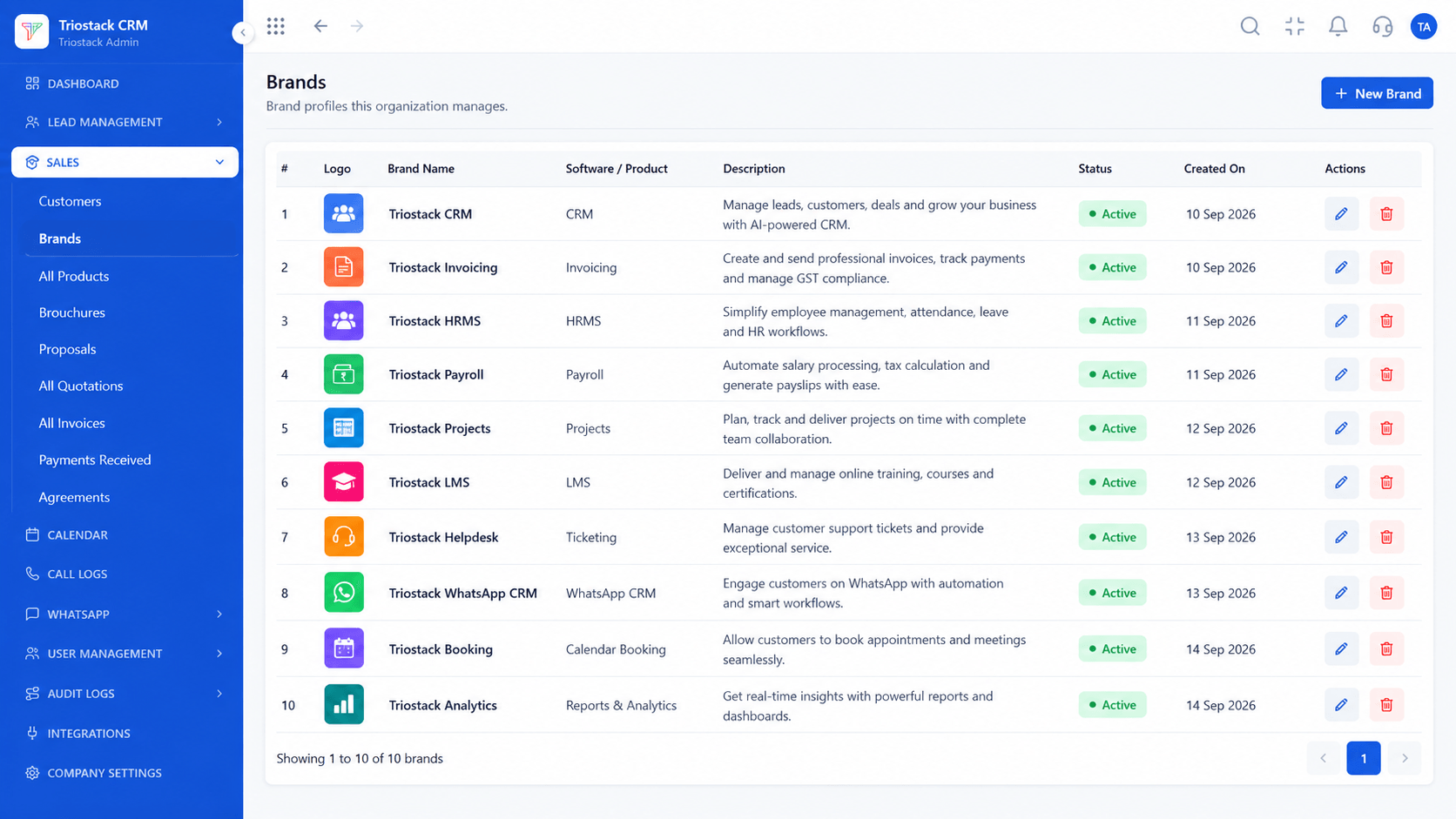
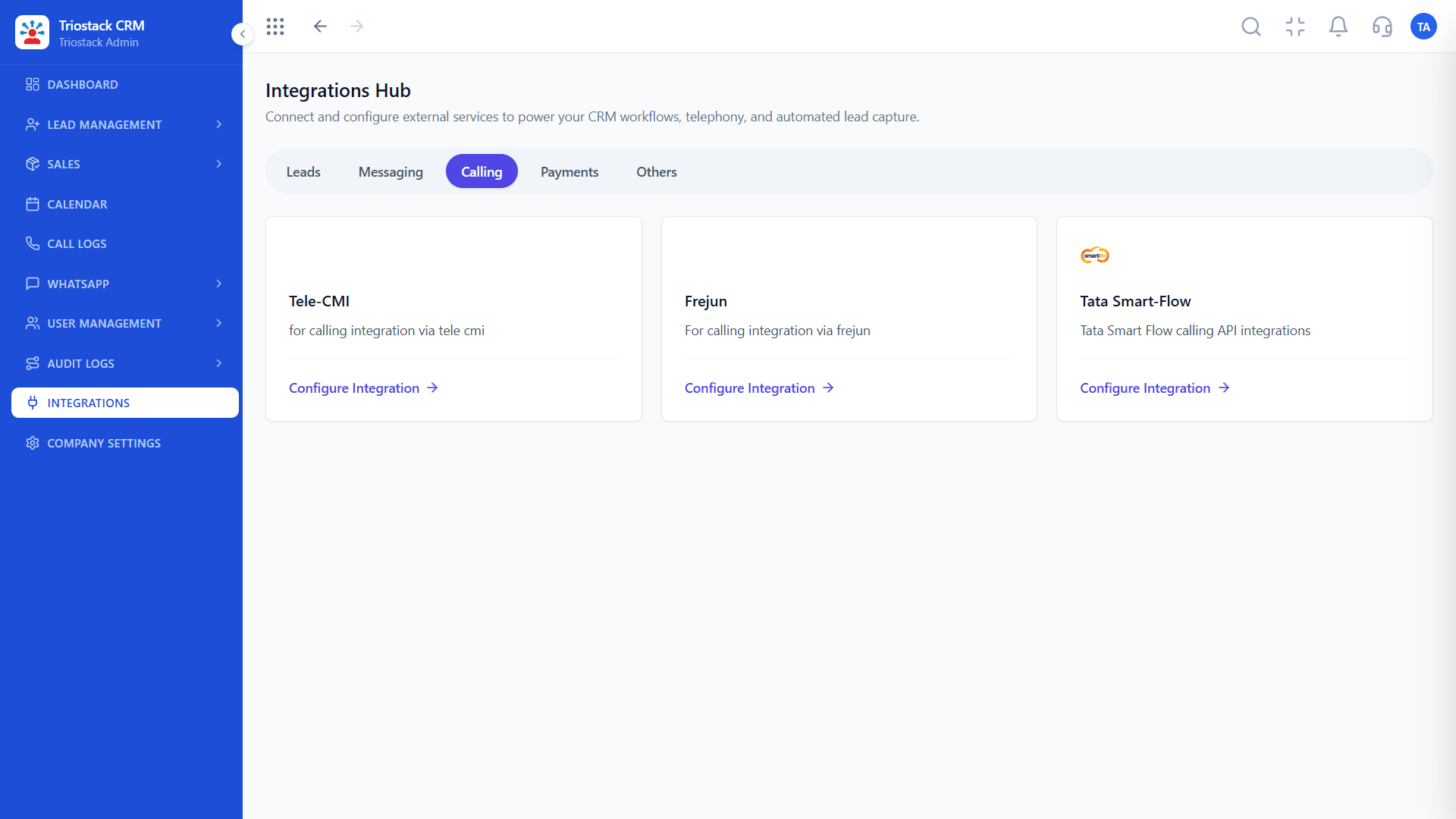
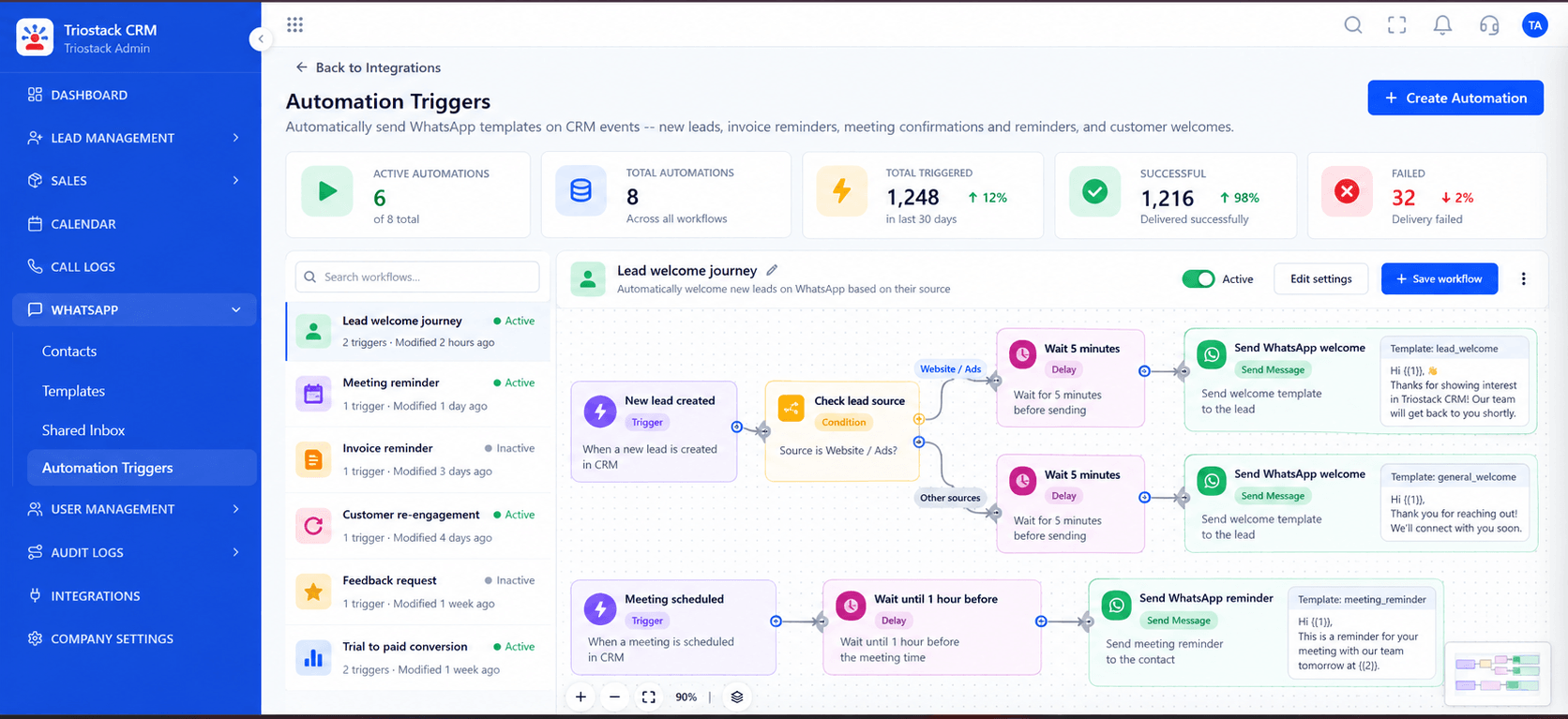
Real screens captured directly from the production Triostack CRM interface.
Roles & Permissions
Reps, managers and admins see what they should
Feature Breakdown
Captured directly from the production Triostack CRM interface.
What each role can do.
On this screen: Control what reps, managers and admins can see.
How it fits the plan
Define. List the roles your business needs.
Permit. Set what each role can see and do.
Practical tip
Start with the least access a role needs, then add. It is easier than taking access away later.
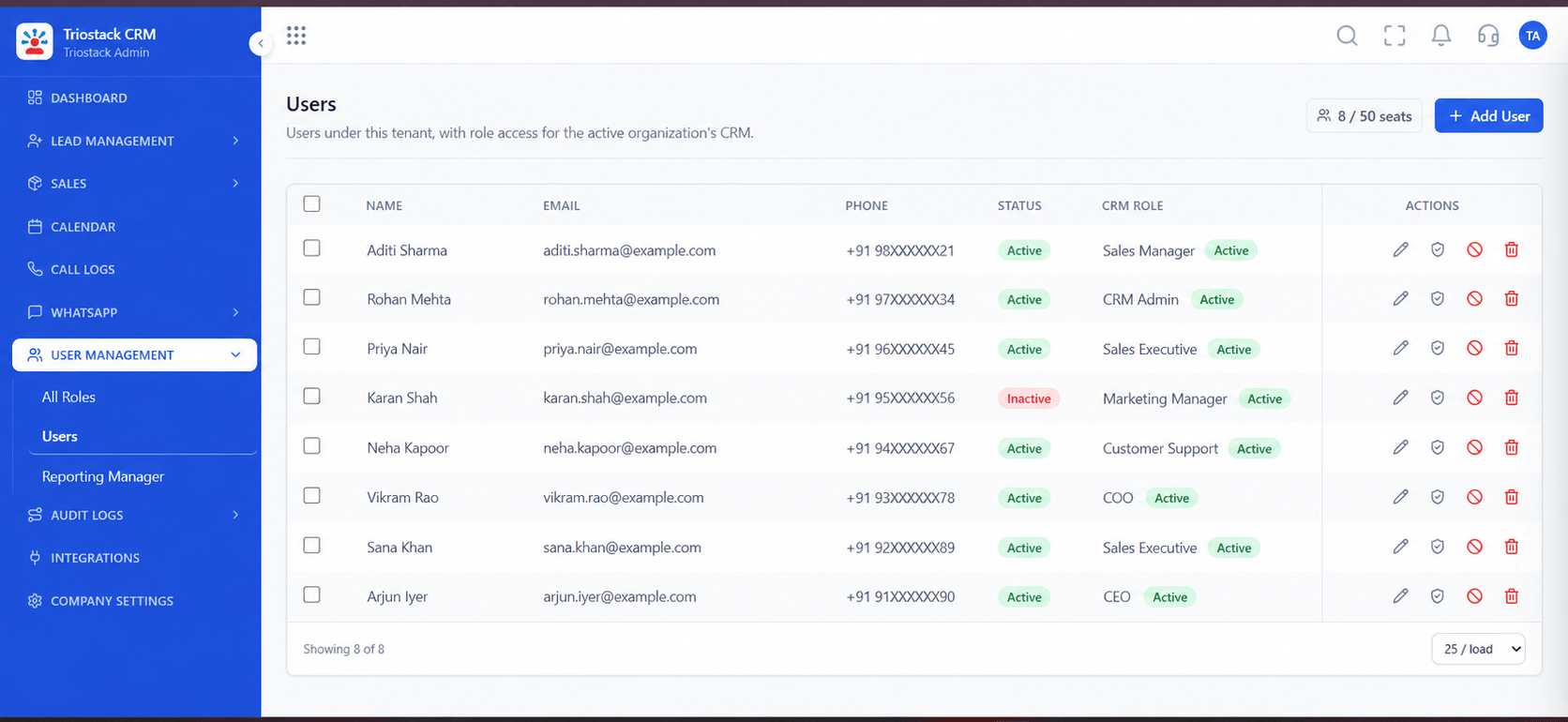
Your team.
On this screen: Team members and their access.
How it fits the plan
Permit. Set what each role can see and do.
Place. Add users and reporting managers.
In real life
New hire
Sees only their own leads.
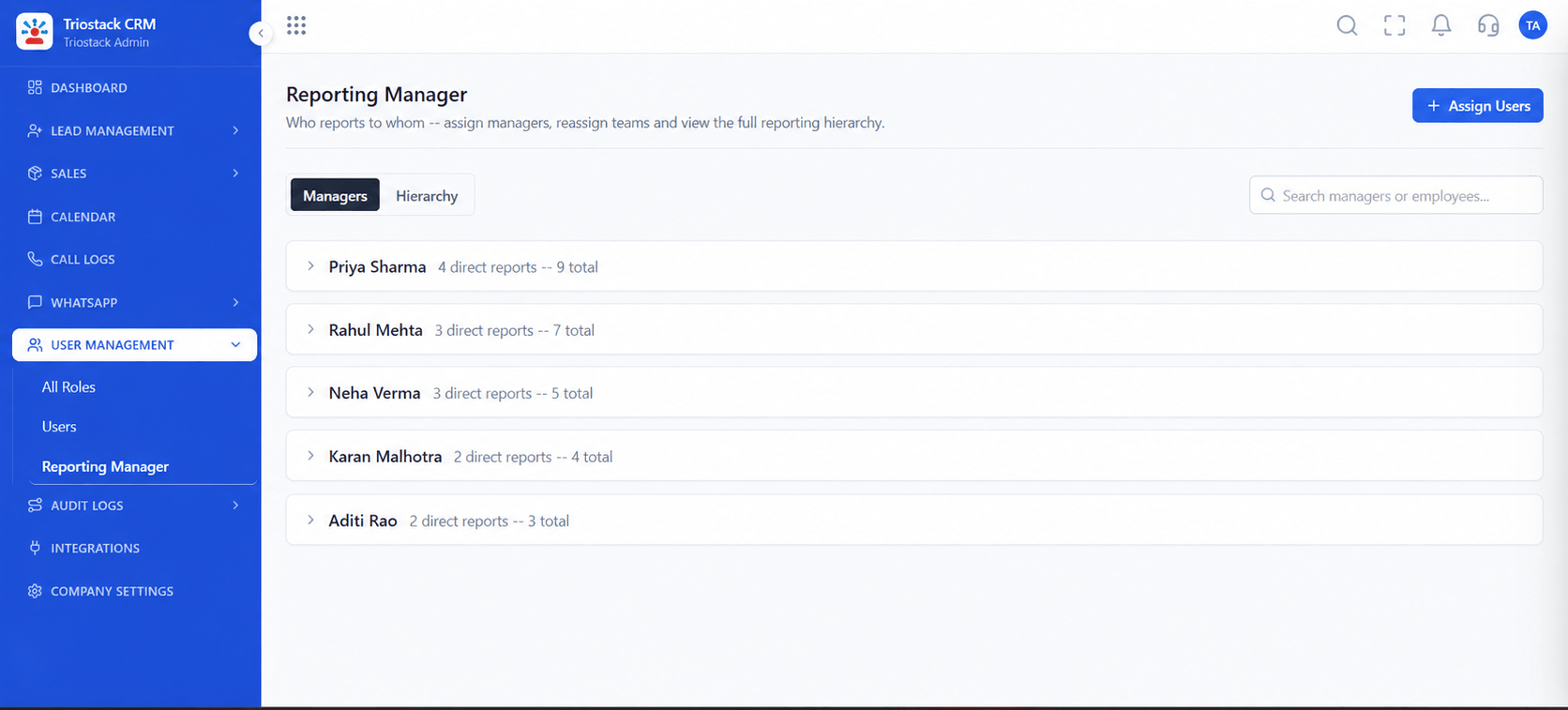
Hierarchy and visibility.
On this screen: Who reports to whom.
How it fits the plan
Place. Add users and reporting managers.
Review. Check the audit log from time to time.
Watch out for
Giving admin rights to people who only need to view reports.
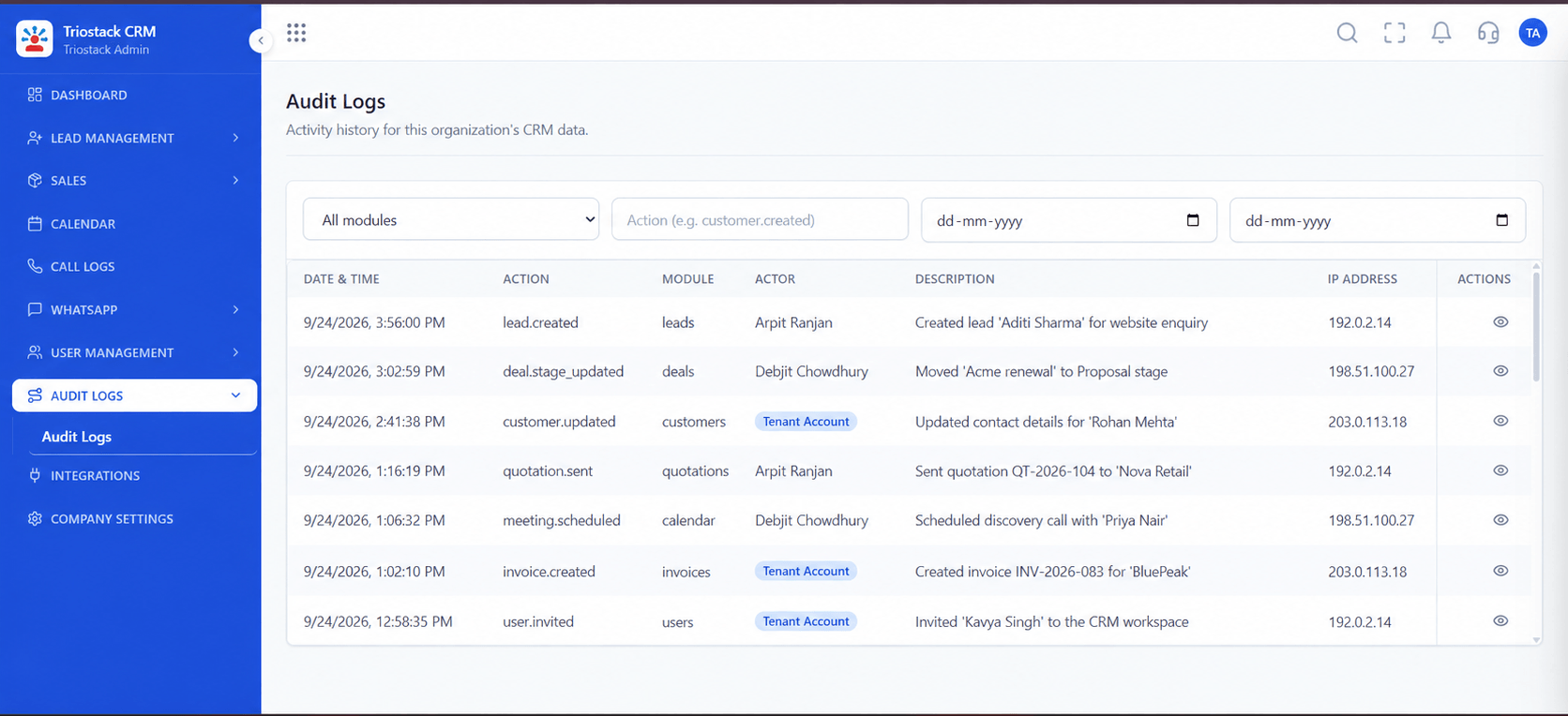
A trail of activity.
On this screen: A record of who did what in the workspace.
How it fits the plan
Review. Check the audit log from time to time.
Define. List the roles your business needs.
Before you start
Execution Plan
List the roles your business needs.
Set what each role can see and do.
Add users and reporting managers.
Check the audit log from time to time.
Practical Guide
Before you start
A tip that helps
Start with the least access a role needs, then add. It is easier than taking access away later.
A common mistake
Giving admin rights to people who only need to view reports.
Availability: Availability can depend on your plan and setup. Please confirm with our team which capabilities are live for your account, and any prerequisites, before you plan around this page.
In Real Life
Scenario 01
Sees only their own leads.
Scenario 02
Sees their branch.
Scenario 03
You can show who changed what.
Straight answers about Role-Based Access Control (RBAC), from setup to what happens next.
Have a question about Role-Based Access Control (RBAC)?
Book a free callYes. Roles and permissions are set in User Management. Ask us about custom definitions.
Yes, through reporting managers and hierarchy.
Yes. Audit logs record activity in the workspace.
Ask us about field-level controls on your plan.
Explain team permissions, hierarchy-based data visibility and custom user role definitions.
It runs in 4 steps: Define, Permit, Place and Review. List the roles your business needs.
The real screens on this page include All Leads, Lead Assignment, Sales Dashboard and Roles & Permissions, all captured from the product.
Request a demo or start a free trial. Our team can also walk you through a guided setup, so your first session ends with something working.
Keep Exploring
Unify Meta leads, WhatsApp conversations, Android SIM calls, and GST invoices without per-seat price taxes.
Explore All CRM Customisation