The best Business Suite software in India, built to help your business grow. Contact us at +91-8882435276.
[ Contact ]
Phone number
Email address
Head office
Noida office
The right team at TriostackOne will get back to you.
Positioning Assessment
Sales teams plan their days in Google Calendar. If meetings and follow-ups live only in the CRM, they get missed, and if they live only in the calendar, the CRM never learns about them.
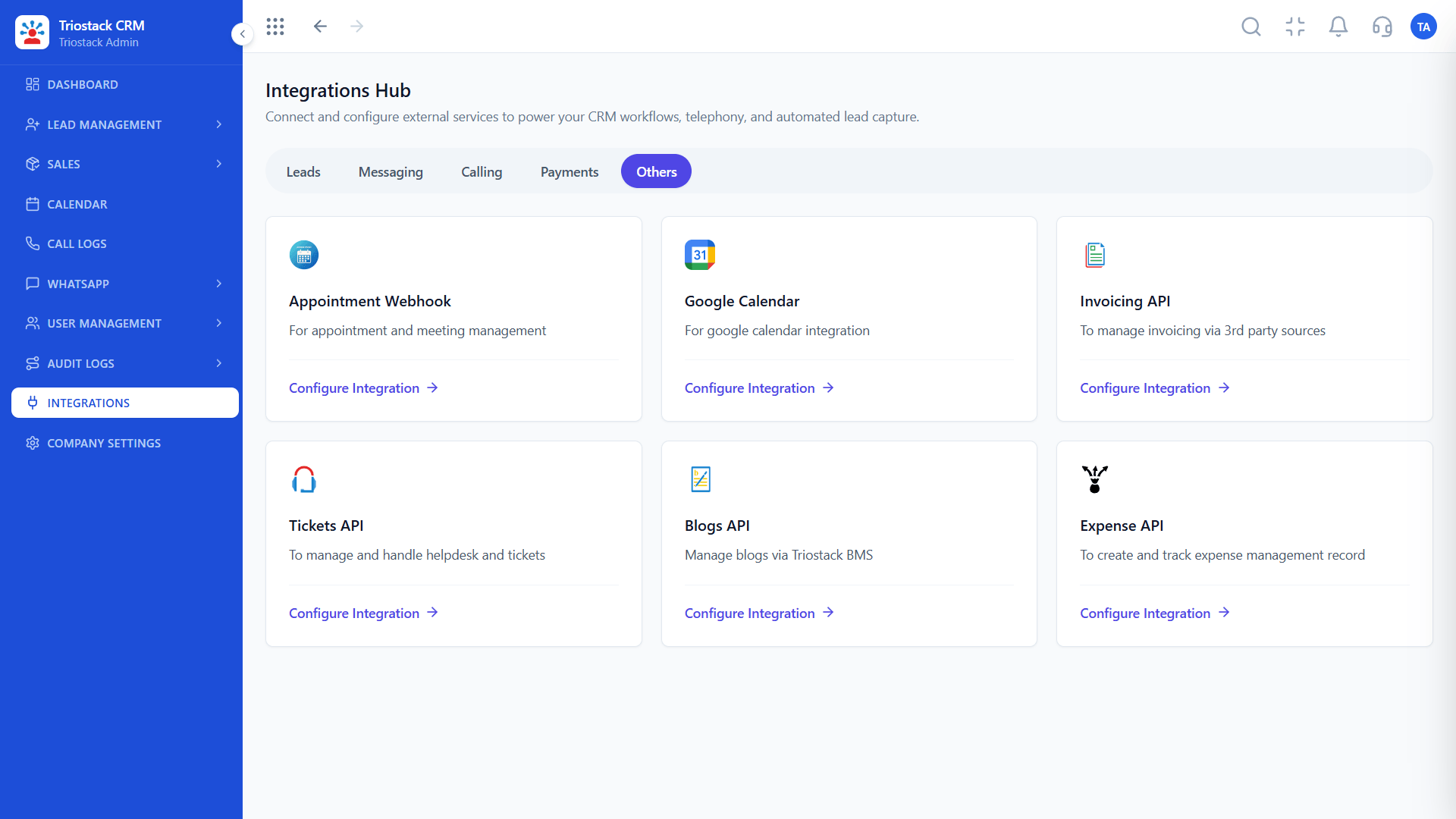
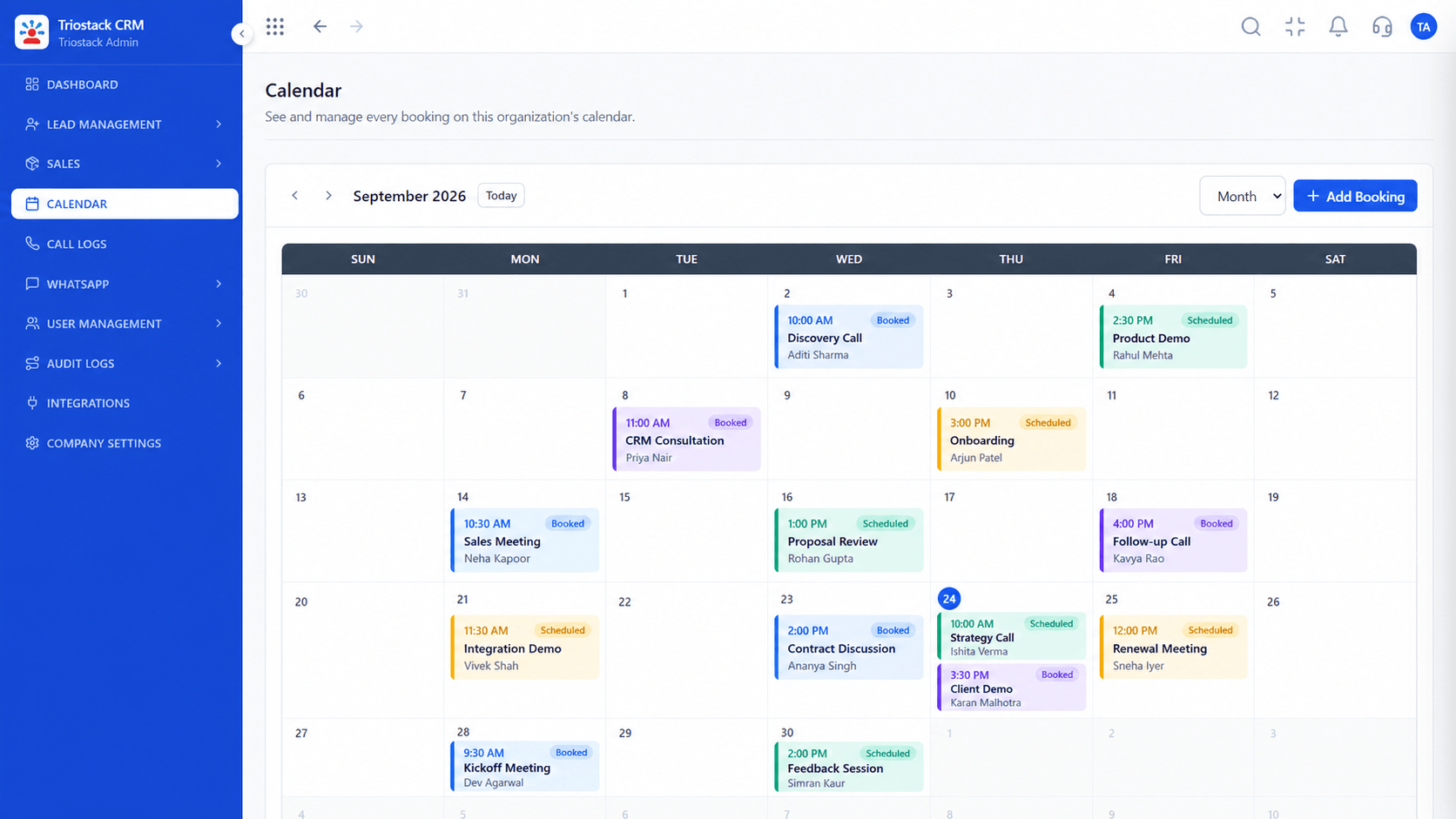
The Google Calendar integration in the Integrations Hub connects the two. A customer meeting or a follow-up scheduled from a lead appears on the calendar, linked back to the lead, so one tap gets you from the reminder to the record.
Connect it from Integrations, under Others, and ask us about the calendar permissions on your account.
“My day now starts with one view. Every meeting there opens the lead behind it.”
Sample team scenario
Illustrative example, not a customer testimonial
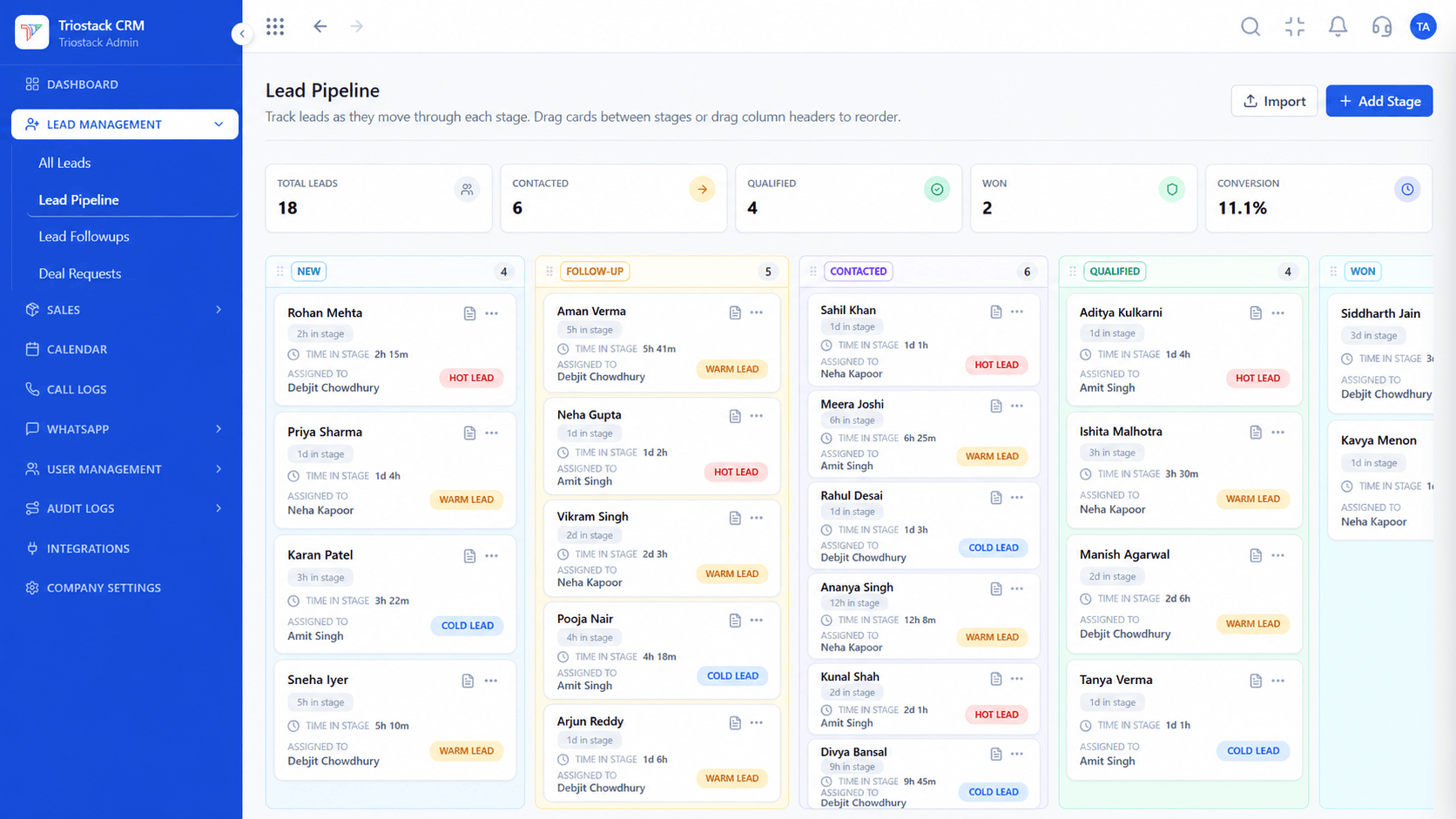
Lead Pipeline
Drag deals across your own sales stages
In the Product
Imagine every entry carrying the whole history of that customer.
No double booking.
The lead is a tap away.
Reminders where you see them.
Platform Integrity
Connected
Scheduled from a lead
Reminders in view
One tap to the record
At a Glance
What changes when the CRM and Google Calendar talk.
| Dimension | Triostack CRM | Separate Calendars |
|---|---|---|
| Booking | From the lead, on the calendar | Entered twice |
| Reminders | On the calendar and in the CRM | In one or the other |
| Context | Opens the lead record | A title with no detail |
| Team view | Shared availability | Ask around |
| Missed meetings | Rare | Common |
Book a walkthrough and we will set up a sandbox with sample leads, a WhatsApp inbox and a pipeline, so you can try it before you commit.
Live Interface Tour
Real screens captured directly from the production Triostack CRM interface.
Webhooks and APIs
Customer meetings alongside the rest of your day
Feature Breakdown
Captured directly from the production Triostack CRM interface.
01
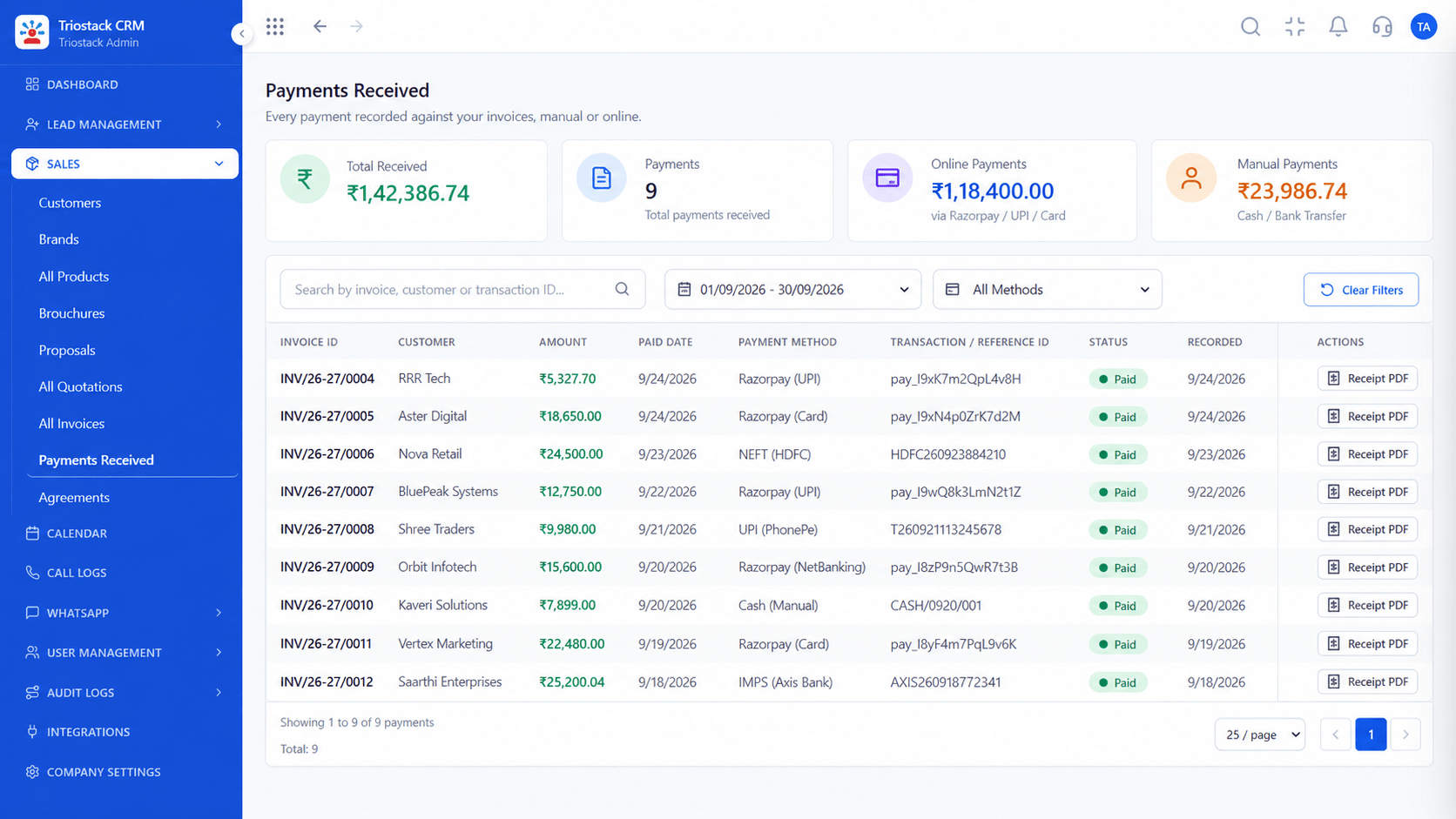
CRMMeetings in view.
On this screen: Meetings and follow-ups on one calendar.
How it fits the plan
Open. Go to the Integrations Hub, under Others.
Connect. Sign in with Google and allow access.
Practical tip
Block calling time as well as meetings, so follow-ups are in the calendar as real appointments.
02
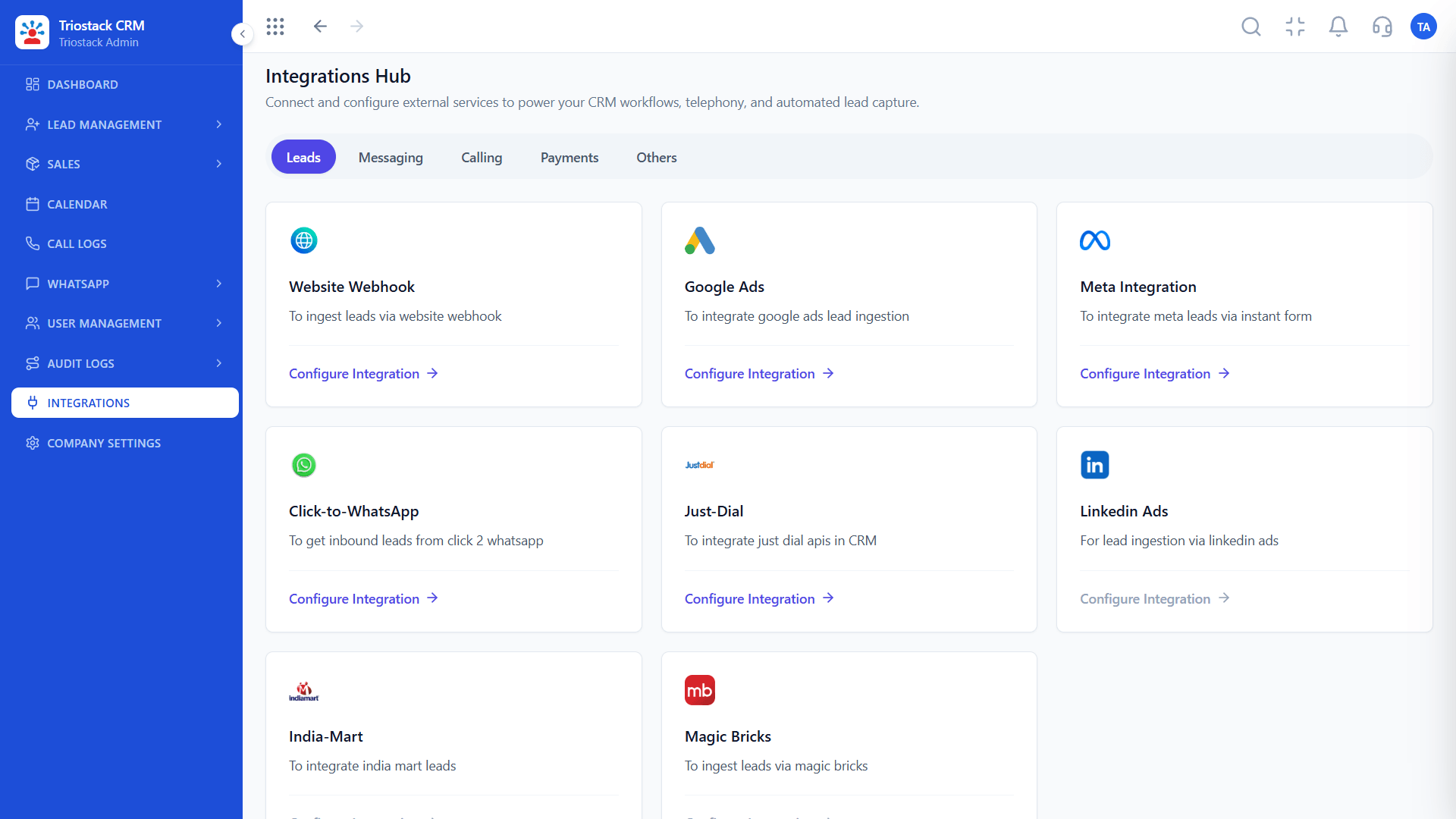
CRMWhere you connect it.
On this screen: Appointment webhook, Google Calendar, Invoicing, Tickets, Blogs and Expense APIs.
How it fits the plan
Connect. Sign in with Google and allow access.
Schedule. Book a meeting from a lead.
In real life
Demo day
Every demo has its lead behind it.
03
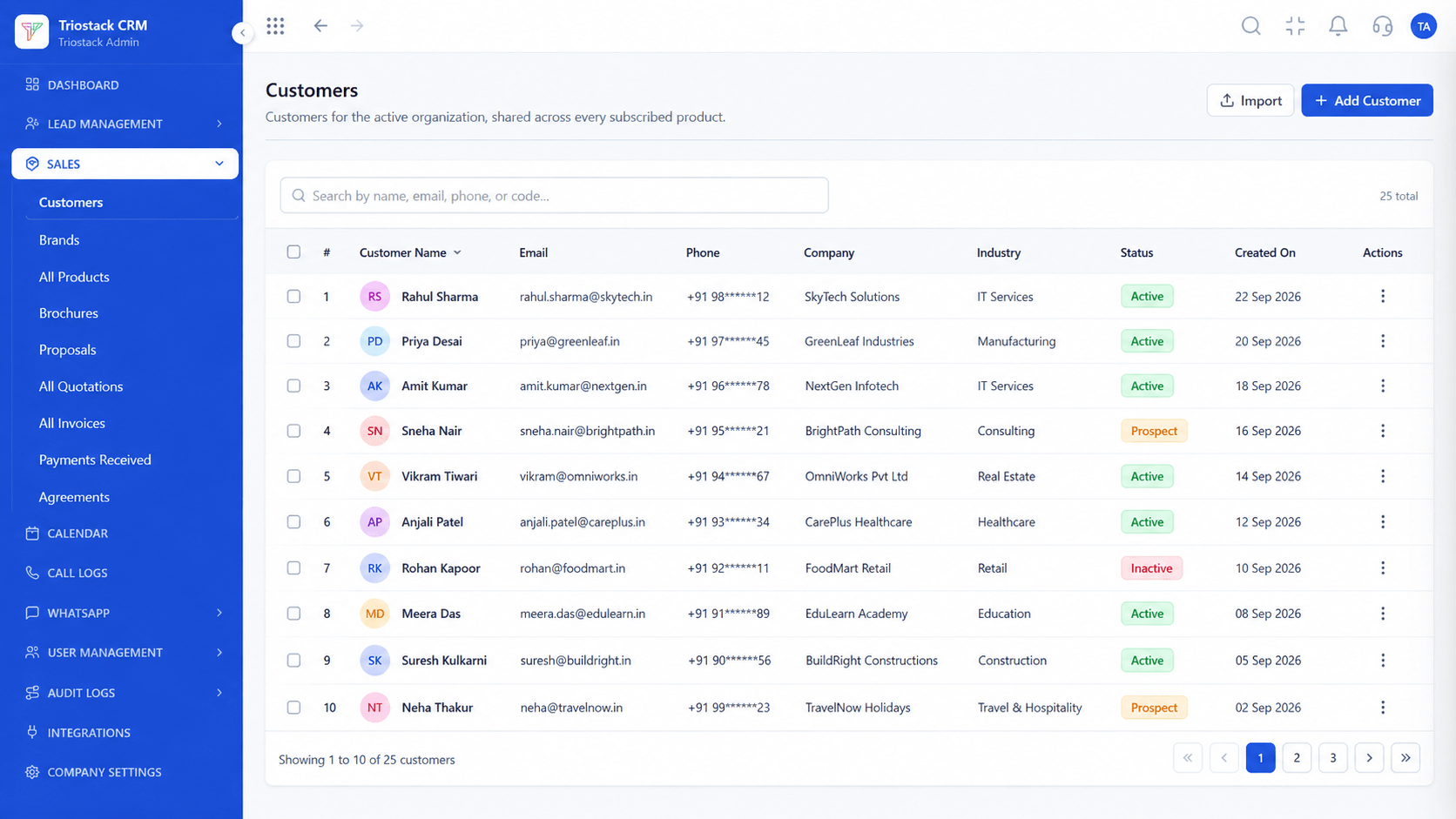
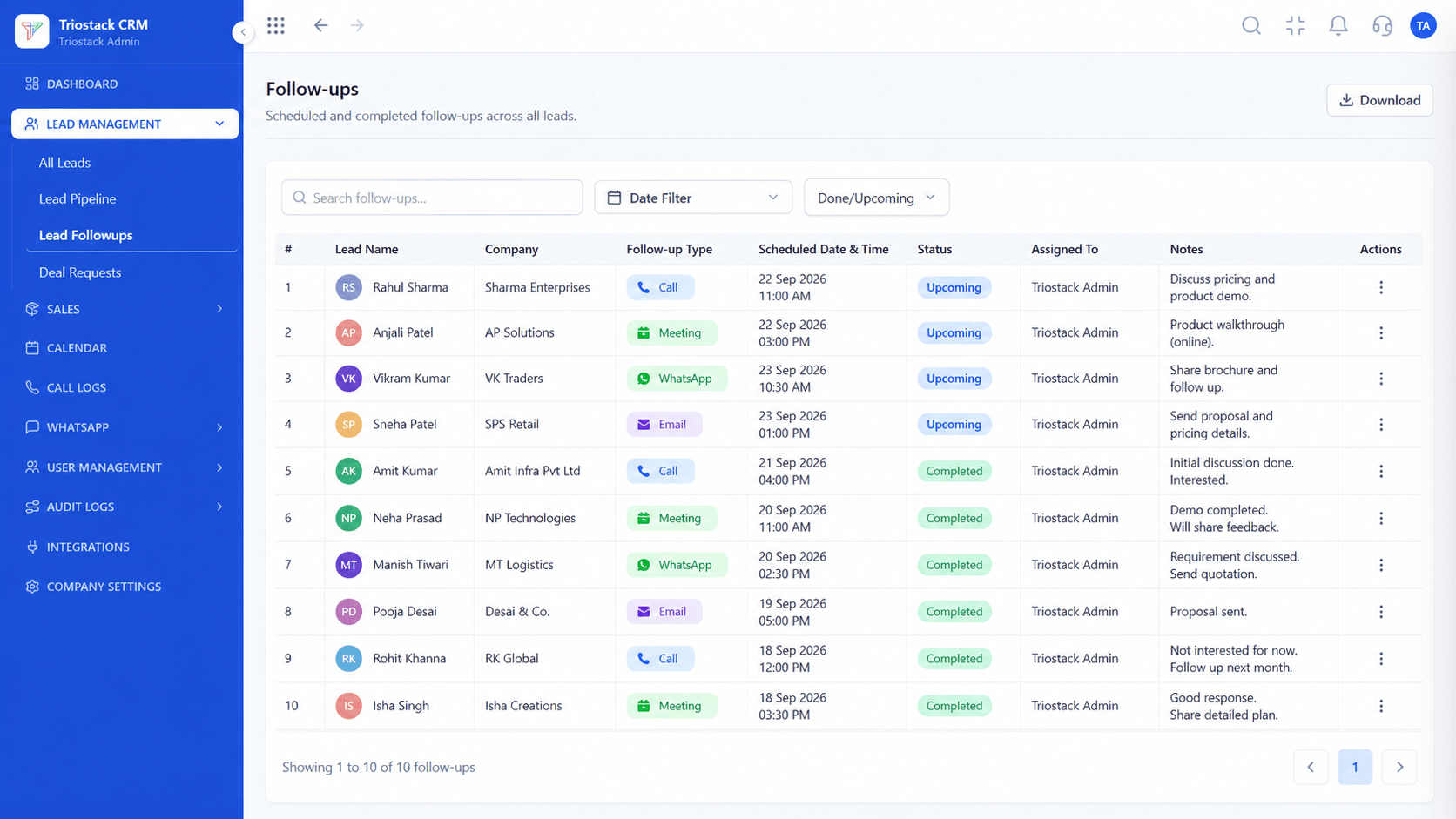
CRMWhat is due.
On this screen: Never miss the next call or message.
How it fits the plan
Schedule. Book a meeting from a lead.
Follow. See it on your calendar, linked to the lead.
Watch out for
Connecting a calendar everyone shares without agreeing which meetings should appear.
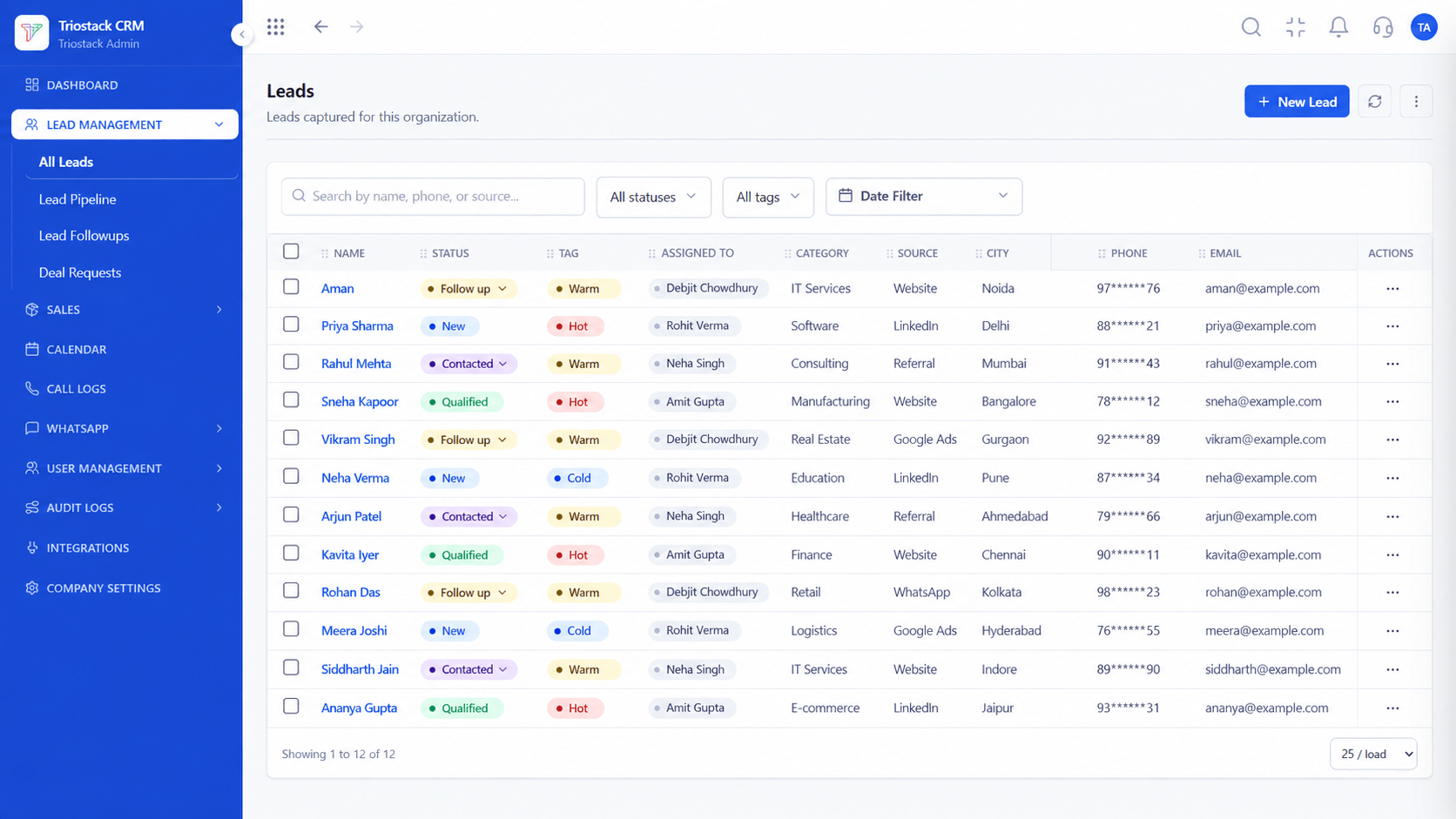
04
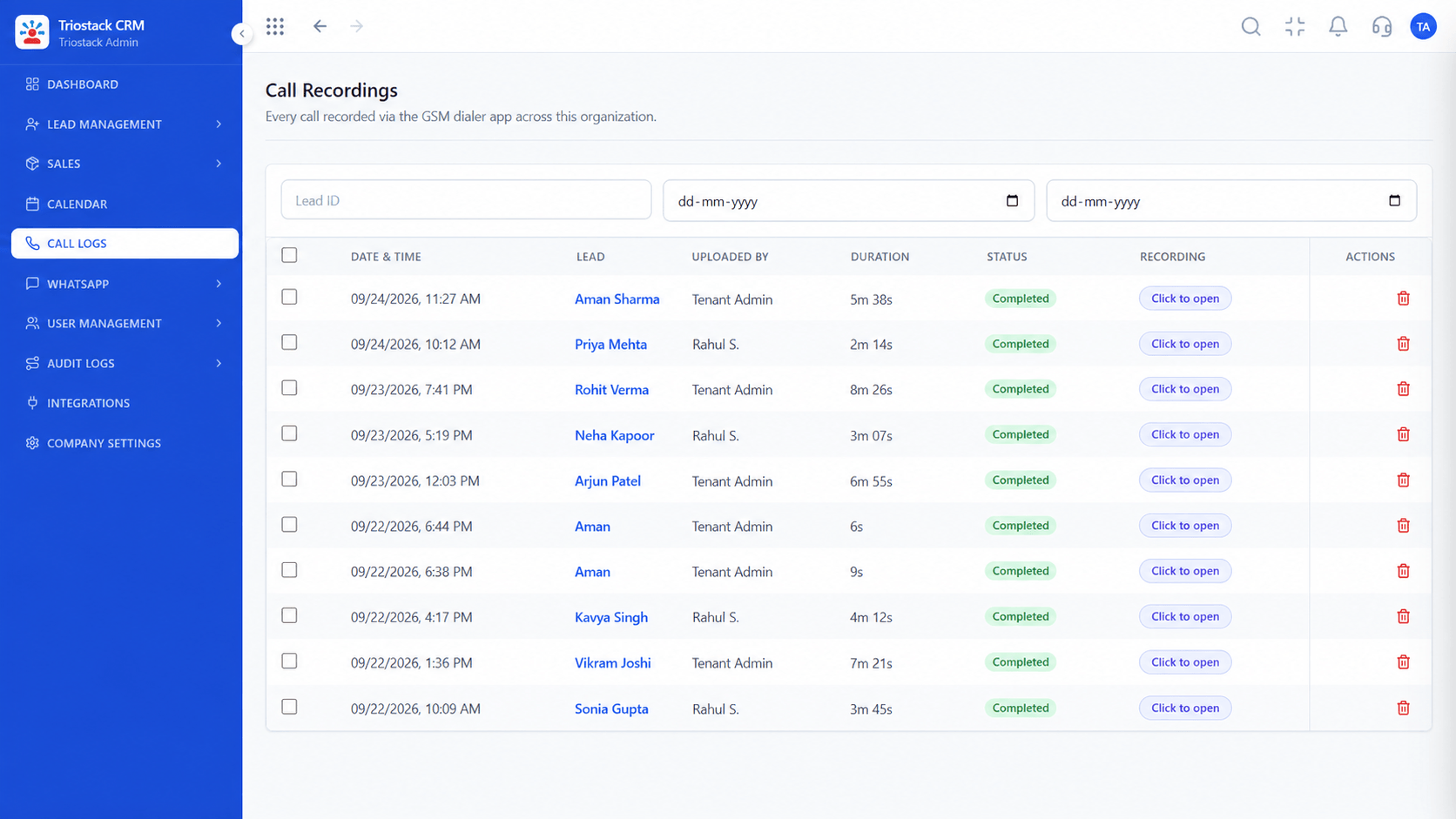
CRMThe record behind each meeting.
On this screen: Every lead with its source, status and owner.
How it fits the plan
Follow. See it on your calendar, linked to the lead.
Open. Go to the Integrations Hub, under Others.
Before you start
Execution Plan
Go to the Integrations Hub, under Others.
Sign in with Google and allow access.
Book a meeting from a lead.
See it on your calendar, linked to the lead.
Practical Guide
Before you start
A tip that helps
Block calling time as well as meetings, so follow-ups are in the calendar as real appointments.
A common mistake
Connecting a calendar everyone shares without agreeing which meetings should appear.
Availability: Availability can depend on your plan and setup. Please confirm with our team which capabilities are live for your account, and any prerequisites, before you plan around this page.
In Real Life
Scenario 01
Every demo has its lead behind it.
Scenario 02
Sees what the team has planned.
Scenario 03
Follow-ups sit beside meetings.
Straight answers about Google Calendar Integration, from setup to what happens next.
Have a question about Google Calendar Integration?
Book a free callYes. It is available in the Integrations Hub, under Others.
Meetings scheduled from a lead appear on the calendar and stay linked to the lead.
You sign in with Google and allow access. Ask us about permissions on your account.
Yes. Ask us how to set it up for each member.
Explain how Google Calendar connectivity helps teams coordinate scheduled customer meetings and follow-up activities.
It runs in 4 steps: Open, Connect, Schedule and Follow. Go to the Integrations Hub, under Others.
The real screens on this page include Lead Pipeline, Call Logs, Sales Dashboard and Calendar & Bookings, all captured from the product.
Request a demo or start a free trial. Our team can also walk you through a guided setup, so your first session ends with something working.
Keep Exploring
Unify Meta leads, WhatsApp conversations, Android SIM calls, and GST invoices without per-seat price taxes.