The best Business Suite software in India, built to help your business grow. Contact us at +91-8882435276.
[ Contact ]
Phone number
Email address
Head office
Noida office
The right team at TriostackOne will get back to you.
Positioning Assessment
Some security teams want the CRM reachable only from office networks or through a company VPN. It reduces exposure, and it also affects field teams, remote staff, mobile users and anyone travelling.
We do not list network-restriction controls on this page, because what applies depends on your plan and agreement. If this matters to you, ask our team what is available, and use this page to settle who would be affected before you do. Access inside the CRM is controlled through roles and permissions, and activity is visible in the Audit Logs area.
“We listed every place our reps log in from. The list changed what we asked for.”
Sample team scenario
Illustrative example, not a customer testimonial
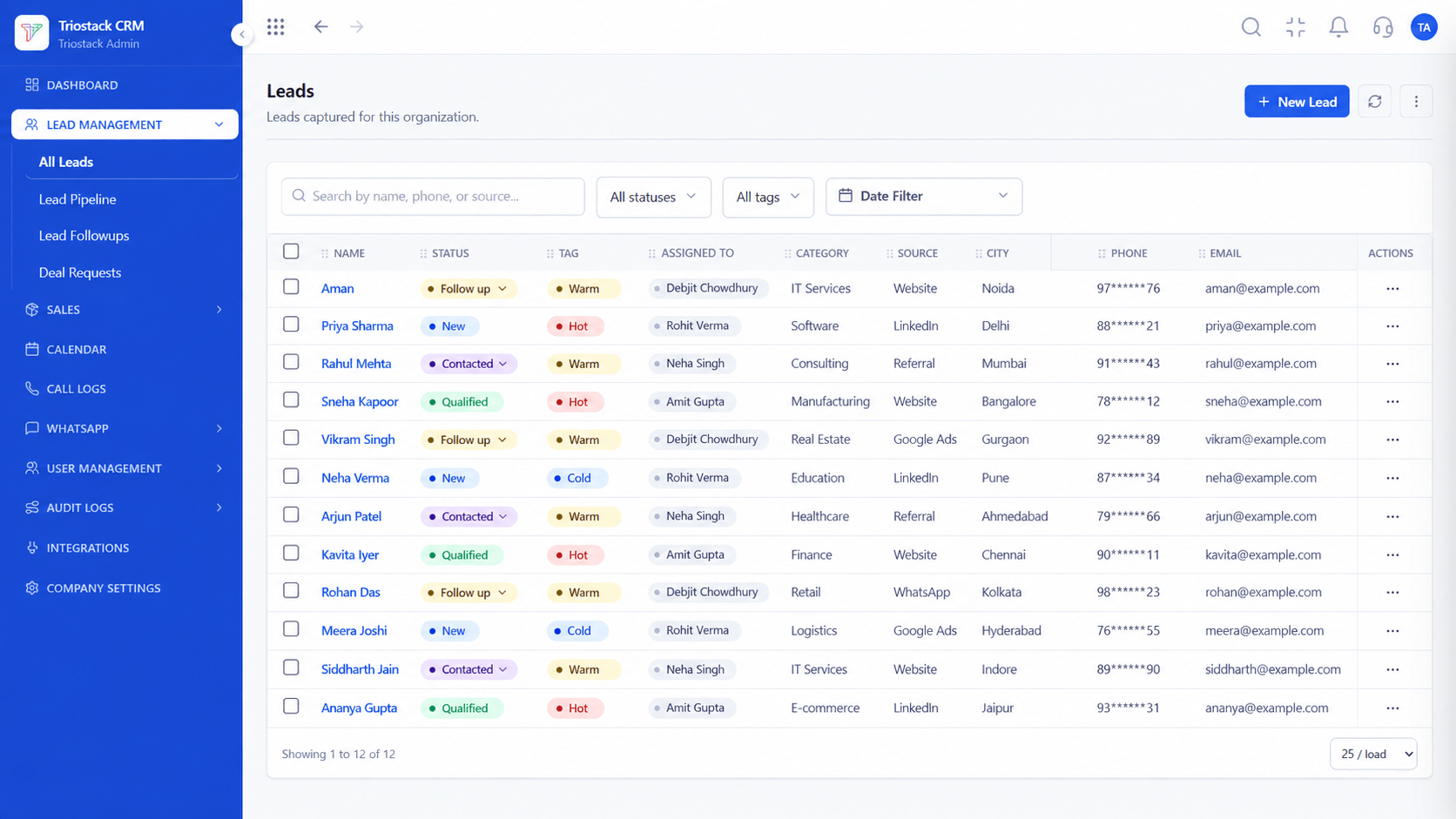
All Leads
Every lead with its source, status and owner
In the Product
Imagine deciding who may enter before you build the gate.
Then the control.
Network and roles together.
Confirmed, not assumed.
Platform Integrity
Who, from where
Plan for exceptions
Control inside the CRM
See who did what
At a Glance
Two different layers, and what each one protects.
| Dimension | Triostack CRM | Network Controls |
|---|---|---|
| What it limits | Where people can connect from | What people can see and do |
| Who it affects | Everyone on that network path | Each role |
| Best for | Reducing exposure | Least access |
| Needs | Static addresses or a VPN | Role design |
| Availability | Ask our team | Roles and permissions in the product |
Book a walkthrough and we will set up a sandbox with sample leads, a WhatsApp inbox and a pipeline, so you can try it before you commit.
Live Interface Tour
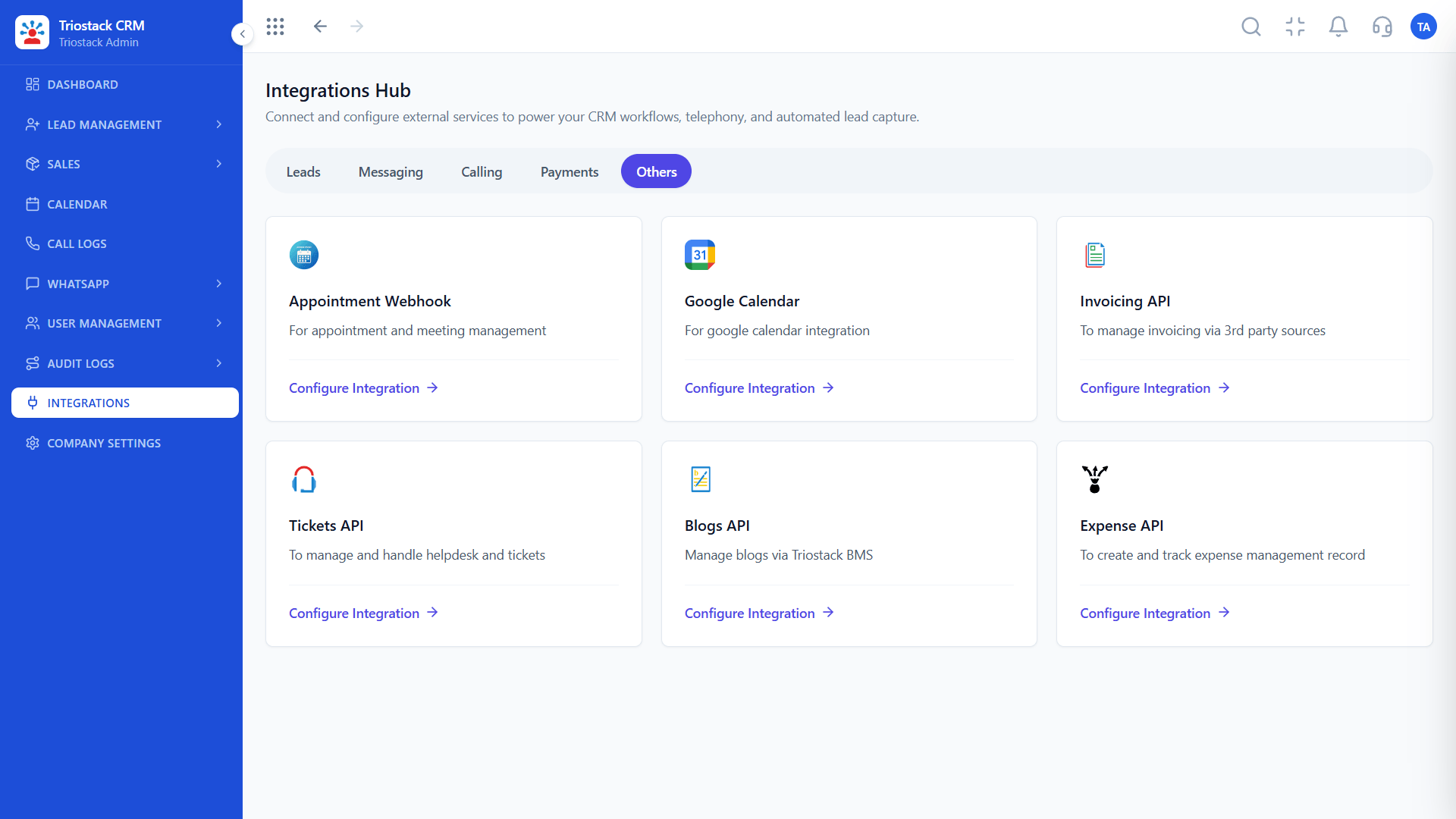
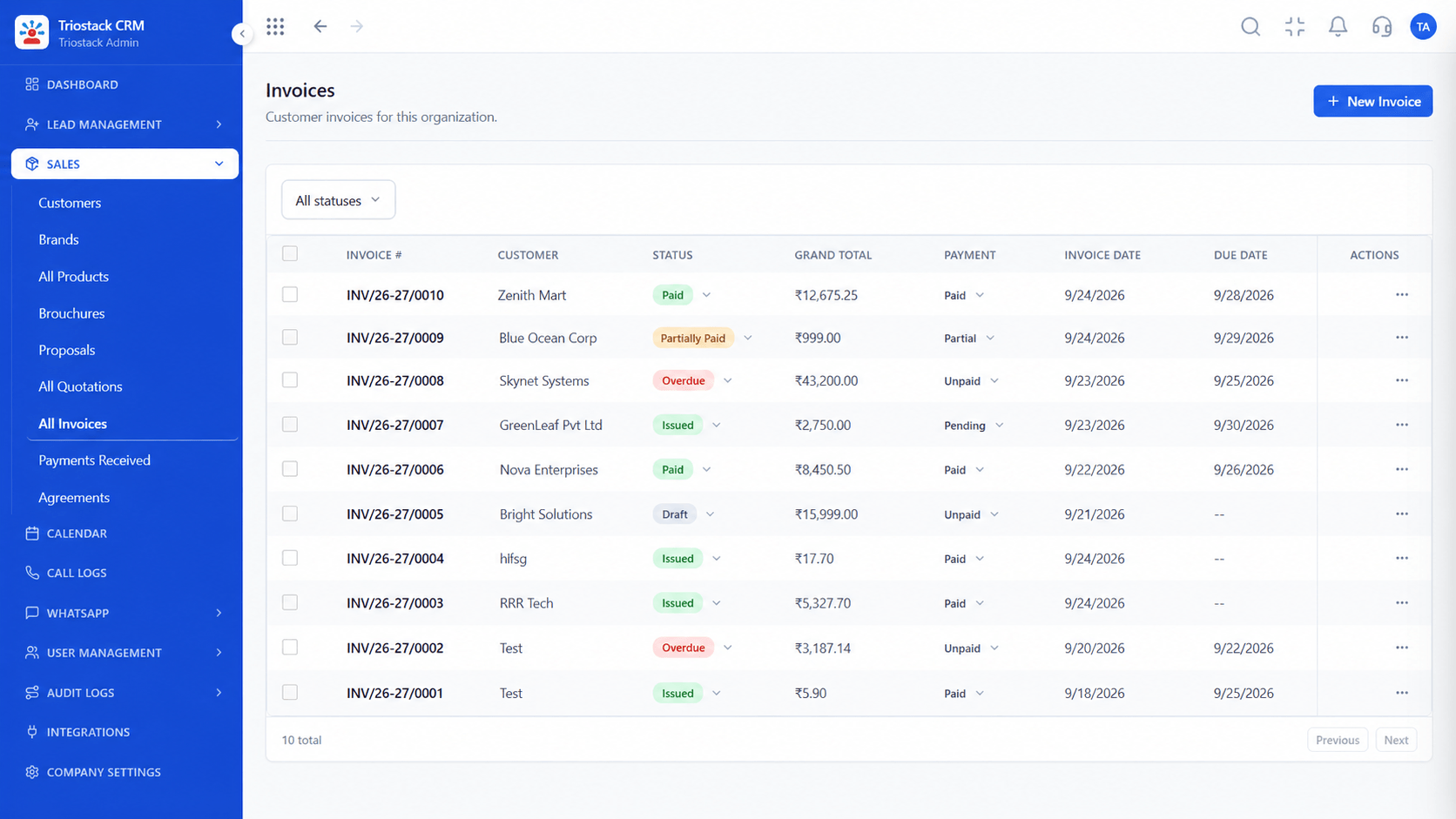
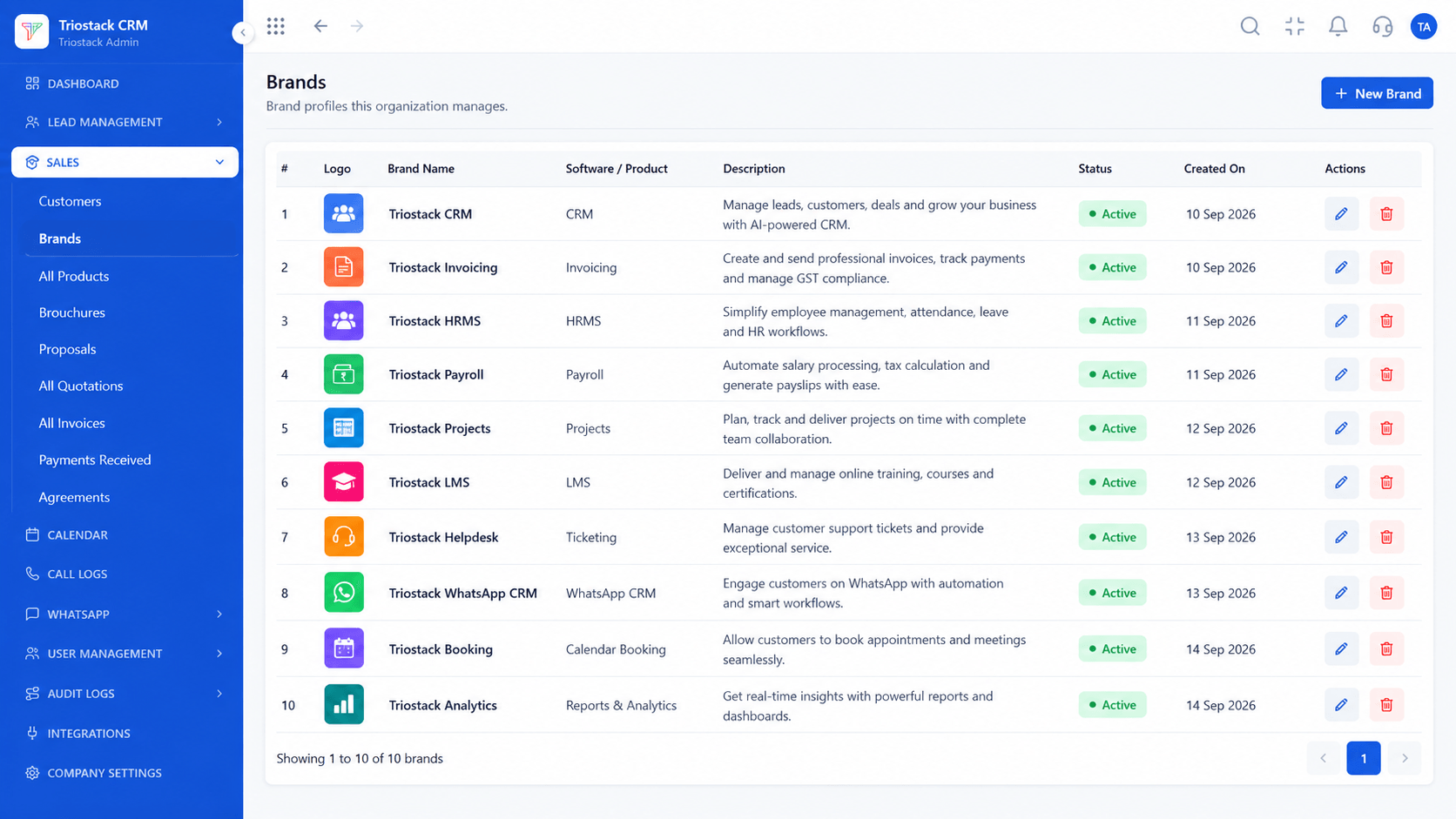
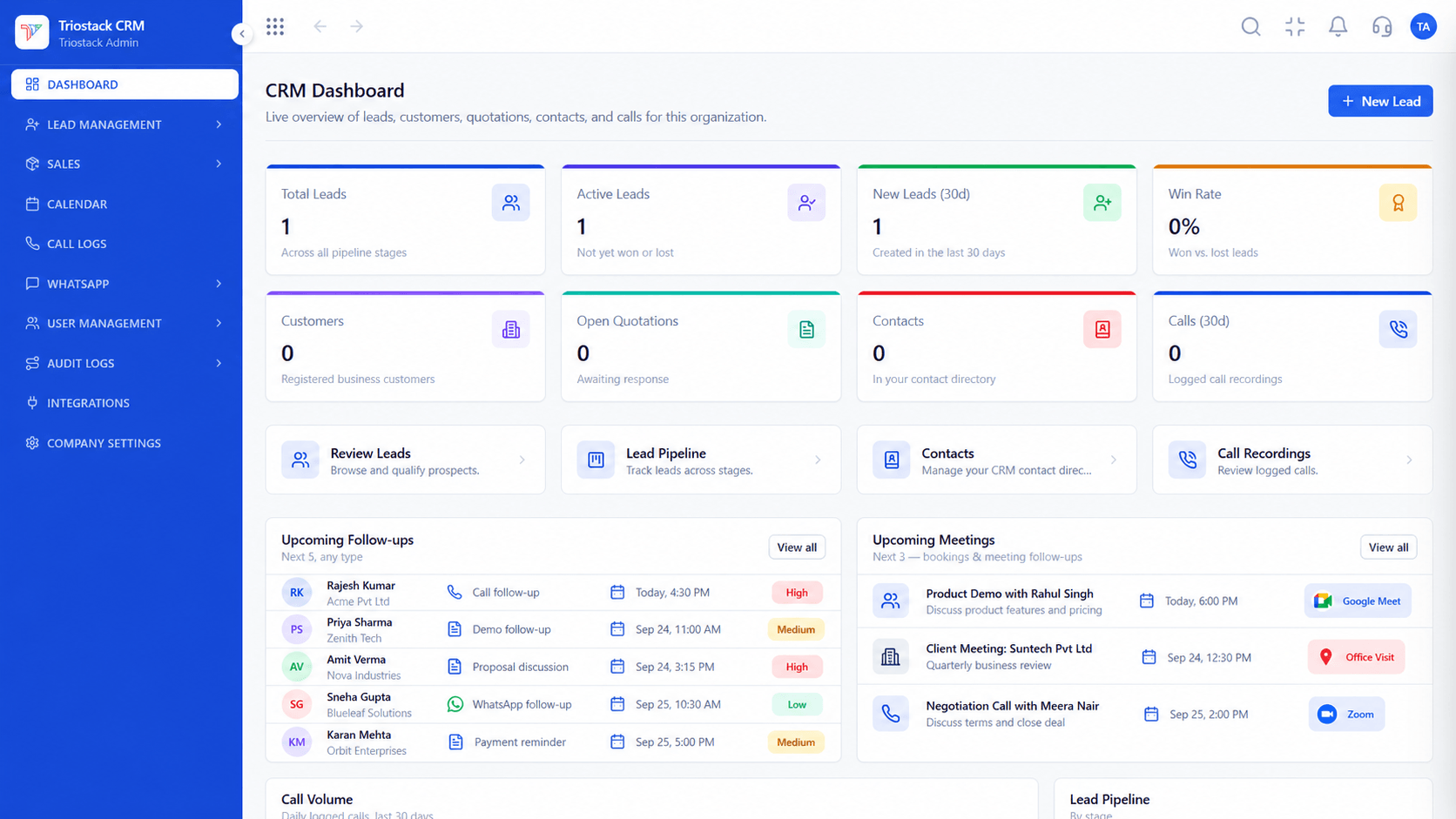
Real screens captured directly from the production Triostack CRM interface.
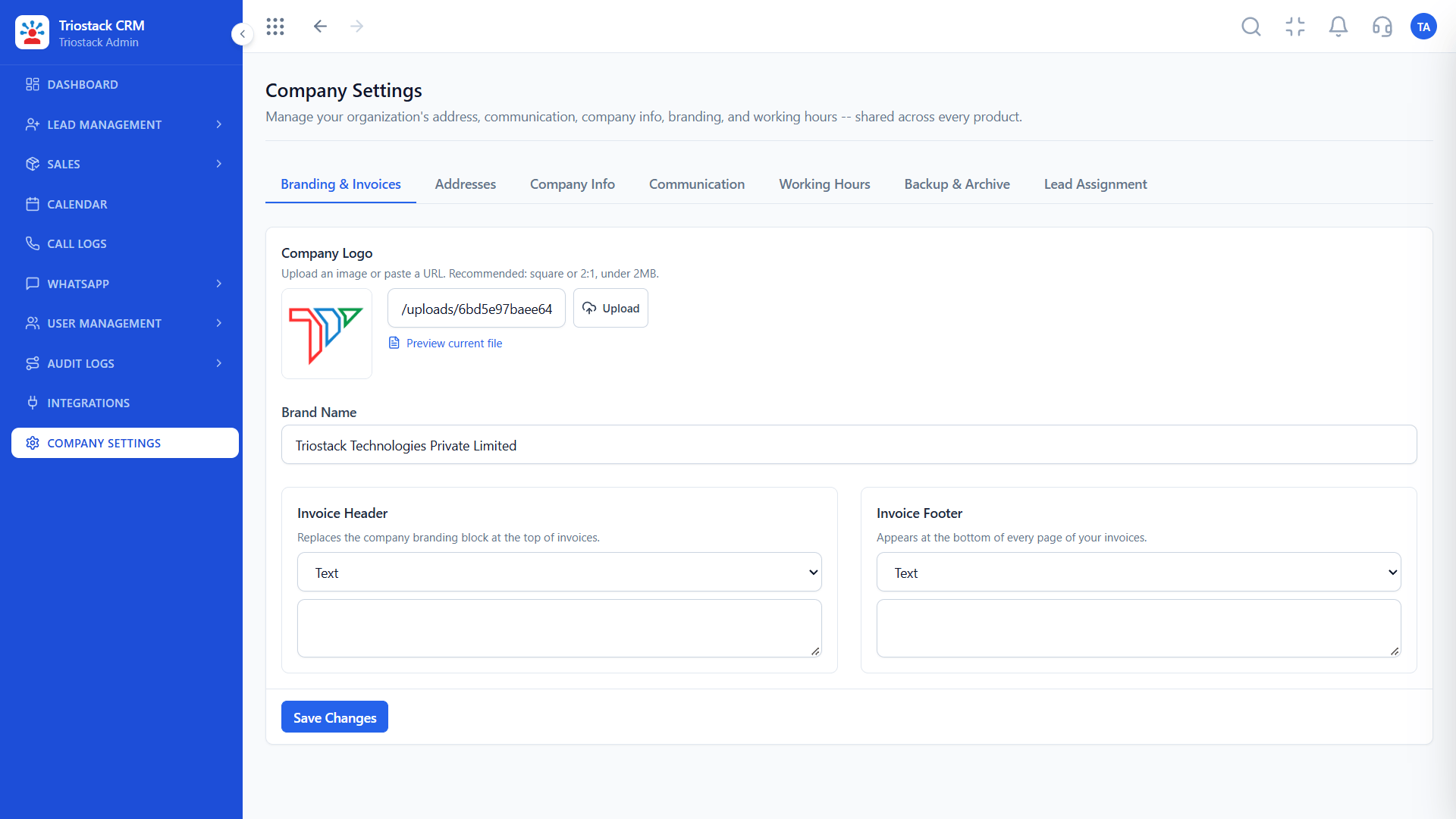
Company Settings
Availability is confirmed per account
Feature Breakdown
Captured directly from the production Triostack CRM interface.
Workspace controls.
On this screen: Company-wide settings in one place.
How it fits the plan
Map. List where your team connects from.
Decide. Choose which users need exceptions.
Practical tip
Keep a way in for administrators, so a wrong network rule cannot lock everyone out.
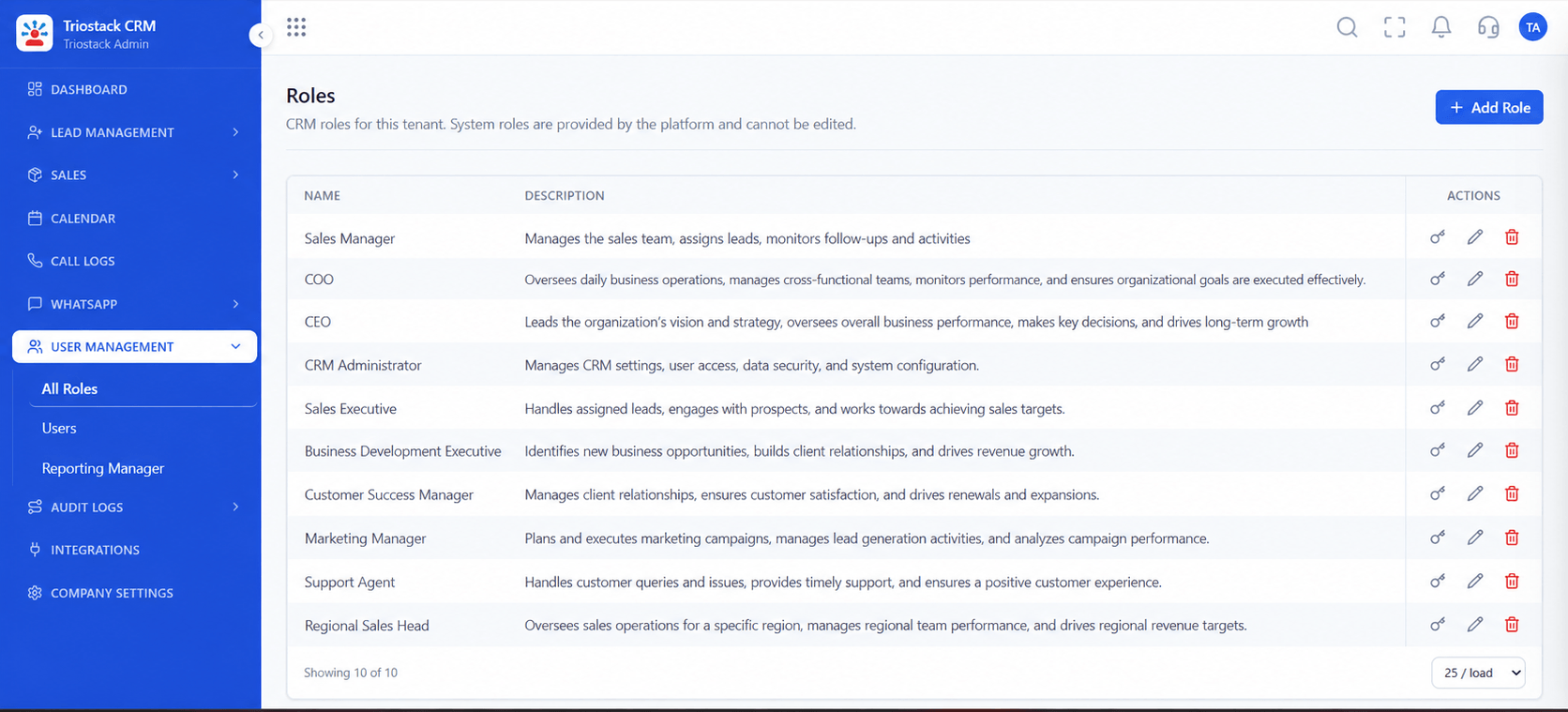
Control inside the CRM.
On this screen: Control what reps, managers and admins can see.
How it fits the plan
Decide. Choose which users need exceptions.
Ask. Confirm what controls apply to your account.
In real life
Security review
You bring the right questions.
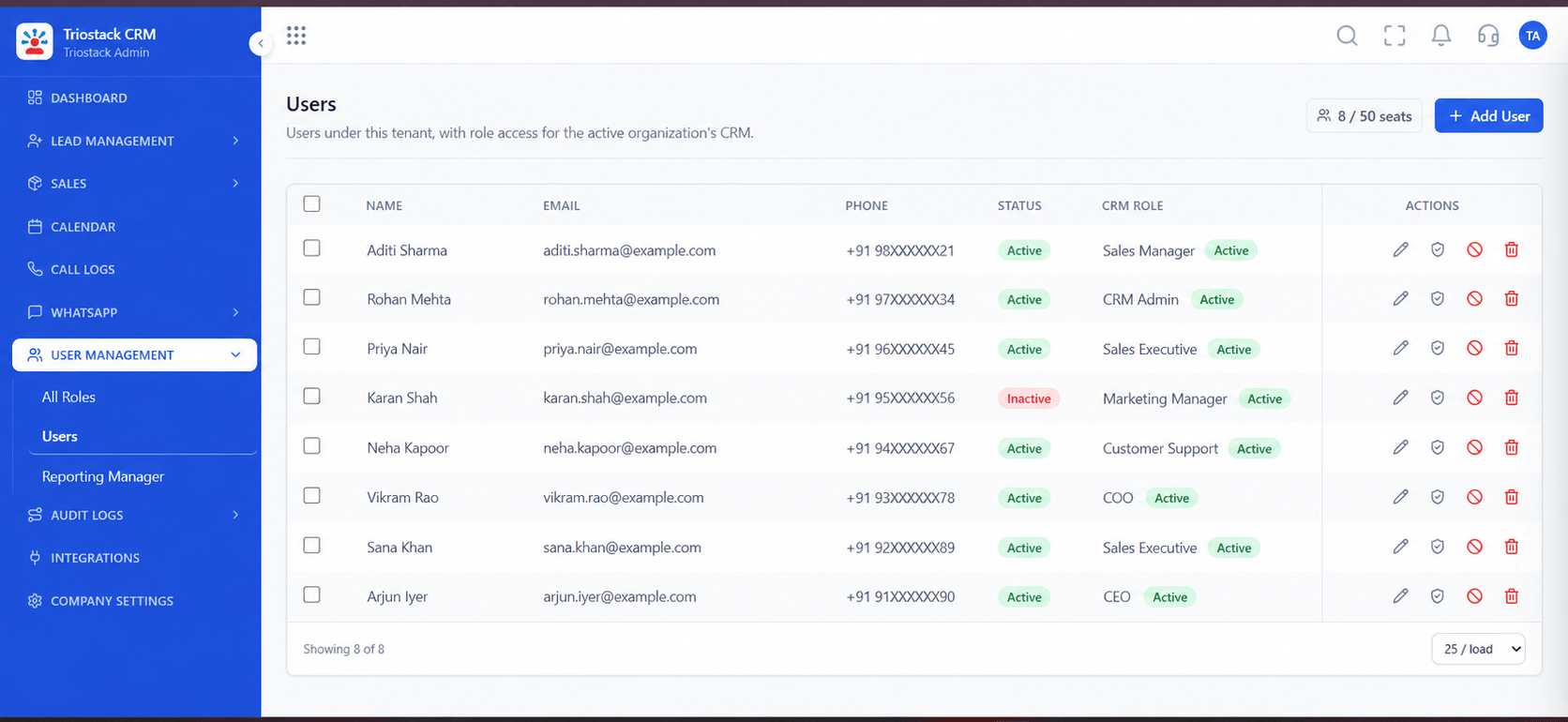
Who has access.
On this screen: Team members and their access.
How it fits the plan
Ask. Confirm what controls apply to your account.
Roll out. Pilot with one team before everyone.
Watch out for
Restricting access before listing remote and mobile users, who then cannot log in.
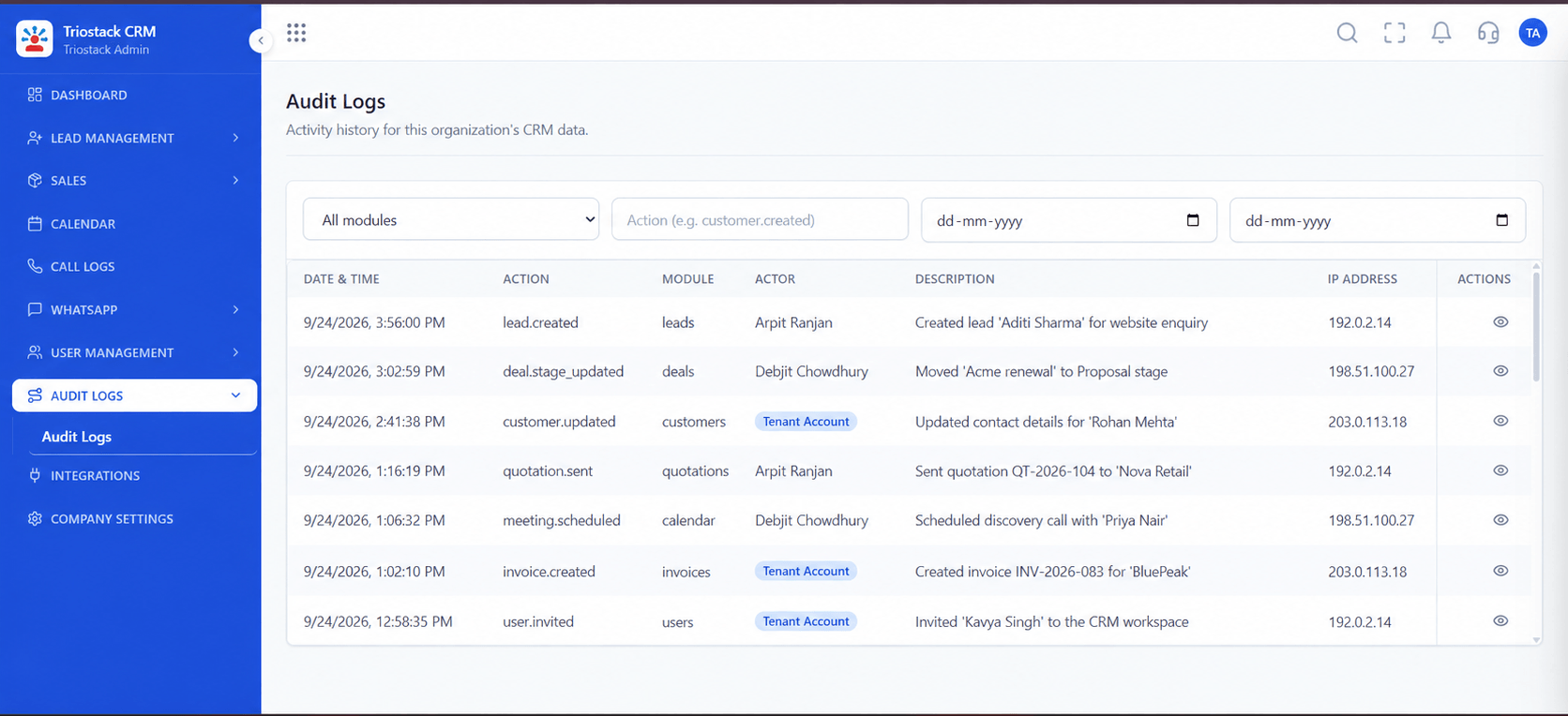
A trail of activity.
On this screen: A record of who did what in the workspace.
How it fits the plan
Roll out. Pilot with one team before everyone.
Map. List where your team connects from.
Before you start
Execution Plan
List where your team connects from.
Choose which users need exceptions.
Confirm what controls apply to your account.
Pilot with one team before everyone.
Practical Guide
Before you start
A tip that helps
Keep a way in for administrators, so a wrong network rule cannot lock everyone out.
A common mistake
Restricting access before listing remote and mobile users, who then cannot log in.
Availability: Availability can depend on your plan and setup. Please confirm with our team which capabilities are live for your account, and any prerequisites, before you plan around this page.
In Real Life
Scenario 01
You bring the right questions.
Scenario 02
You plan exceptions early.
Scenario 03
You keep a safe fallback.
Straight answers about Enterprise IP Whitelisting and VPN Access, from setup to what happens next.
Have a question about Enterprise IP Whitelisting and VPN Access?
Book a free callAsk our team what network controls apply to your account.
We do not state this here. Ask us, and we will tell you what is possible.
Through roles and permissions, with activity in the Audit Logs area.
Our team, through the contact page, with your security requirements.
What to plan when you want a CRM reachable only from trusted networks: IP allow-lists, VPN access, who is affected, and how to confirm what applies to your account.
It runs in 4 steps: Map, Decide, Ask and Roll out. List where your team connects from.
The real screens on this page include All Leads, Lead Pipeline, Lead Follow-Ups and Company Settings, all captured from the product.
Request a demo or start a free trial. Our team can also walk you through a guided setup, so your first session ends with something working.
Keep Exploring
Unify Meta leads, WhatsApp conversations, Android SIM calls, and GST invoices without per-seat price taxes.
Explore All Enterprise CRM