The best Business Suite software in India, built to help your business grow. Contact us at +91-8882435276.
[ Contact ]
Phone number
Email address
Head office
Noida office
The right team at TriostackOne will get back to you.
Built for
WhatsApp Template Approval Guide
Fewer rejections
Write templates the way reviewers read them
Positioning Assessment
WhatsApp requires an approved template for any message a business starts outside the customer's reply window. Meta reviews each one, and a rejected template means a delayed campaign.
Start with the category, because it decides how the template is reviewed and priced. A utility template supports a transaction the customer already started, such as an order update. A marketing template promotes or sells. An authentication template delivers a one-time passcode. Then write for the reviewer: say plainly what the message is for, keep variables few and give each a realistic example, avoid vague or misleading wording, and do not use a utility category for a promotion. Approval times are Meta's to set, so plan campaigns with slack. Wabiz keeps each template's status in one library.
“We stopped hiding offers inside order updates. Rejections dropped and the wording got clearer.”
Sample team scenario
A made-up scenario about WhatsApp Template Approval Guide, not a customer testimonial
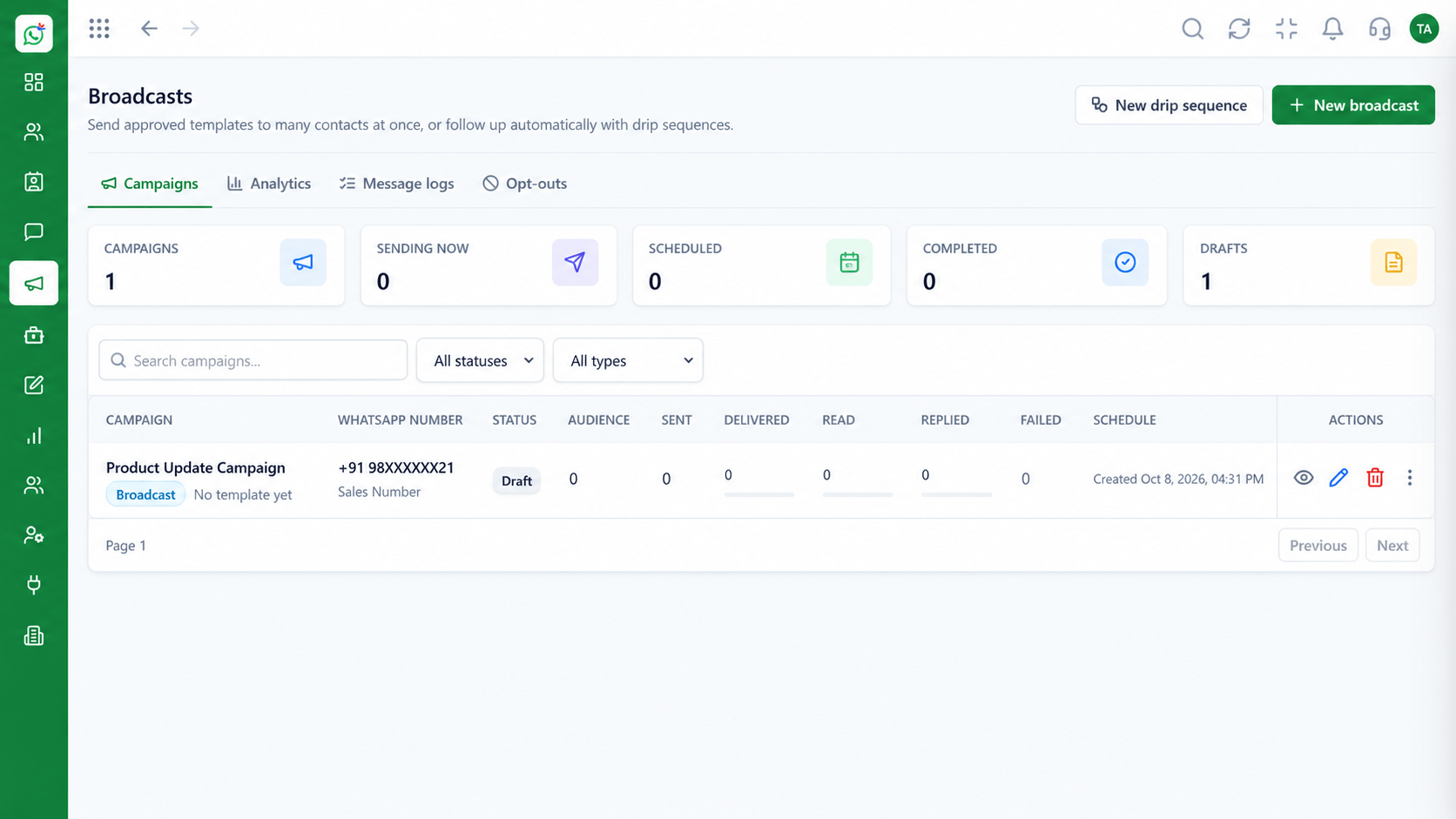
Broadcast Campaigns
WhatsApp Template Approval Guide: schedule and track template campaigns
In the Product
A template is judged on what it says it is. The clearer the purpose, the faster the review tends to go.
Reviewers check it against the content.
One purpose, one message.
Placeholders look like guesses.
Platform Integrity
Utility, marketing, authentication
Plain wording
For every variable
Pending, approved, rejected
How It Works
What reviewers look for.
Category
Matches the purpose
A Rushed Template: Utility used for a promotion
Wording
Specific and honest
A Rushed Template: Vague or pushy
Variables
Few, with real examples
A Rushed Template: Many, with placeholders
Formatting
Clean, no tricks
A Rushed Template: Misleading links or shortened URLs
Timing
Submitted early
A Rushed Template: Needed tomorrow
Book a walkthrough of WhatsApp Template Approval Guide. We set up a sandbox so you can try Submit, Categories and Rejection reasons before you commit.
Live Interface Tour
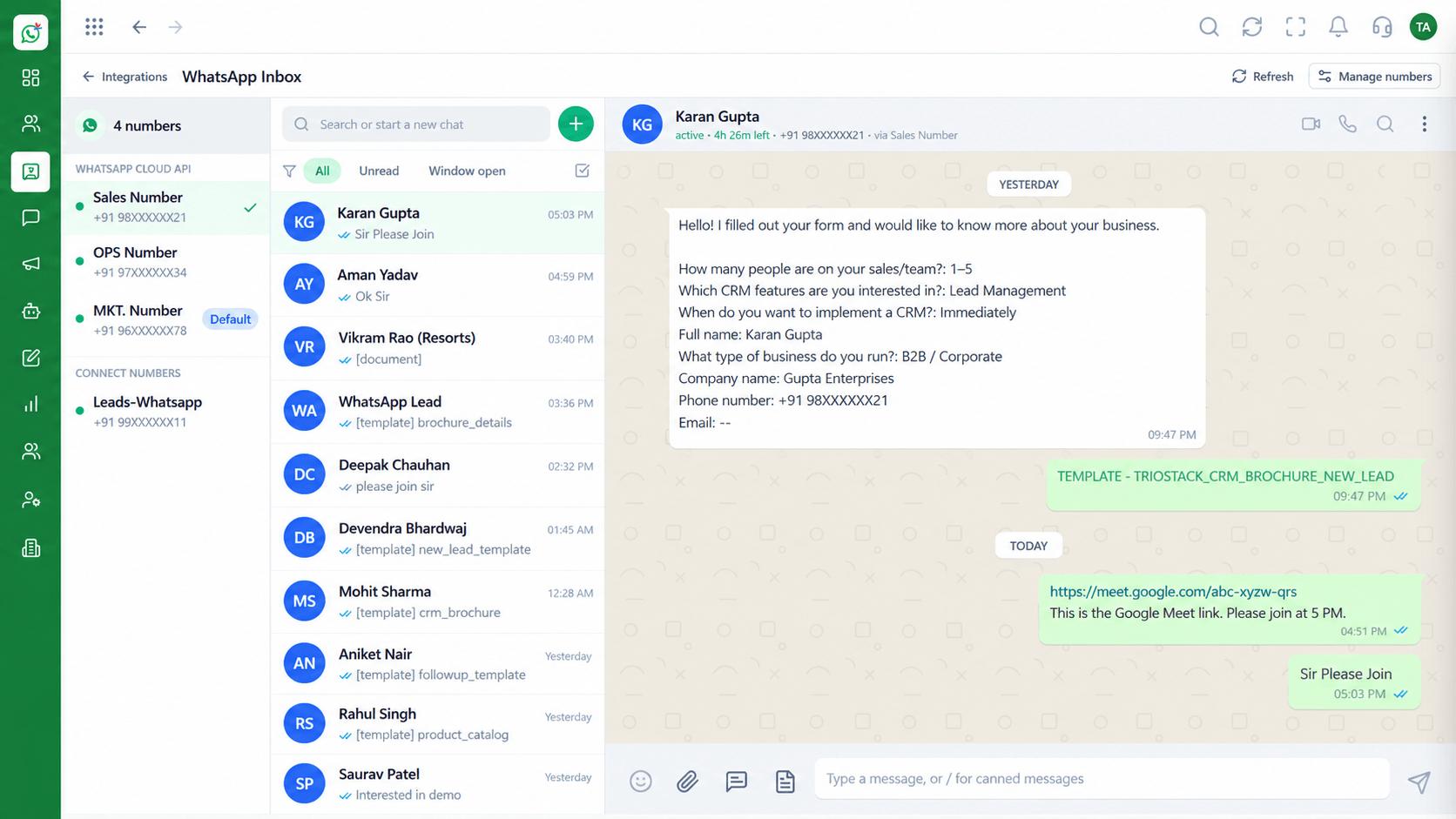
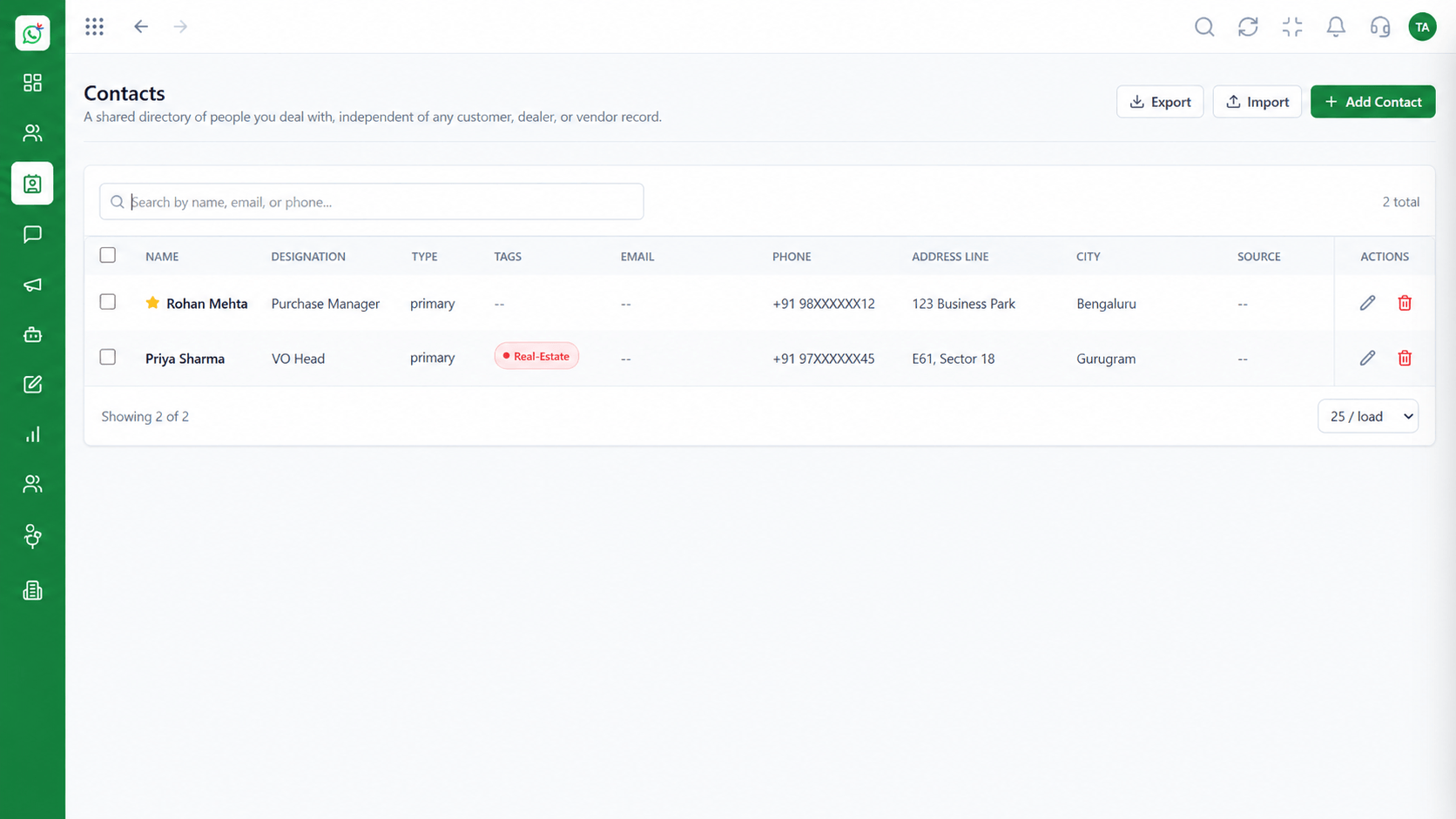
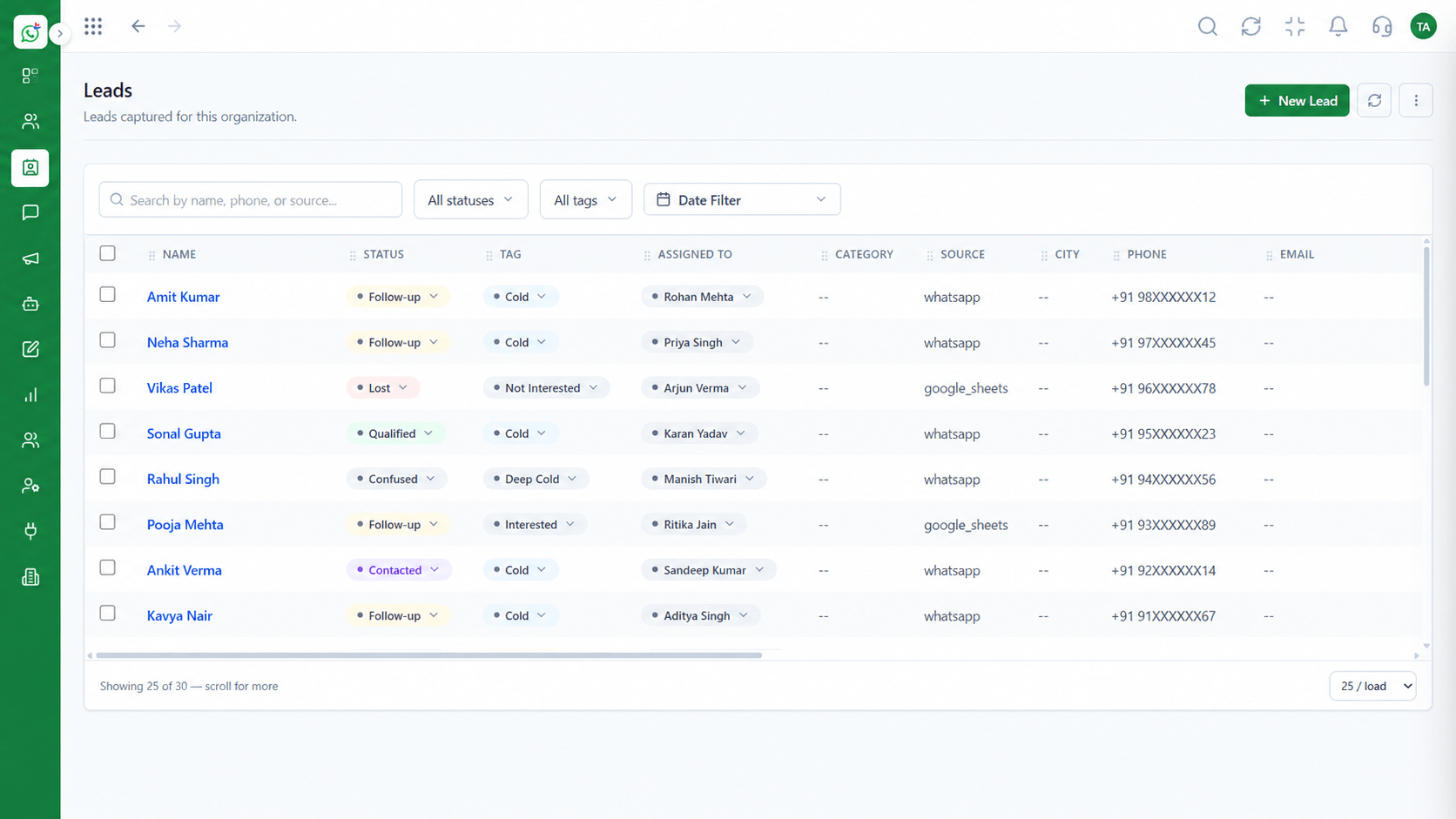
The screens below belong to WhatsApp Template Approval Guide: Broadcast Campaigns, Shared Team Inbox and Chatbot Flows, all from the product.
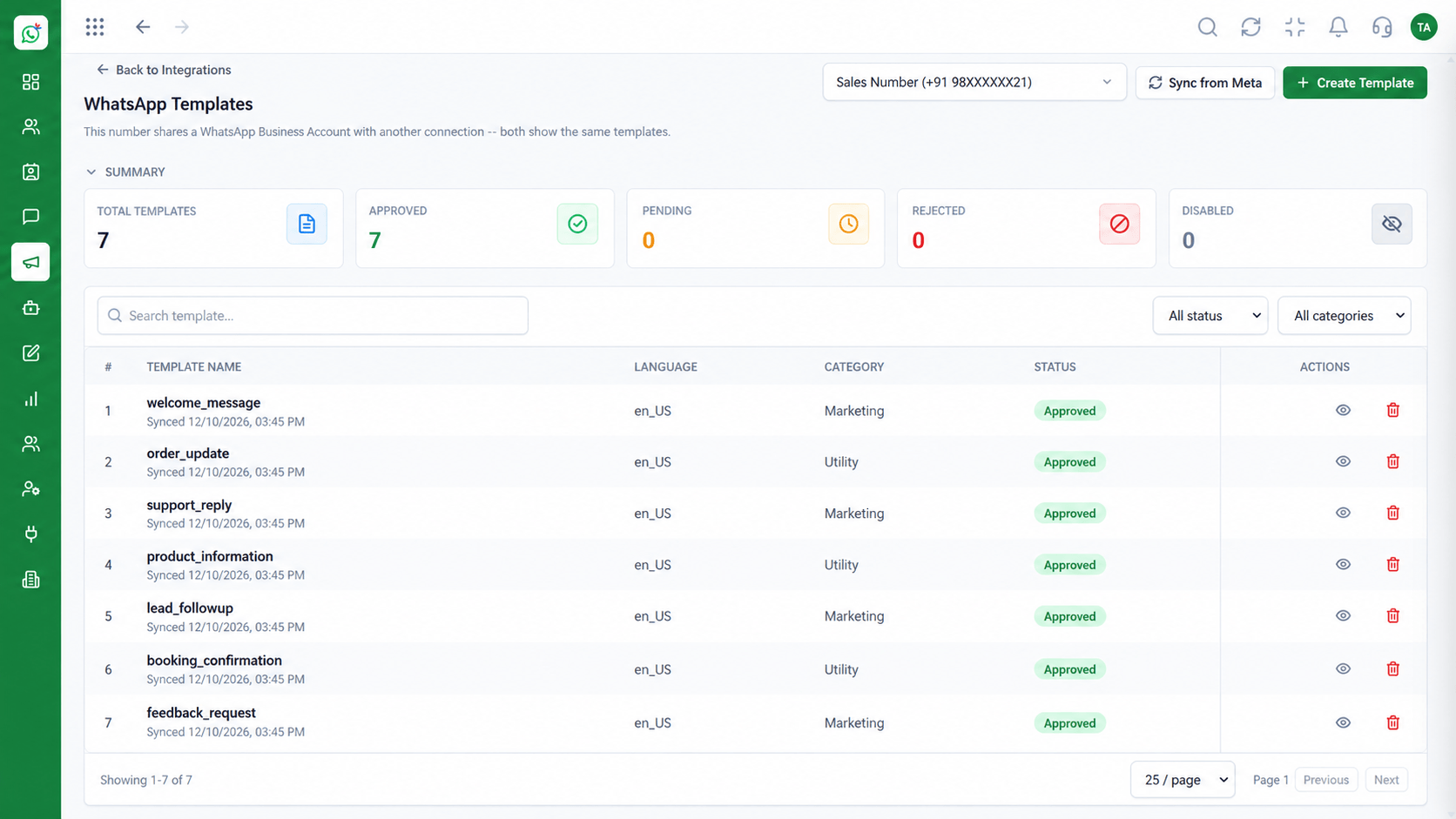
Message Templates
WhatsApp Template Approval Guide: write templates the way reviewers read them
Feature Breakdown
4 screens from the live product that show WhatsApp Template Approval Guide at work.
Every template.
How it fits the plan
Choose. Pick utility, marketing or authentication honestly.
Write. Plain wording with few variables and real examples.
Practical tip
Keep a short list of your approved templates and reuse them before writing new ones.
Where they are used.
In real life
First campaign
Templates are ready before launch.
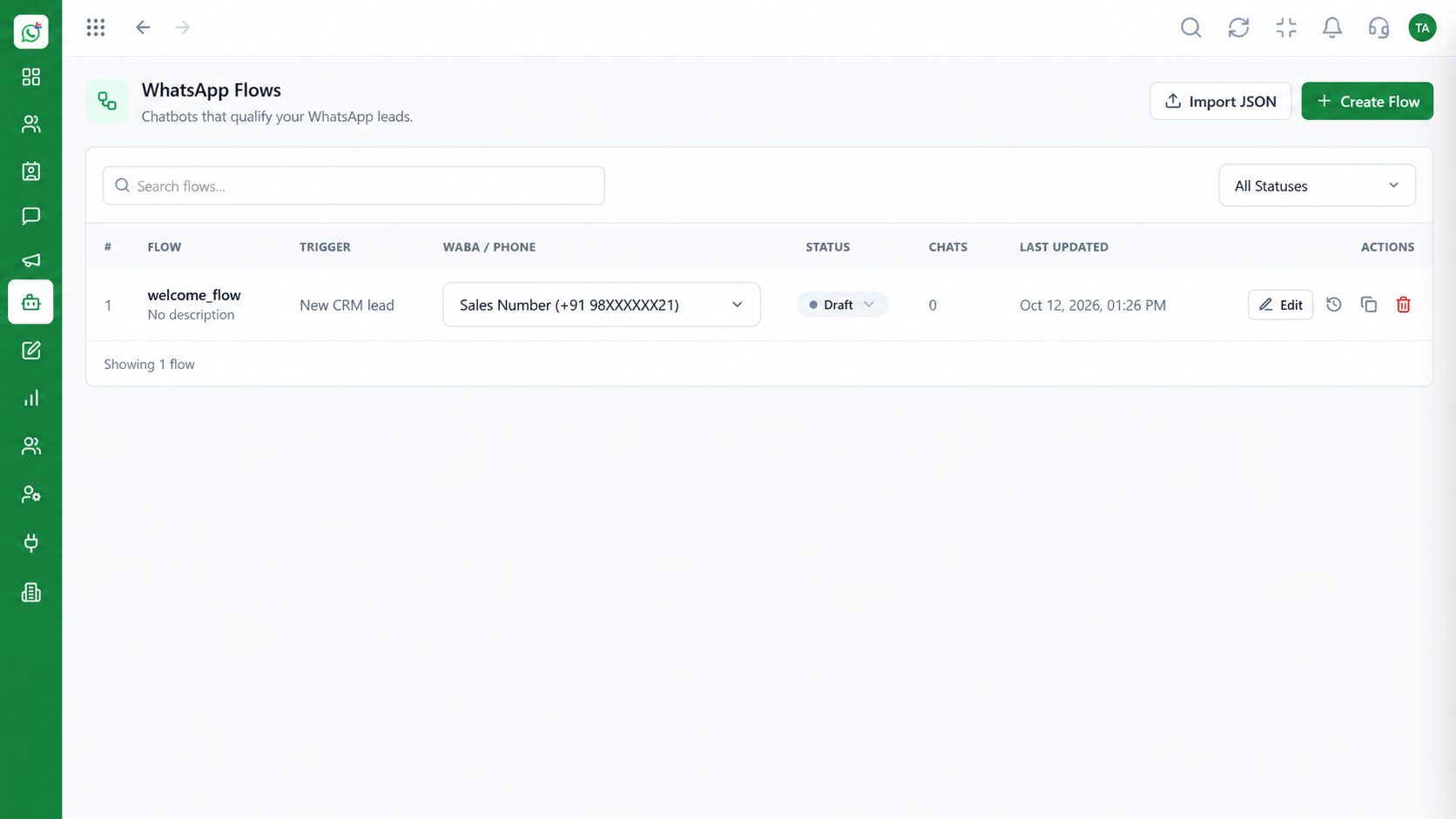
Templates in flows.
Watch out for
Putting a discount in a utility template to avoid the marketing category.
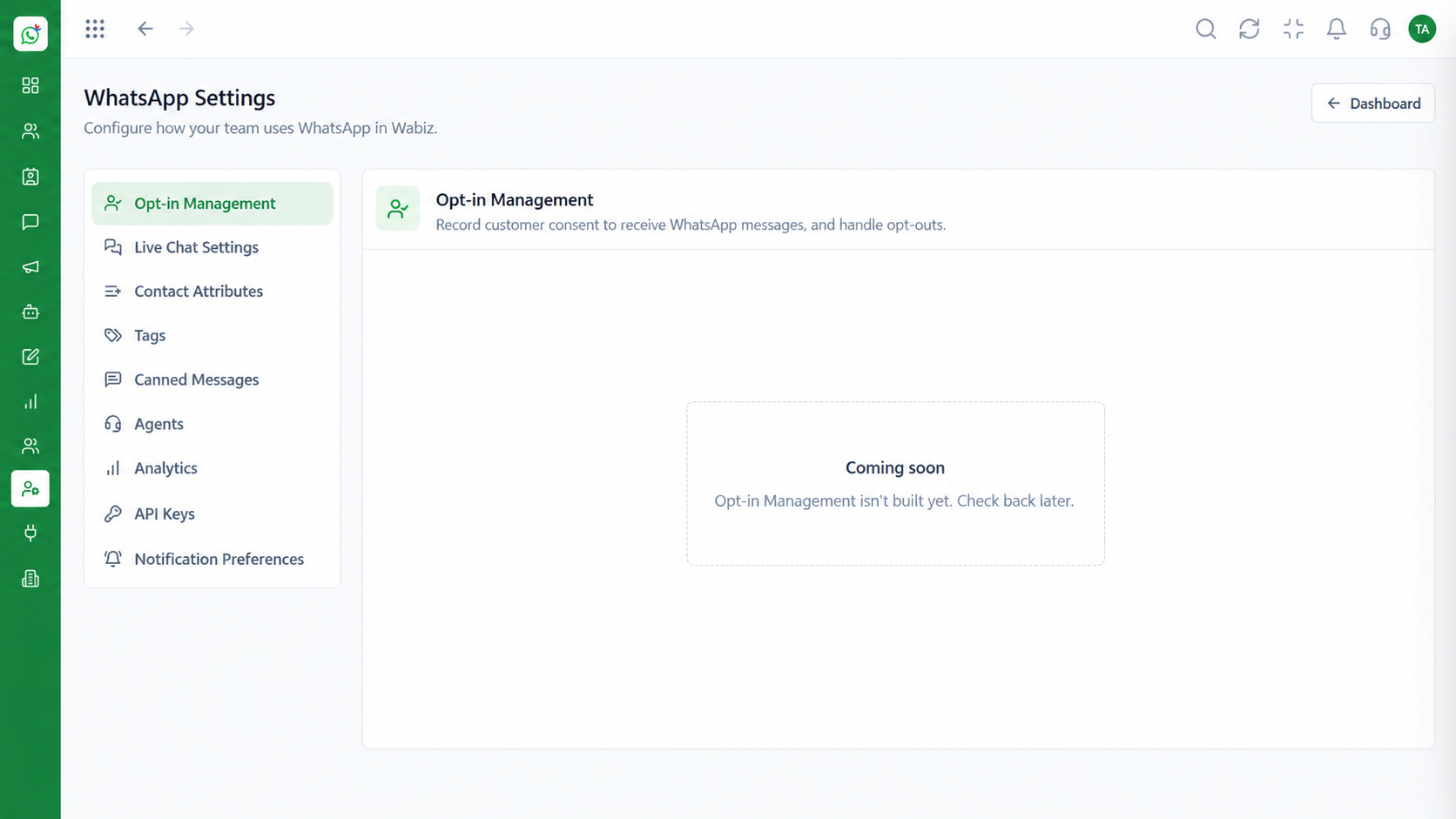
Numbers and profile.
Before you start
Execution Plan
Pick utility, marketing or authentication honestly.
Plain wording with few variables and real examples.
Send it for Meta review.
Read any rejection reason and revise.
Practical Guide
Before you start
A tip that helps
Keep a short list of your approved templates and reuse them before writing new ones.
A common mistake
Putting a discount in a utility template to avoid the marketing category.
In Real Life
Scenario 01
Templates are ready before launch.
Scenario 02
You know what to change.
Scenario 03
Marketing templates are approved early.
Straight answers about WhatsApp Template Approval Guide, from setup to what happens next.
Have a question about WhatsApp Template Approval Guide?
Book a free callCommon reasons are a wrong category, vague wording, missing variable examples or misleading content. The rejection note says which.
That is up to Meta. Submit early.
Changes usually need a resubmission for review.
Utility supports a transaction, marketing promotes, authentication sends passcodes.
No. Meta decides.
A guide to submitting and managing WhatsApp templates, choosing between utility, marketing and authentication, and avoiding the common reasons Meta rejects them.
It runs in 4 steps: Choose, Write, Submit and Learn. Pick utility, marketing or authentication honestly.
The real screens on this page include Broadcast Campaigns, Shared Team Inbox, Chatbot Flows and Template Library, all captured from the product.
Request a demo and ask to see WhatsApp Template Approval Guide. Our team can also walk you through setup, so your first session ends with something working.
We will walk you through WhatsApp Template Approval Guide, from Submit, Categories and Rejection reasons, on sample data shaped like yours.